Documentation
Welcome to the sysAgent.ai documentation. This guide will help you set up, configure, and maximize the value of the ultimate Multi-OS System Administrator Agent.
Our platform combines traditional infrastructure monitoring with generative AI to give you a single, intelligent control plane for your entire fleet:
- Unified multi-OS management: Native support for both Linux (Ubuntu, Debian, CentOS, RHEL) and Windows (Server 2016+, Windows 10/11) from one dashboard, with real-time telemetry collected via procfs and WMI.
- AI-driven operations: Execute tasks in plain English (auto-translated to Bash or PowerShell), open live browser-based terminals, and let Autonomous Operations plan and run multi-step jobs with full transparency and approval gates.
- Proactive monitoring & self-healing: Build no-code monitoring checks, forecast outages with Predictive Analytics (disk, CPU, memory, open files, ephemeral ports and conntrack), and resolve recurring incidents automatically with Auto-Remediation rules, on-call schedules, and maintenance windows.
- Security & compliance: Run hardening scans (OpenSCAP), CVE vulnerability detection, SSL certificate discovery with expiry alerts and replacement, File Integrity Monitoring, and generate audit-ready compliance reports (SOC 2, ISO 27001, HIPAA, DORA, NIS 2).
- Automation & insight: Generate OS-tailored Ansible playbooks, provision cloud infrastructure with AI-generated Terraform (AWS, GCP, Azure, VMware), optimize configuration files with AI, visualize dependencies on the AI Map, and auto-produce living infrastructure documentation.
- Enterprise-ready governance: Granular Role-Based Access Control, 2FA, Single Sign-On (SAML & OIDC), a full audit trail, and flexible notification channels keep operations secure and accountable.
Getting Started
1. Registration
First, create an account on our cloud platform. You will be assigned a unique Organization ID.
During login, you can optionally enable Two-Factor Authentication (2FA) for enhanced account security. We also offer granular Role-Based Access Control (RBAC), allowing you to define precise permissions for every system function and user.
2. Adding hosts
Once registered, open the Add Hosts view from the Add host button on the Agent Operations page. It is the single place to onboard a machine and offers two methods:
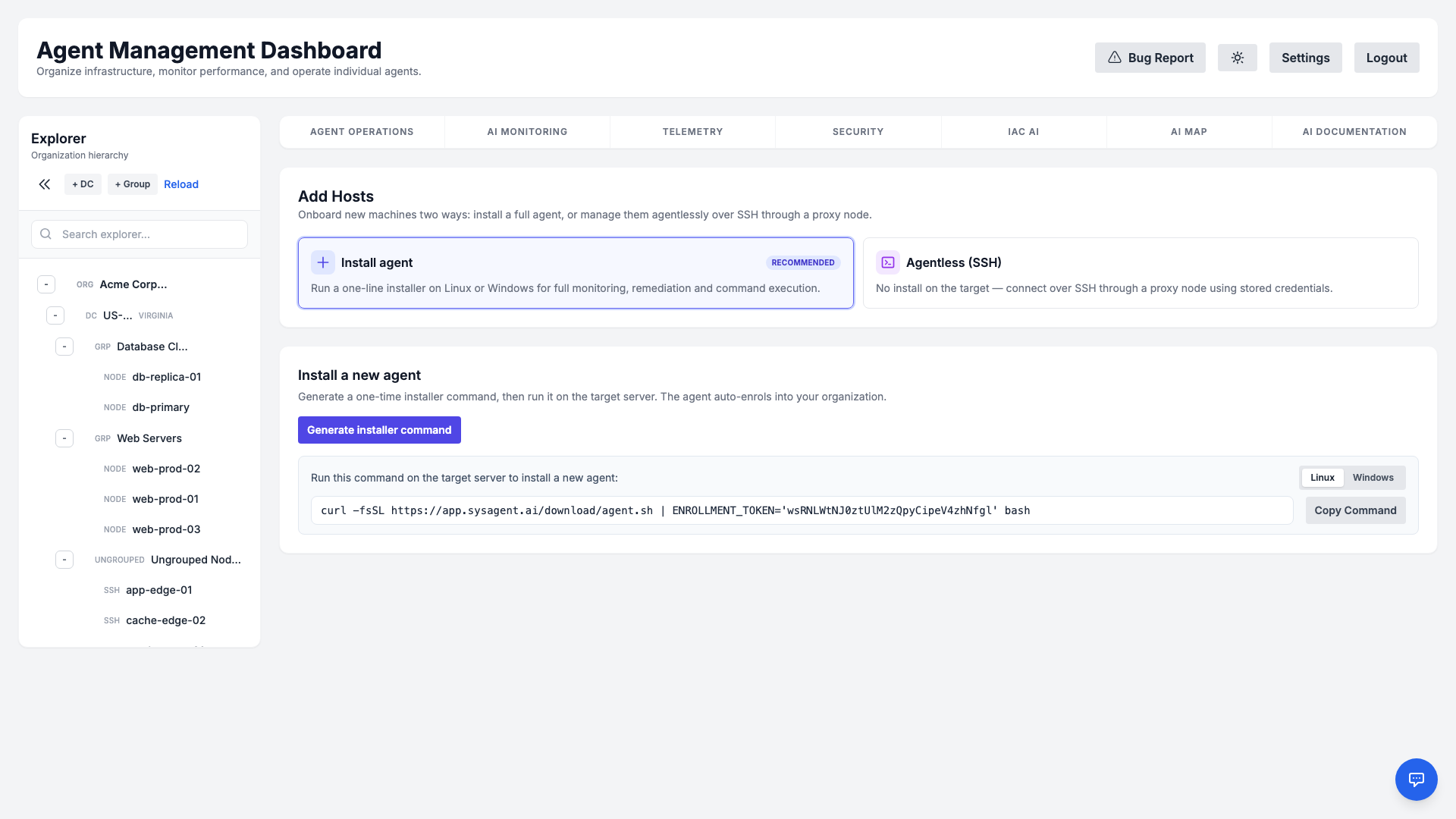
- Install agent (recommended) — generate a one-line installer command and run it on the target server for full monitoring, remediation, and command execution. The dashboard provides quick-copy commands for both Linux (Bash) and Windows (PowerShell), and the agent auto-enrols into your organization.
- Agentless (SSH) — manage a Linux server over SSH through a proxy node, with no software installed on the target (see Agentless SSH Hosts).
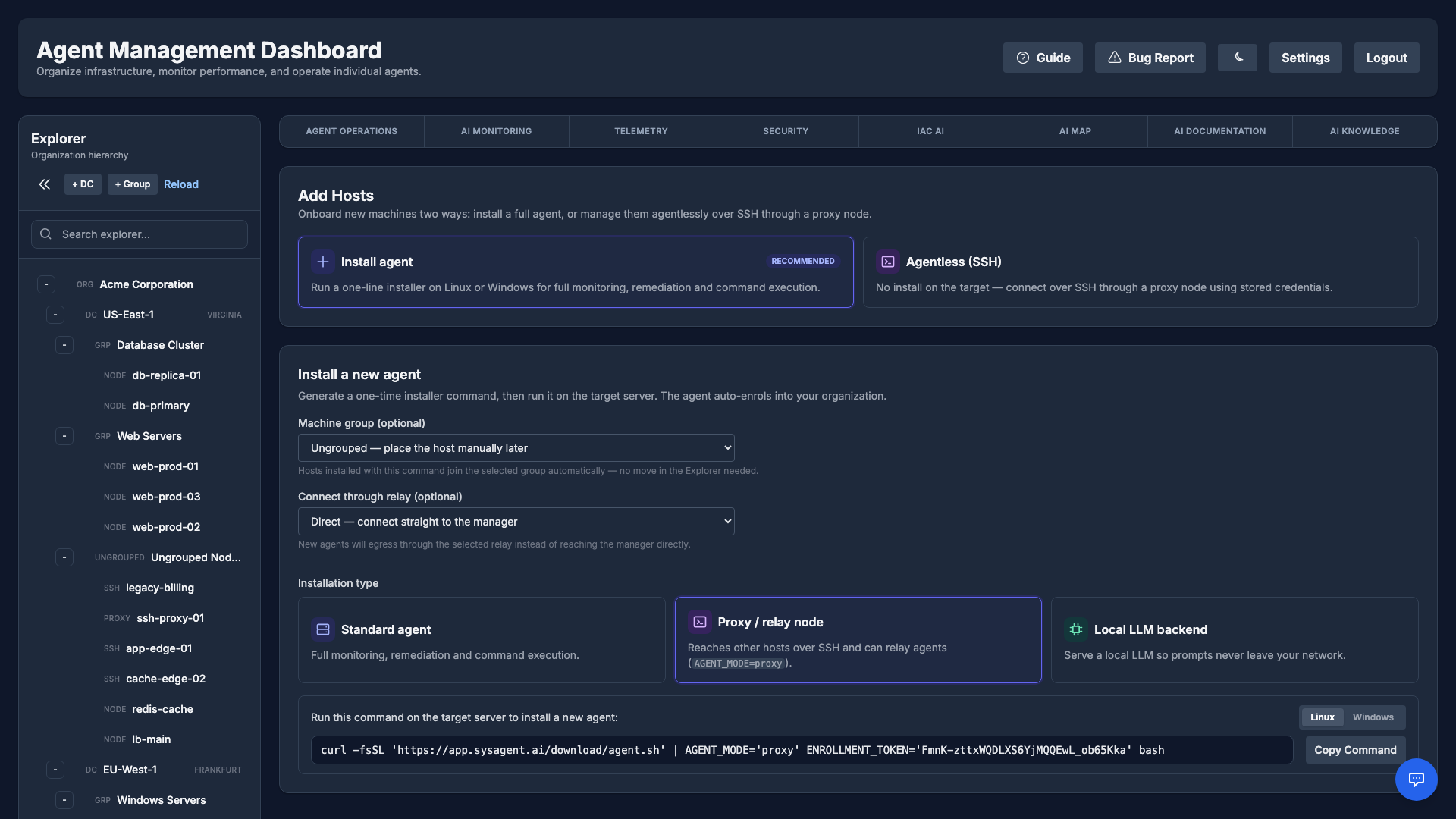
The Install agent method offers three installation types: Standard agent (full monitoring, remediation and command execution), Proxy / relay node (reaches other hosts over SSH and can relay agents, see Relay & Proxy Nodes) and Local LLM backend (an agent that serves your own OpenAI-compatible model so prompts never leave your network, see Local LLM Backend).
Install straight into a machine group
A host that enrols without a group lands under Ungrouped and has to be moved in the Explorer afterwards — an easy step to forget, and until it is done the host misses everything that is scoped to a group (feature opt-outs, configuration-drift baselines, group-targeted monitoring checks).
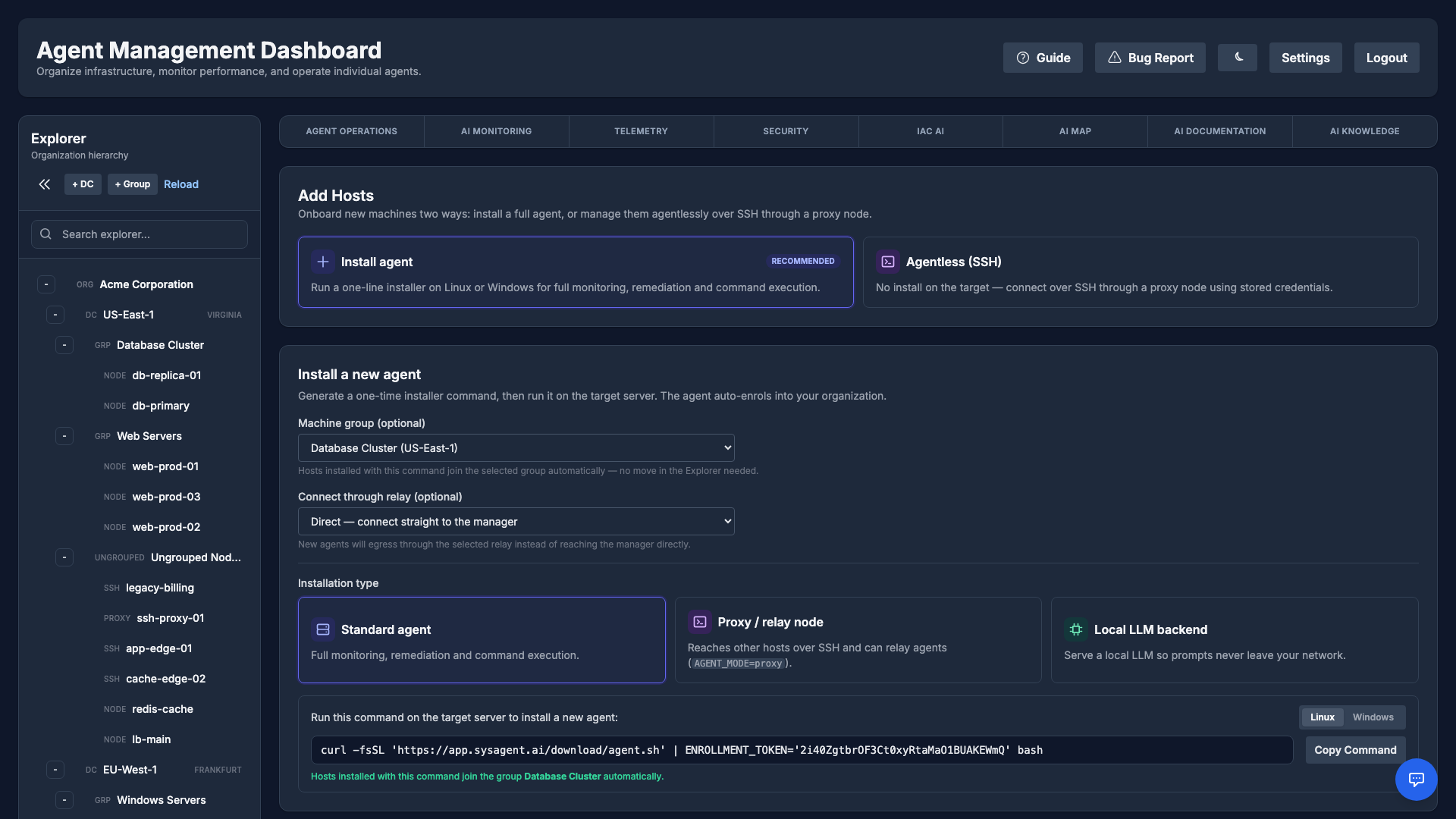
Pick the target under Machine group (optional) before you copy the command and every host installed with it joins that group on its first registration. The quickest route is from the Explorer itself: hover a group and click the ⤓ action — it opens Add Hosts with that group already selected. The generated command states in words which group it will join, and because a host can only belong to a group inside its own datacenter, choosing a group also fixes the datacenter for you.
Re-installing or re-registering an existing host never moves it — changing a host's group stays an explicit action in the Explorer.
Re-running the installer on a host keeps its identity: it re-registers as the same agent, with its history, checks and alarms, instead of appearing as a second host. To enroll it as a new agent — when moving it to another organization, or when installing on machines cloned from an image that already had the agent — run the installer with AGENT_NEW_IDENTITY=1.
For Linux (Ubuntu, Debian, CentOS, RHEL)
curl -sSL https://app.sysagent.ai/download/agent.sh | sudo bash -sFor Windows (Server 2016+, Windows 10/11)
Invoke-WebRequest -Uri "https://app.sysagent.ai/download/agent.ps1" -OutFile "$env:TEMP\agent.ps1"; & "$env:TEMP\agent.ps1"Agentless SSH Hosts
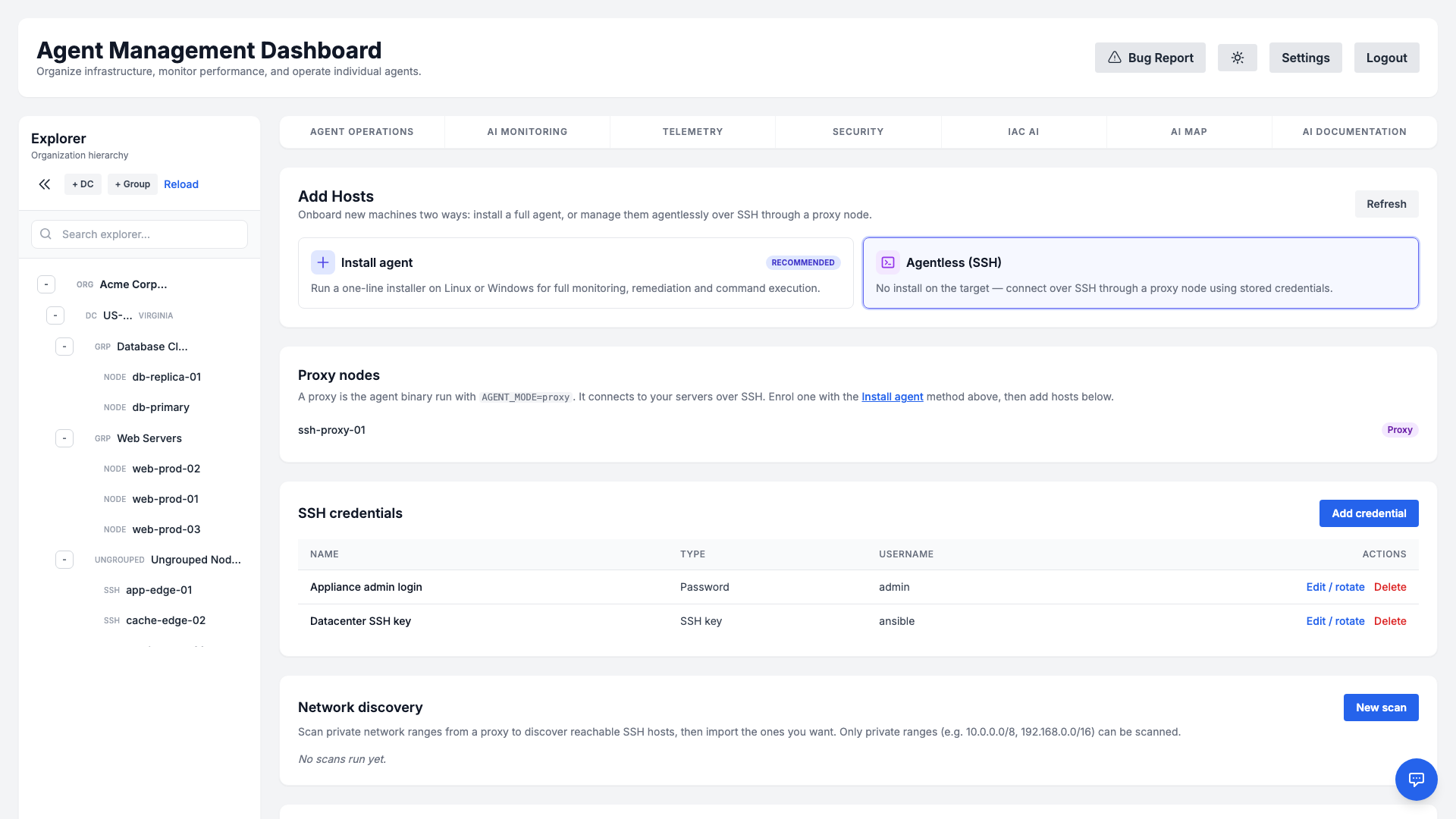
Not every server can run a local agent — appliances, locked-down hosts, or machines you simply prefer to manage over SSH. Agentless mode is the second onboarding method in the Add Hosts view (open it from the Add host button on the Agent Operations page, then choose Agentless (SSH)). It lets you manage those Linux servers through a single proxy node that reaches them over SSH (key or password). Once a host is connected, the platform's existing capabilities — command execution, telemetry & predictive analytics, monitoring checks, File Integrity Monitoring, CVE scanning, SSL discovery, OpenSCAP, Ansible playbooks, and the live interactive terminal — all work over SSH, with no sysAgent software installed on the target. Capabilities that rely on a tool being present on the host (OpenSCAP and Ansible, for example) still need that package there, exactly as they would on a normally-enrolled server.
How it works
A proxy is the ordinary agent binary started in proxy mode inside your network. It keeps a single outbound, encrypted connection to the manager and connects onward to your servers over SSH. Each agentless host is recorded in inventory and routed through its proxy; the manager decrypts the host's SSH credential only at dispatch time and delivers it to the proxy over the already-encrypted manager↔proxy channel — it is never written to disk in plaintext and never returned to the browser.
Commands run on the target host through the proxy, exactly like an installed-agent host — so features that need extra tooling on the host (for example OpenSCAP or Ansible) require that package on the host, just as they would for a normally-enrolled server.
1. Deploy a proxy
Install the agent on a small Linux VM or container inside the network that can reach your servers, and start it in proxy mode:
AGENT_MODE=proxy /opt/sysagent/agentThe node registers itself and appears under Proxy nodes in the Add Hosts → Agentless (SSH) view.
2. Add an SSH credential
In Add Hosts → Agentless (SSH) → SSH credentials → Add credential, store either an SSH private key (with an optional passphrase) or a password, plus the login username. Secrets are encrypted at rest and are write-only — the credential list only ever shows the name, type, and username, never the secret. A credential belongs to one organization and can only be attached to hosts in that same organization. You can later rotate a credential's secret in place from the same screen; every host using it keeps working with the new secret, with no re-assignment.
3. Add hosts
You can register hosts two ways:
- Manually — in Add Hosts → Agentless (SSH) → Agentless hosts → Add SSH host, pick the proxy and credential and enter the host address, port, and username.
- By network discovery — in the Network discovery section, choose a proxy and enter one or more private network ranges (CIDR) and ports. The proxy performs a bounded, read-only TCP scan and returns the reachable SSH hosts; select the ones you want and import them in bulk with a chosen credential. Only private (RFC‑1918 / CGNAT / ULA) ranges can be scanned — public and infrastructure ranges are refused — and the scan is size-bounded so it can never become a network-stress tool.
Security
Agentless management is built defence-first:
- Encrypted credential vault. Keys and passwords are stored encrypted, never logged, and masked in every API response; reads are organization-scoped.
- Host-key pinning (anti-MITM). On first contact the proxy records and pins the host's SSH key fingerprint (trust-on-first-use) and refuses to connect if it later changes. If a host is legitimately reinstalled or rekeyed, an administrator explicitly resets the pinned key (an audited action) so the next connection re-pins the new one — a silently changed key keeps failing until a human intervenes.
- SSRF-safe targeting. Connection and scan targets are validated against a deny-list (loopback, link-local, cloud-metadata, multicast, and similar ranges are refused) before any credential is sent.
- Strict multi-tenant isolation. A host, its proxy, and its credential always share the same organization; a proxy can never be routed to another tenant's host, and every action (add, scan, import, rotate, reset) is recorded in the audit log.
- Least privilege. Managing proxies, credentials, hosts, and scans requires a privileged administrator session.
Relay & Proxy Nodes
Large or locked-down networks often can't give every server outbound access to the cloud. A relay node solves this: it is the ordinary agent binary started in proxy mode (AGENT_MODE=proxy) that keeps a single outbound connection to the manager and lets the rest of your fleet reach the cloud through it — so only the relay needs egress. The same node also fans out to agentless SSH hosts, making it dual-role.
Install a relay
In Add Hosts → Install agent, choose the Proxy / relay node installation type and run the generated command on a small Linux VM inside your network. The node registers itself and appears under Proxy nodes in the Agentless (SSH) view.
Advertise the relay & enrol through it
Give the relay an advertised URL (the internal address other agents use to reach it) under Agentless (SSH) → Proxy nodes. New agents can then pick it from the Connect through relay selector when you generate their installer command — the command points the new agent at the relay instead of the manager, so it needs no direct internet. Each agent's detail header shows a via relay badge so you can see which relay it egresses through.
Transport modes
- Transparent (L7) proxy (default) — forwards HTTP and WebSocket traffic to the cloud with full observability (per-agent relay attribution and access logging). Producing that visibility means the relay terminates TLS and sees the forwarded traffic, so treat the relay host as trusted infrastructure. What stays end-to-end is authentication: each agent proves itself to the manager with its own session token, so the relay cannot impersonate an agent or the manager. It also holds no command logic, and where command signing is set to enforce, it cannot forge a command either. Set
RELAY_TLS_CERTandRELAY_TLS_KEYto encrypt the agent→relay leg; without them that leg is plain HTTP inside your network. - TLS passthrough (L4) — set
RELAY_MODE=passthroughfor a pure TCP passthrough where the relay sees only ciphertext. This is the strongest anti-cloning posture (no plaintext and no crypto material on customer territory), at the cost of per-agent visibility.
High availability
Give agents a comma-separated list of fallback entry points with MANAGER_API_FALLBACK_URLS. If the active relay or manager becomes unreachable, an agent automatically rotates to the next configured URL instead of being stranded — a fallback that would downgrade an https connection to plaintext is dropped, so failover never leaks the session token.
Dashboard Overview
With no host selected, Agent Operations opens on the Registered agents table: every Linux, Windows, proxy and agentless host with its operating system, agent version, registration time, last check-in and status. The header chips show the Latest Agent Version published by the manager and how many agents are outdated, and the Cloud inventory and Add host buttons sit next to the list. CPU, memory, disk and network charts are on the Telemetry tab.
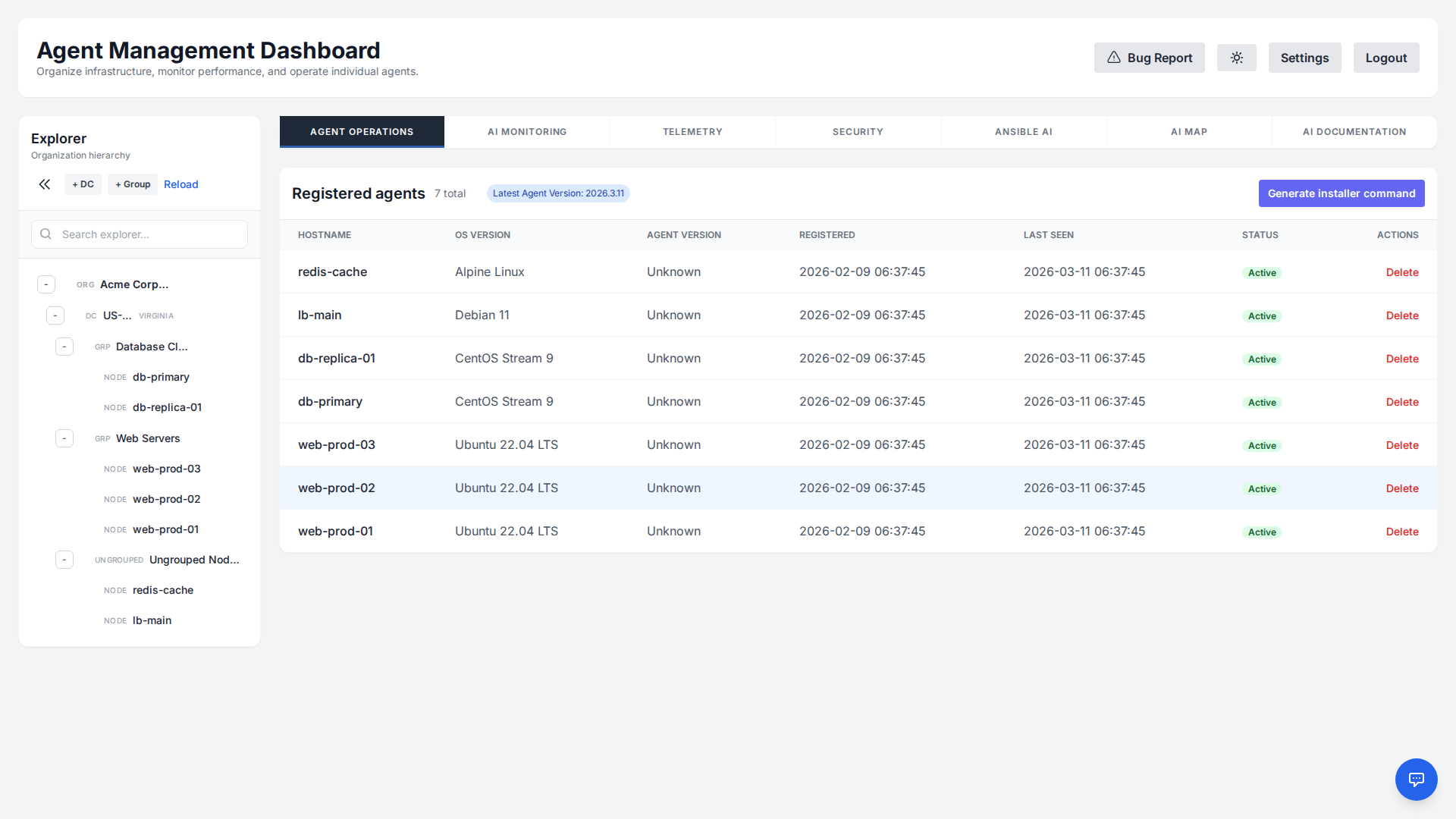
The Explorer panel on the left allows you to organize your fleet. You can create Datacenters and Machine Groups to structure your servers logically. To interact with or view details for any specific server or group, simply click on it in the Explorer tree.
Finding your way around
The row of tabs above the work area is the main menu. Each tab opens one area; many have their own sub-tabs.
- Agent Operations: the host you picked in the Explorer — Autonomous Operations, AI Commands, AI Configurations, Manual Commands and (for Docker/Kubernetes hosts) Containers. With nothing selected it lists Registered agents, with the Add host and Cloud inventory buttons next to it.
- Cloud inventory: the button next to Add host lists every instance in your connected AWS, Azure and Google Cloud accounts and shows which ones have no agent, so the machine nobody installed anything on is visible. See Cloud Inventory.
- AI Monitoring: Alarms & Checks, AI Advisor, Incidents, On-Call, Maintenance and Remediation.
- Telemetry: live and historical charts for the selected hosts, plus the Rightsizing advisor.
- Security: three groups of sub-tabs — Vulnerabilities (CVE Report, Image Vulnerabilities, End-of-Life, Patching), Configuration & Compliance (Hardening & Compliance, Drift, Access Review, SSL Management) and Threat Detection (Threat Alerts, File Integrity). See Security Scanning.
- IaC AI (Ansible and Terraform), AI Map, AI Documentation and AI Knowledge.
- Settings (top right): notifications, permissions, administrator accounts, API access, chat actions, status page, plan and AI backend, command signing, reports, SSO, token usage and the audit log. Administrators decide which of these tabs an operator sees.
Selecting hosts
Most screens follow the Explorer: click a host to work on it, or tick several hosts, a machine group or a datacenter to run a scan, a comparison or a report across all of them at once. The tab you are on tells you what the current selection covers. Search explorer filters the tree by name, and the datacenter and group buttons at the top create new ones.
Ask the AI from anywhere
The round chat button at the bottom right opens the global AI chat. Ask in plain English about your own estate — "which hosts have critical CVEs?", "how busy was db-primary last night?" — and it answers from your data, only for the organizations you may see, with a chart when one helps. Ask it to do something (for example restart a service on a host) and it proposes the command and waits for your confirmation before anything runs.
- Quick insights: one-click presets above the input — Fleet health, Security posture, Last 24 hours and, under More…, Capacity, Compliance and Patch status. They are computed directly from your data without a model call, so they are instant and cost no tokens.
- Config files: open a file in AI Configurations and the chat reviews it in context.
Header buttons
- Guide: replays the guided walkthrough that starts on your first login.
- Bug Report: sends a report with screenshots to support (see Bug Reporting).
- Sun/moon icon: switches between the light and dark theme; the choice is remembered in your browser.
Host Tags
Datacenters and machine groups describe where a host lives: it belongs to exactly one datacenter, and normally to a single machine group. Tags describe what a host is — role:database, pci, staging — and a host can carry as many as you need. That flat second dimension is what lets you address “every PCI database host” without reshaping the hierarchy.
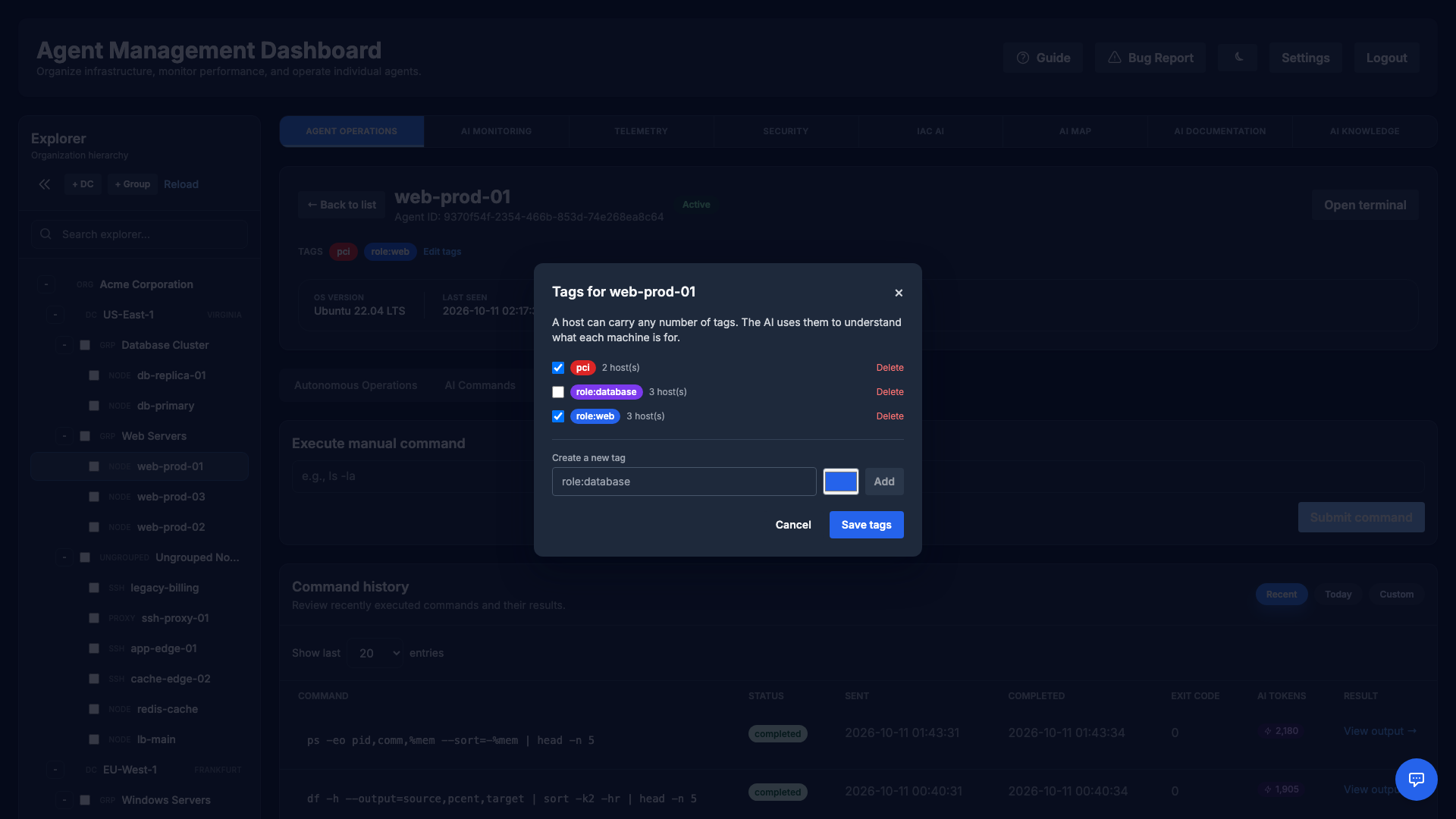
Tagging a host
Open a server from the Explorer and use Edit tags under its header. The dialog lists every tag in your organization with the number of hosts carrying it; tick the ones that apply, or type a name and pick a colour to create a new one on the spot. Saving replaces the host's tag set, so unticking a tag removes it.
Tags are scoped to your organization and unique by name within it. A name must start with a letter or a digit, and may then also contain spaces and . _ - : / — the colon is what makes the key:value style read well.
What tags are used for
- AI orientation: tags are part of the inventory the AI knowledge engine collects, so once a knowledge file has been generated the assistant knows a host is a database or is in PCI scope without being told each time.
- Knowledge scope: an AI knowledge file can be scoped to a set of tags rather than to a datacenter or group.
Autonomous Operations
Autonomous Operations let the AI plan and execute multi-step tasks on a server with full transparency and human oversight. Describe a goal in plain English — for example, "Analyze disk usage and clean up old logs" — and the agent breaks it into discrete, ordered steps.
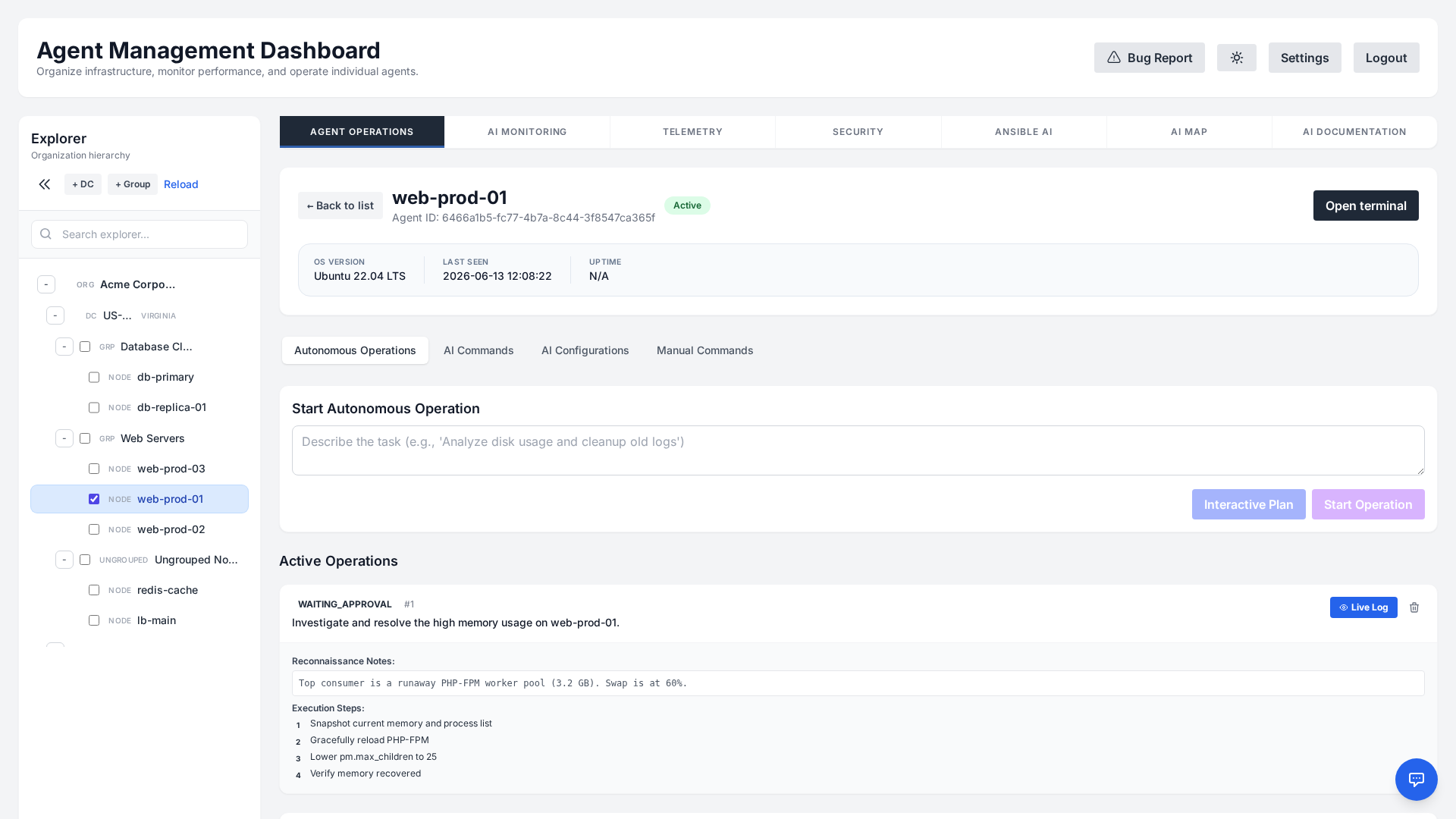
How it works
- Step-by-step plan: Each operation is decomposed into individual steps, each with its own command, status, and output.
- Approval gates: Operations can pause in a
WAITING_APPROVALstate so an administrator reviews the plan before any change is applied: Review Plan on the operation opens it, and Approve & Execute starts it. - Options when you start: Approve every command pauses before each command for your approval (otherwise only risky commands need approval). Run each step inside the sandbox confines each step; the sandbox may block legitimate steps such as config writes, service restarts or module loads, and a blocked step pauses the operation for your approval instead of continuing.
- Live progress: Watch steps move through
PENDING,RUNNING, andCOMPLETEDstates in real time. - Safe by design: Operations respect maintenance windows and RBAC permissions, and every action is recorded in the audit log.
Interactive Plan vs. Start Operation
After you describe a task, two buttons let you choose how much you stay in the loop:
- Interactive Plan — Opens a conversational planning session with the AI before anything runs on the server. The agent proposes a plan, and you can chat back and forth — refine the goal, add constraints, ask questions, and adjust steps — until the plan is exactly what you want. Nothing is executed until you approve the finalized plan with Confirm & Execute Plan. Choose this for complex, unfamiliar, or higher-risk tasks where you want to shape the approach first.
- Start Operation — Launches the operation immediately. The AI analyzes the goal, generates the full step-by-step plan, and begins executing it (still honoring any approval gates, maintenance windows, and RBAC checks). Choose this for routine or well-understood tasks where you trust the agent to plan and proceed on its own.
In short: Interactive Plan is a "review and refine together first" workflow, while Start Operation is a "plan and go" workflow. Both produce the same kind of transparent, auditable, step-by-step operation — they differ only in how much you collaborate on the plan up front.
How the agent works things out
The agent does not guess. Before each command on the host it can gather what it needs on the manager:
- Recall: searches what earlier operations learned about this server (paths, service names, quirks, fixes that worked).
- Remember: saves a verified, non-secret fact about the server for future operations.
- Look up docs: reads an official documentation page (man pages, vendor docs) over https from an allow-list your operator controls (
AUTONOMOUS_DOC_LOOKUP_HOSTS). Redirects are not followed and the page is treated as untrusted data. - Reflects on failures: a failed command is read and the approach changes; the same command is not repeated in a loop, and the operation pauses after several failures in a row.
- Checks in: after a long run without your input (40 commands by default) it asks whether to continue.
Steer it at any time
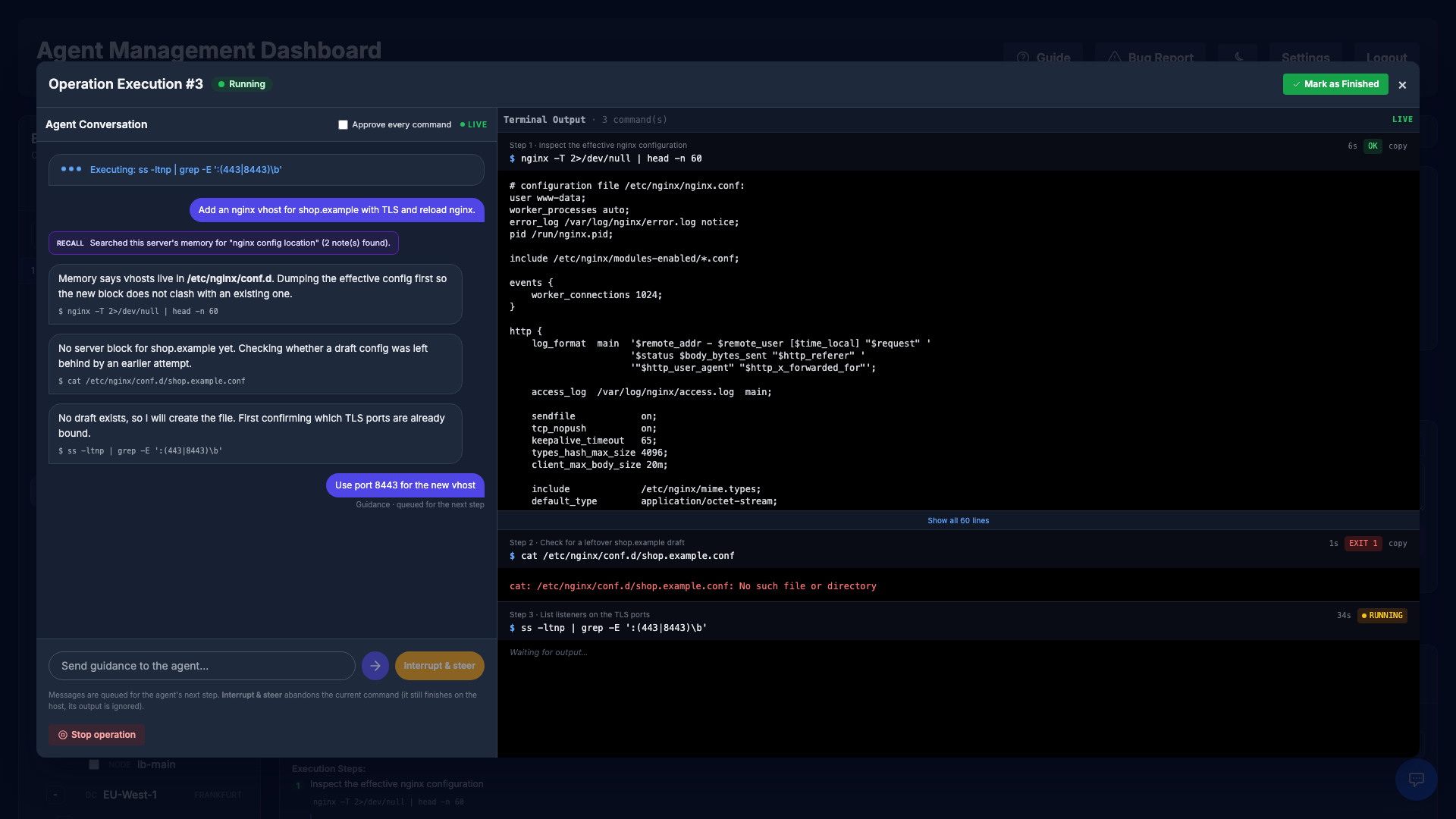
- Message while it works: anything you type while the operation runs is queued and read before the agent's next step. The chat shows whether it is still queued or already read.
- Interrupt & steer: abandons the current step and re-plans immediately with your message. A command that already reached the host finishes there, but its output is ignored.
- Live console: every command shows its step and purpose, a running timer, its duration and exit status. Long output is collapsed, it can be copied, and the view only follows new output while you are at the bottom.
Server memory and skills
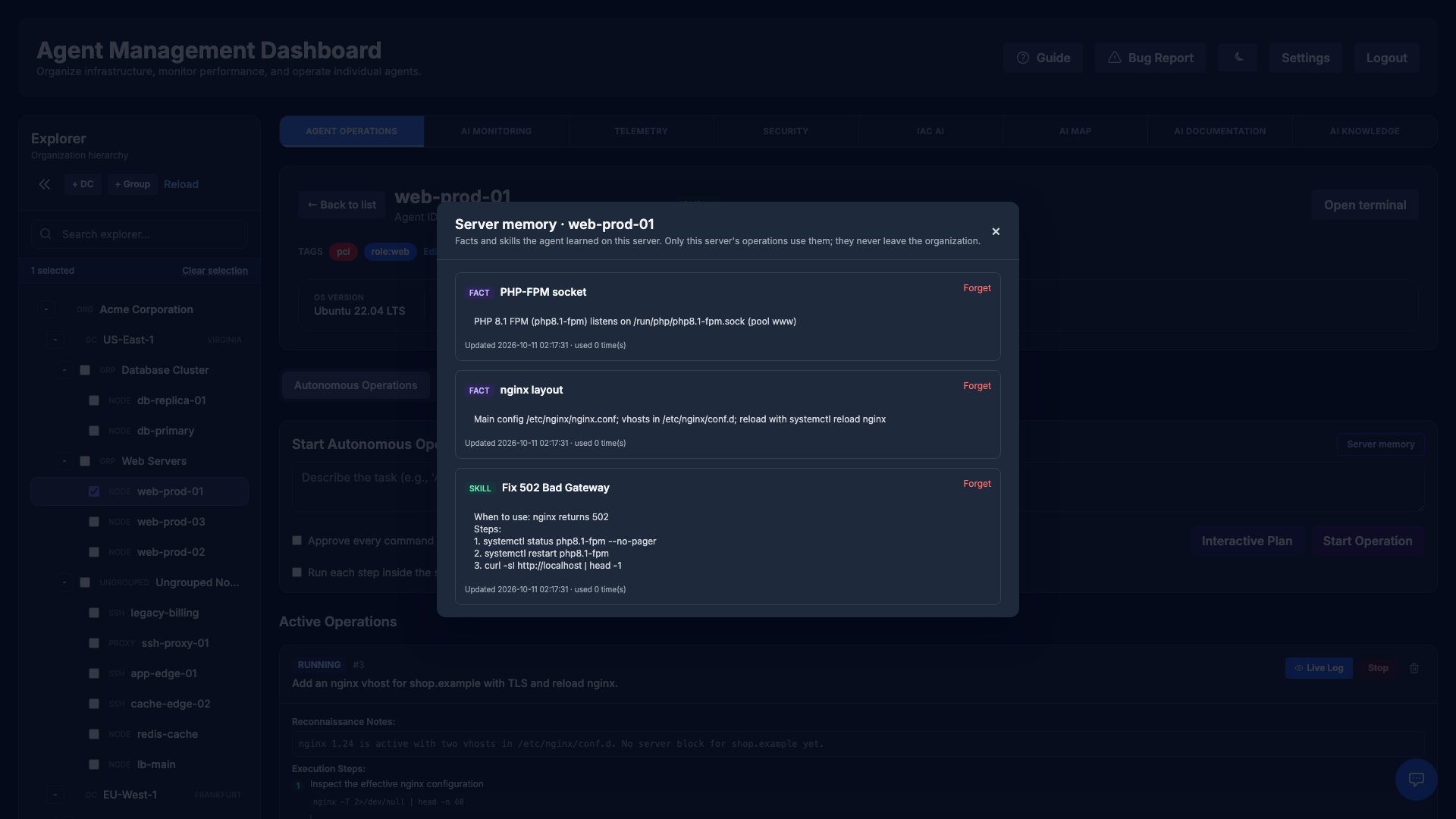
When an operation completes, the agent saves verified facts and the procedures that worked (skills) for that server. The next operation on the same server starts with them. Open Agent Operations → Autonomous Operations → Server memory to see what it knows and Forget anything wrong.
- Per server, per organization: notes belong to one server and its organization and are never shared with another server or tenant.
- Encrypted: titles, content and search vectors are encrypted at rest with the organization's own key. Passwords, tokens and keys are masked before anything is stored.
- Still gated: skills are suggestions. Every command taken from them goes through the same safety checks and approvals; notes that download and run code are refused. Each saved or deleted note is in the audit log.
- No GPU needed: search uses a small local embedding model on the CPU, or simple keyword matching on servers without internet access (
SERVER_MEMORY_EMBEDDER=hashing).
Operating an autonomous operation or its memory requires the Administrator or Operator role in the server's organization; starting, steering or approving it also needs the operator's Run commands permission. Viewers cannot start, steer or read it.
AI Command Execution
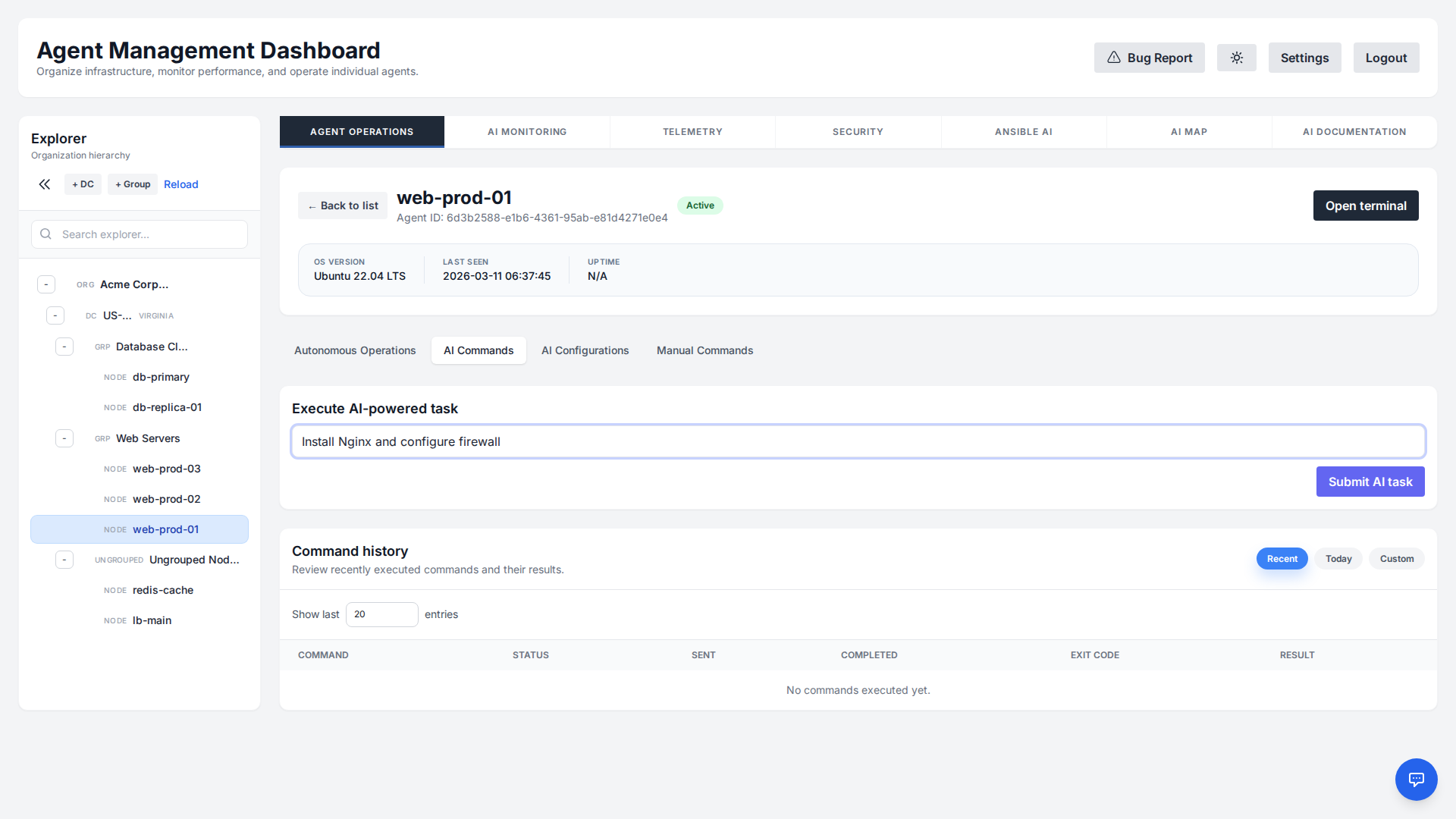
Interact with your servers using natural language. Select a host, open Agent Operations → AI Commands, describe the task in the Execute AI-powered task box and press Submit AI task. The AI automatically detects the target OS and generates Bash or PowerShell commands accordingly, and shows them as a plan for you to review before anything runs (see Advanced AI Planning below).
The Command history table below lists what ran on the host with its status, timestamps, exit code and AI tokens; filter it with Recent (the last N entries), Today or a Custom date range, and open any row for its output.
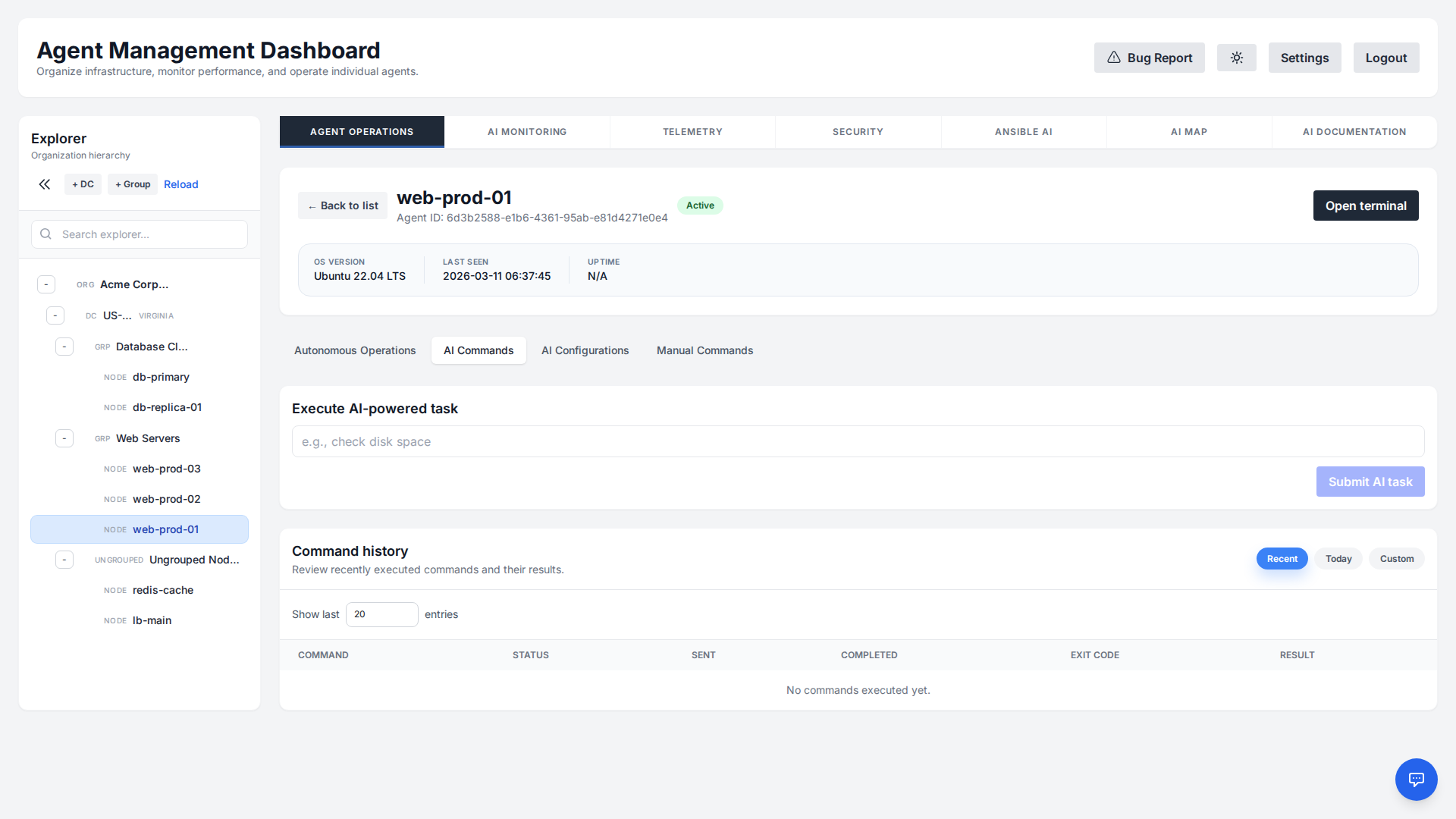
Example prompts:
- "Find the process consuming the most memory and kill it."
- "Check if the IIS/Nginx service is running and restart it if not."
- "List all large files in C:\Logs or /var/log."
Asking about measurements instead of running commands
Some questions are about numbers the platform already collects — “which host had the highest CPU last week?”, “show me memory on db-01 over the last 24 hours”, “which servers are running out of disk?”. Running a shell command to answer those would only report this instant and would miss the spike you are asking about, so the AI reads the stored history instead.
- CPU and memory trends normally involve no generated SQL: for these the model picks from a fixed vocabulary — a scope, a metric, an aggregation, a time window, a bucket size — each validated against an allow-list, and the server builds the query. On this path the model does not name a table or write a line of SQL.
- Other questions do use generated SQL, sandboxed: a question the parameter vocabulary cannot express (“how many agents are offline?”, “which hosts have critical CVEs?”), or a trend question whose parameters fail validation, falls back to model-written SQL. Every such query is stripped of comments and rejected unless it is a single read-only
SELECT. For an organization-scoped user it must additionally stay within a documented set of tables, and is refused if it names a system catalog or a schema-qualified table. - Scoped like everything else: for an organization-scoped user the query does not run against the real tables at all. Temporary views filtered to that user's organizations shadow every readable table for the duration of the query, so another tenant's rows are unreachable even if the generated SQL omits a
WHEREclause entirely. - Honest about gaps: If a host reported no data for the window, the answer says so rather than returning a confident zero.
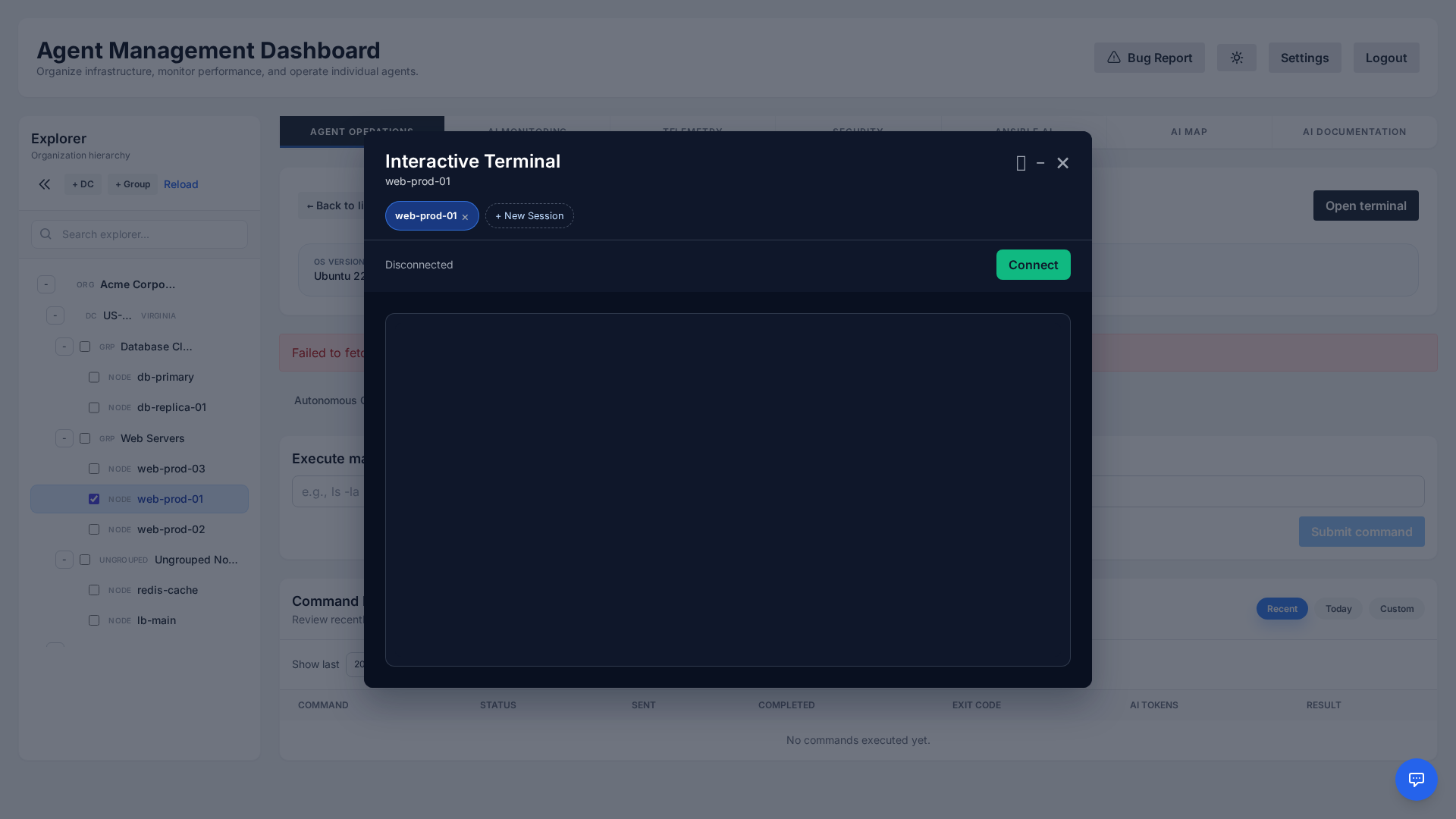
Open Terminal
For direct, low-level access, use the Open Terminal feature. This opens a fully interactive session to your server directly in the browser, functioning equivalently to a standard SSH or PowerShell Remoting connection.
Advanced AI Planning
For complex tasks, the AI doesn't just execute commands blindly. Submitting a task opens the AI Command Plan Preview: the problem description, the AI's reasoning and recommendations, and the Command Plan itself. Each command can be edited, disabled or removed, Add Command appends your own step, and Stop on failure decides whether a failing step halts the rest.
Key Features
- Ordered execution: The commands of a plan run in the order the AI produced them, one after the next, so a plan can rely on
install → configure → restartholding. Separate tasks you submit are independent and may be in flight at the same time; the steps within one plan are never parallelised. - Stop on Failure: If a step exits non-zero the remaining steps are skipped rather than run against a half-finished change (
stop_on_failure, which defaults to on when the AI does not set it itself). Turn it off and the plan runs to the end regardless. - Clarifying questions: Asking before assuming belongs to Autonomous Operations, where an operation can pause in
waiting_user_inputfor an answer. A task submitted here is planned and executed in one pass.
AI Configurations
The AI Configurations tab pairs a remote File Manager with an AI-powered Configuration Optimizer, so you can review and improve configuration files on any agent without leaving the dashboard. Browse the agent's filesystem, open a config file (for example nginx.conf, sshd_config, or my.cnf), and the AI reads its contents and helps you analyze, harden, or tune it.
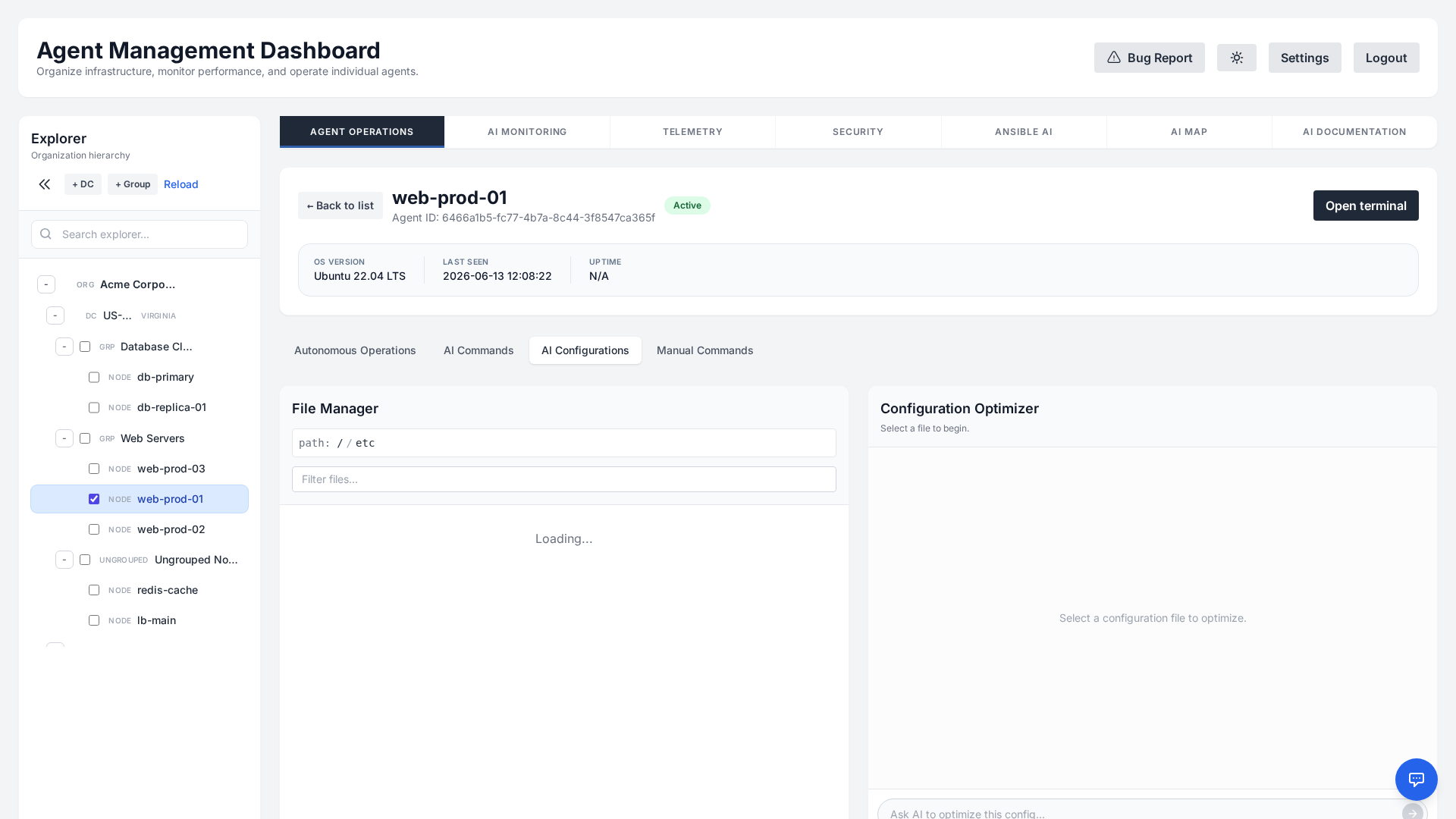
How it works
- Browse & select: Use the breadcrumb path and filter box in the File Manager to navigate the agent's directories and pick the configuration file you want to work on.
- Ask the AI: Describe what you need in plain English — "review this for security best practices", "enable gzip compression", or "explain what this setting does". The optimizer responds in a chat thread with analysis and concrete suggestions.
- Review & apply: When the AI proposes a change, it surfaces a Review & Apply Changes action so you can inspect the exact diff before anything is written. No edit is applied to the file until you approve it.
- Safe & audited: Changes respect RBAC permissions and are captured in the audit log, so configuration edits remain accountable and reversible.
Manual Commands & Terminal
When you prefer direct control, the Manual Commands tab lets you run raw Bash or PowerShell commands against a selected agent without involving the AI. It is ideal for quick, ad-hoc checks and for operators who already know exactly what they want to run.
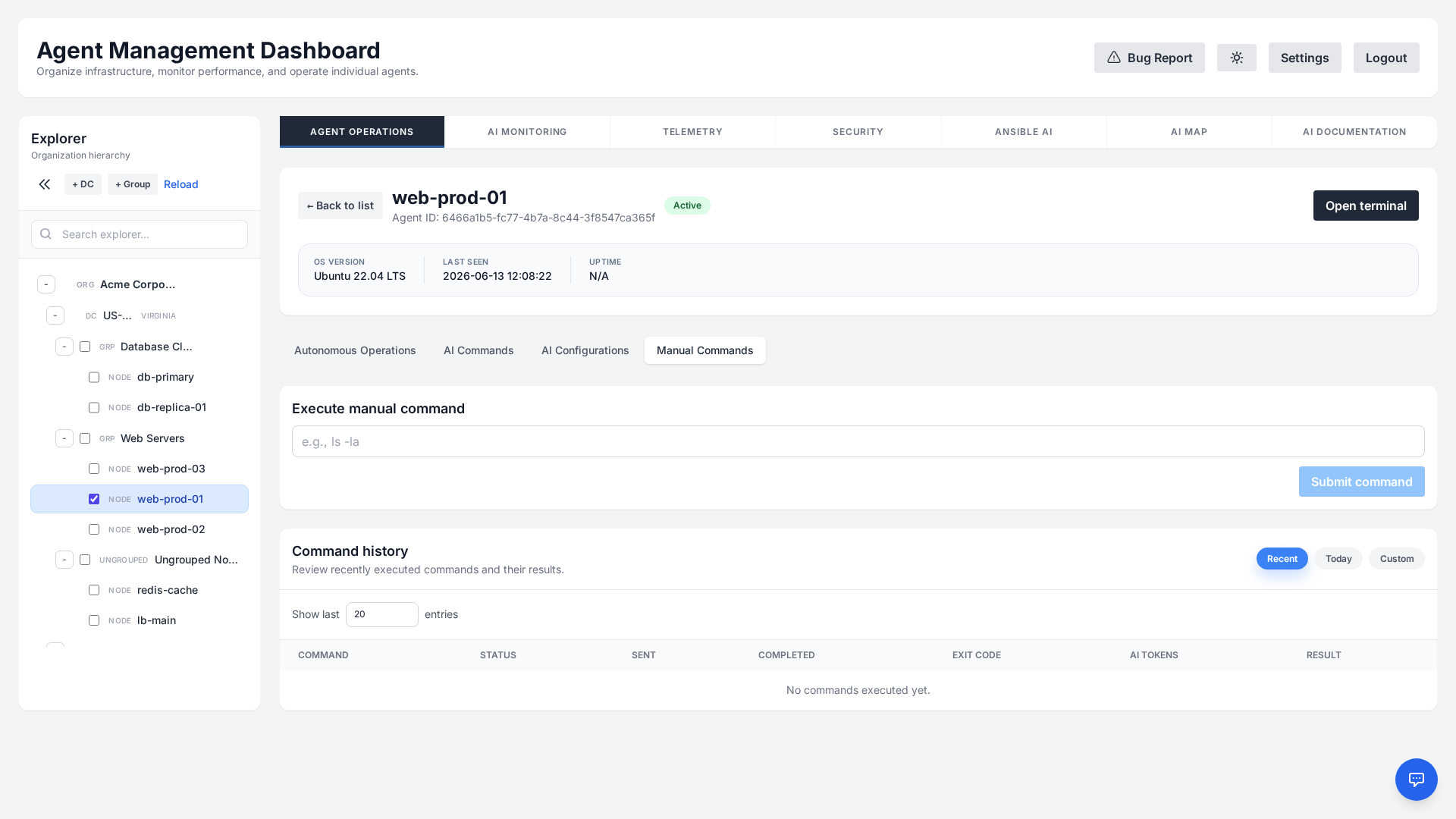
For a fully interactive session, use the Open Terminal feature to get a live, browser-based shell equivalent to SSH (Linux) or PowerShell Remoting (Windows). Know what each path records before you choose one. A manual command is written to the command history and to the audit log as its own entry, with the command text. An AI task is audited once as a task, and each command it generated is written to the command history. An interactive terminal records neither: the audit log captures who opened a session against which host and when it closed, but the keystrokes inside are streamed straight to the shell, so they are never stored, never checked against the destructive-command guard, and never covered by command signing. Where you need a per-command record — or those controls — use Manual Commands rather than the terminal.
Container & Kubernetes Inventory
For hosts running Docker or Kubernetes, a dedicated Containers tab appears in the agent detail view. The agent periodically discovers running containers, local images, and cluster resources, giving you an at-a-glance inventory without leaving the dashboard.
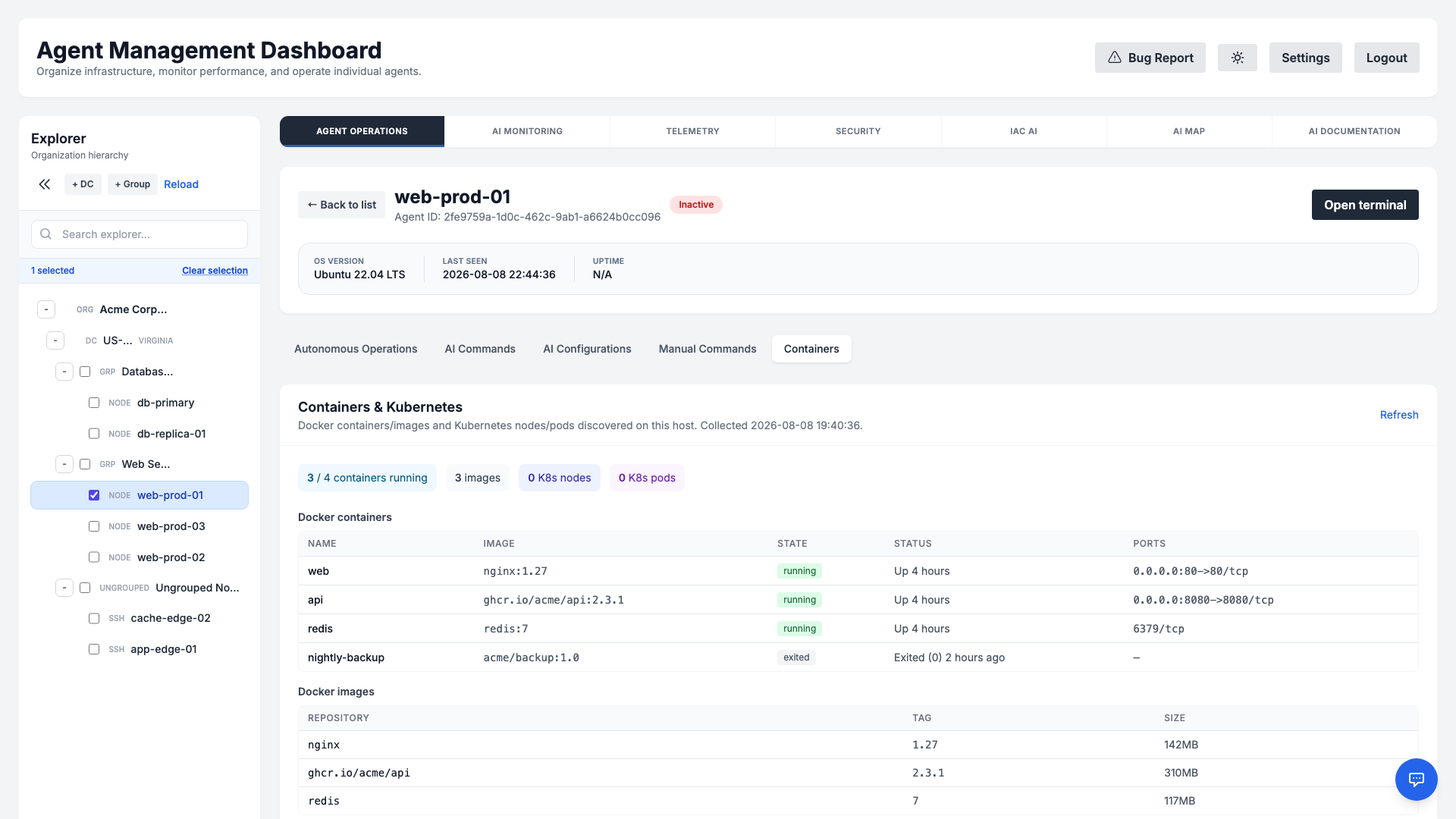
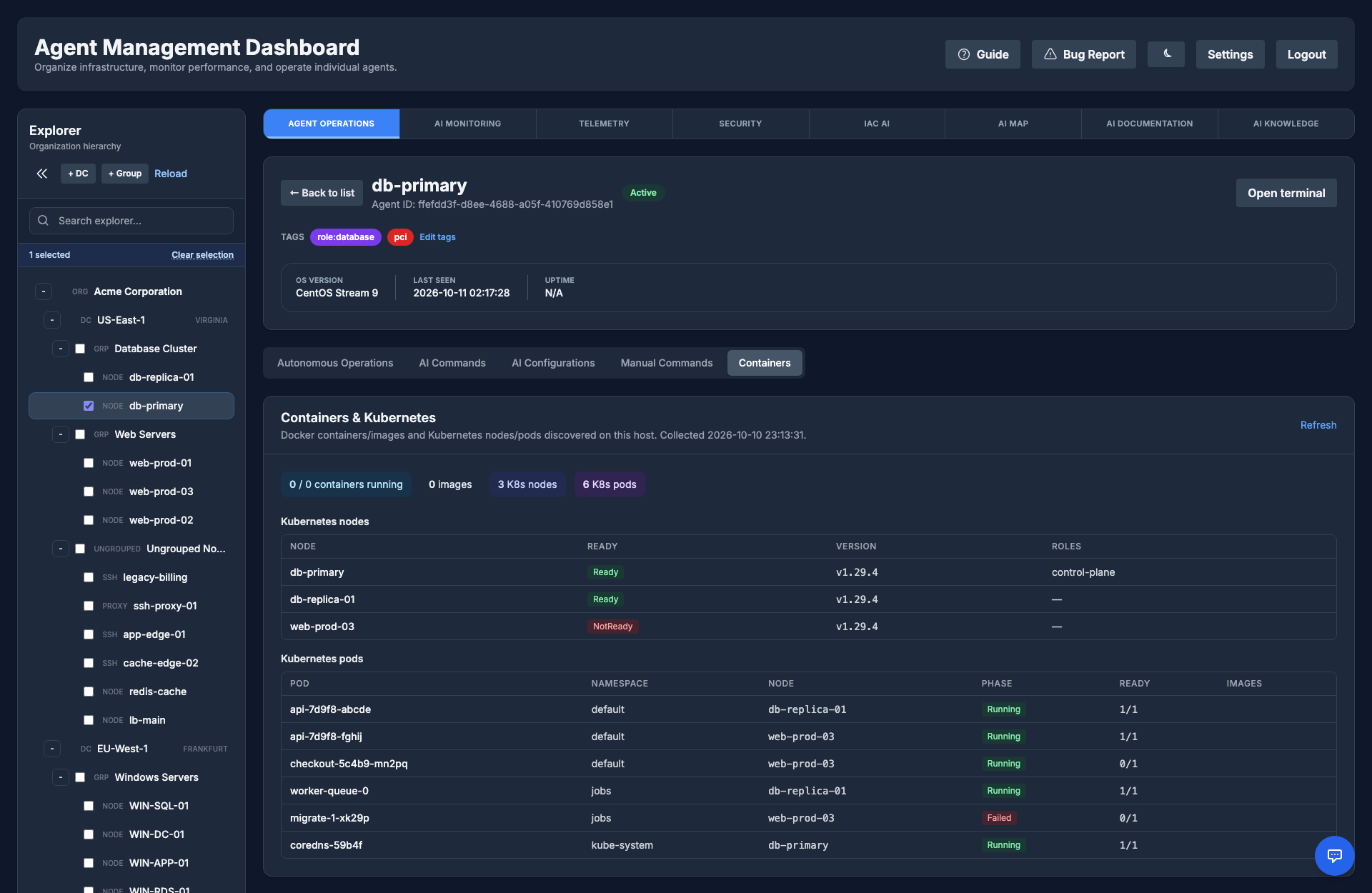
On a Kubernetes host the same tab lists the cluster's nodes (readiness, version, roles) and its pods (namespace, node, phase and readiness):
- Docker containers: Name, image, state (running/exited), status, and published ports for every container on the host.
- Docker images: The local image cache with repository, tag, and size.
- Kubernetes: On cluster hosts, view node readiness and versions alongside pod phase and readiness across namespaces.
- Context-aware: The tab appears only for hosts that actually report container or cluster data, and refreshes on demand.
- Image CVE scanning: Security → Vulnerabilities → Image Vulnerabilities scans the Docker images and Kubernetes workloads on the selected hosts with Trivy (it must be installed on the host; Kubernetes scans need read-only
kubectlaccess) and lists each CVE with severity, package and fixed version. Scans run on demand and, if your organization opts in, daily at 03:30 UTC. By default Trivy uses the vulnerability database already on the host (offline); an administrator can allow it to refresh the database (online). Findings appear as badges next to each image in the Containers tab and are kept for 90 days.
Cloud Inventory
The most dangerous host is the one nobody installed an agent on. Cloud Inventory lists every instance in your connected AWS, Azure and Google Cloud accounts next to the agents you have, so the unmanaged ones stand out.
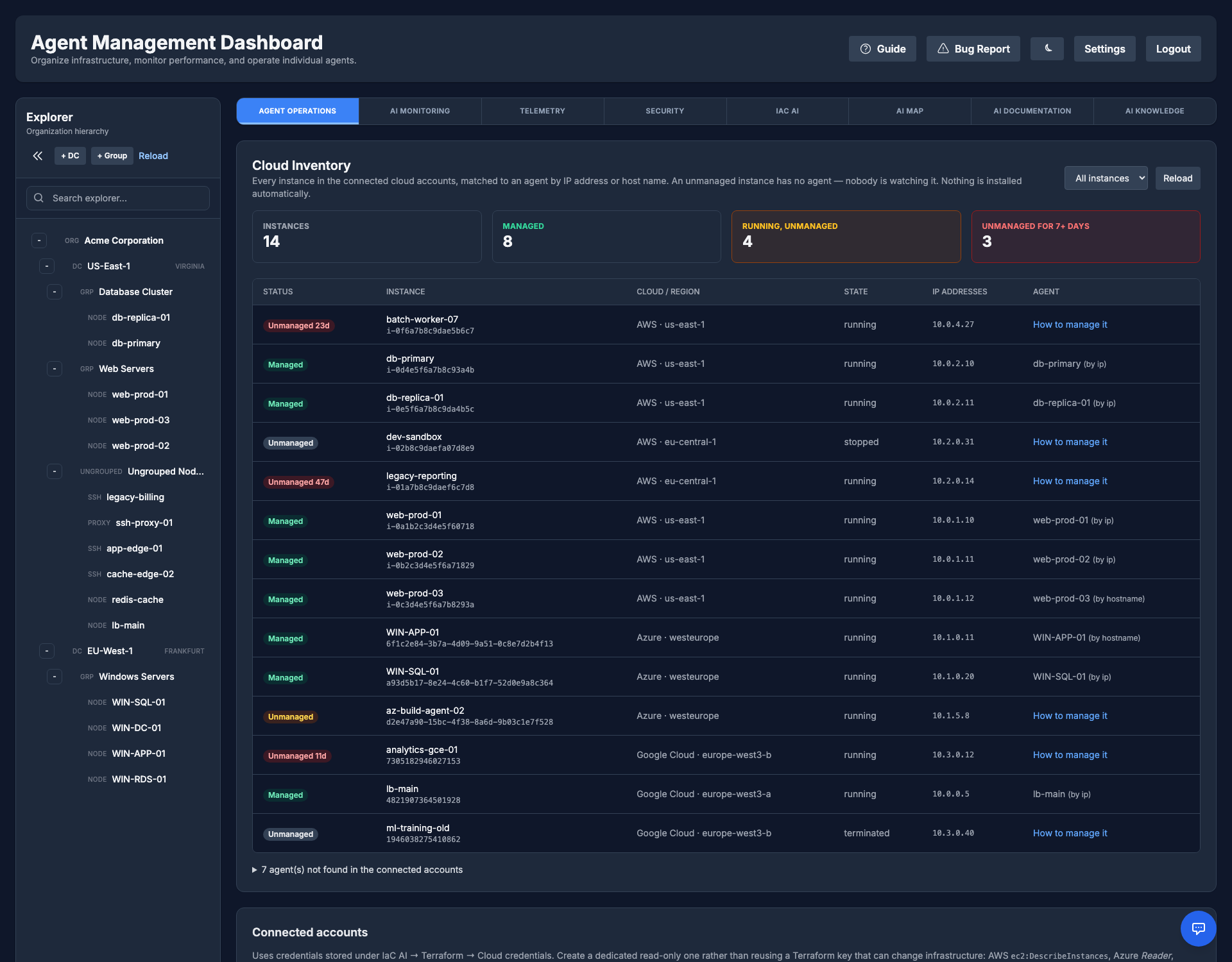
- Read-only: choose which credentials stored under IaC AI → Terraform → Cloud credentials are used, and give them a read-only role — AWS
ec2:DescribeInstances, Azure Reader on the subscription, Google Cloud Compute Viewer. The manager only lists instances, every hour or on demand. - Matching: an instance is managed when an agent of your organization reports one of its IP addresses, or has its host name. Everything else running is unmanaged. Agents that no connected account lists are shown too (on-premises hosts, other clouds).
- Unmanaged too long: under Connected accounts, Highlight unmanaged instances after (days) marks an instance as Unmanaged for N+ days, and Notify once when a running instance stays unmanaged that long sends a single notification through your channels.
- Nothing is installed automatically: each unmanaged instance shows how to bring it in — an enrollment token from Add host, or agentless SSH through a proxy node.
- Where to read it: Agent Operations → Cloud inventory (button next to Add host). A failing account keeps its last list and shows the provider's error code.
Monitoring Checks
Create custom monitoring scripts without writing code. Describe what you want to check, and the AI will generate the appropriate Bash, Python, or PowerShell script for you based on the agent's OS.
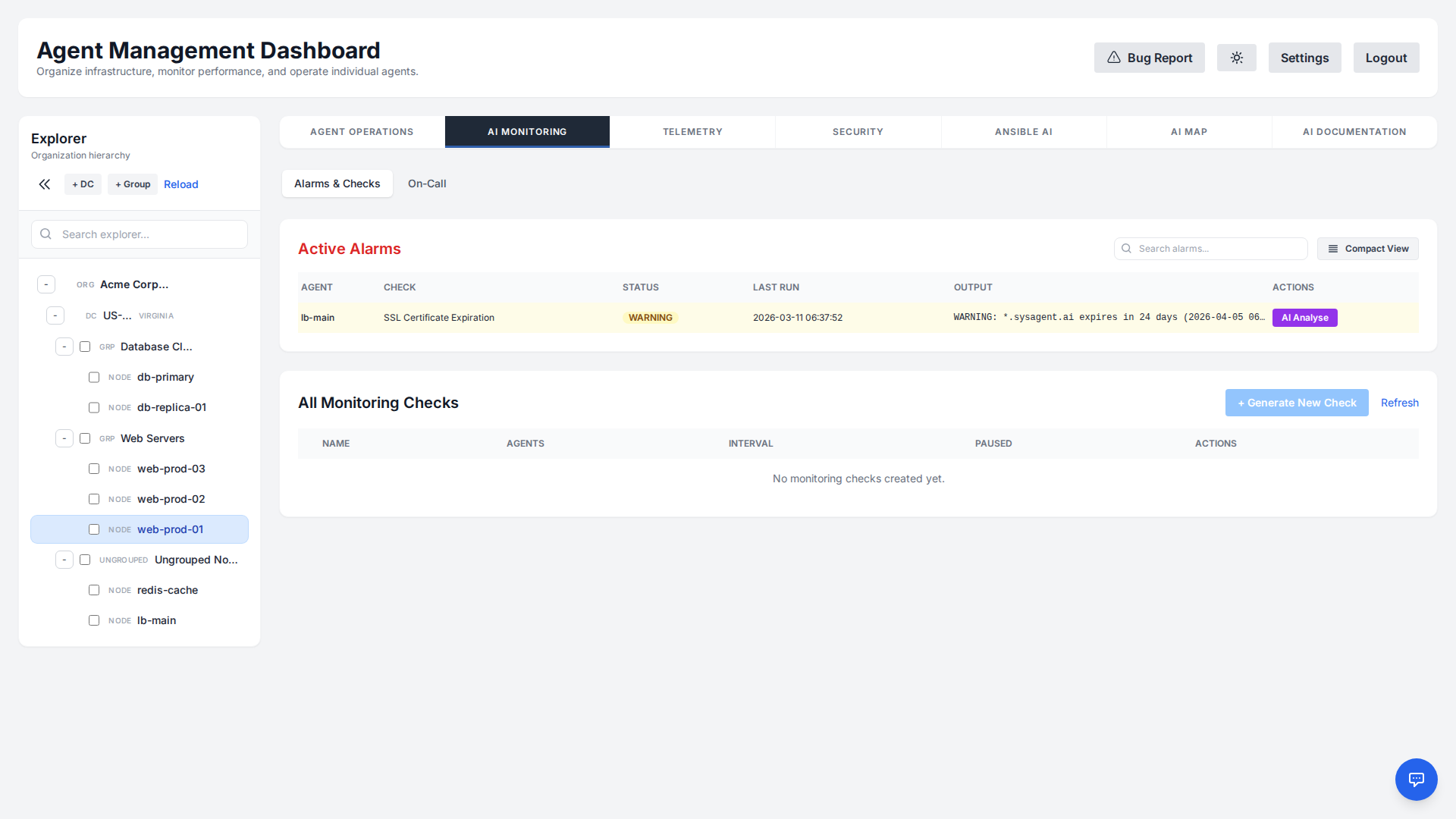
AI Analyse for Alarms
When a monitoring check triggers an alarm (Warning or Critical), you can use the AI Analyse feature. The AI will examine the check's output and system context to diagnose the root cause and suggest immediate remediation steps.
AI Monitoring Advisor
The advisor works out what each server is for and proposes the monitors that protect it, so a new host is watched without anyone writing a check. Open it under AI Monitoring → AI Advisor, the sub-tab right after Alarms & Checks; its badge counts the proposals waiting for a decision. Viewers do not see it.
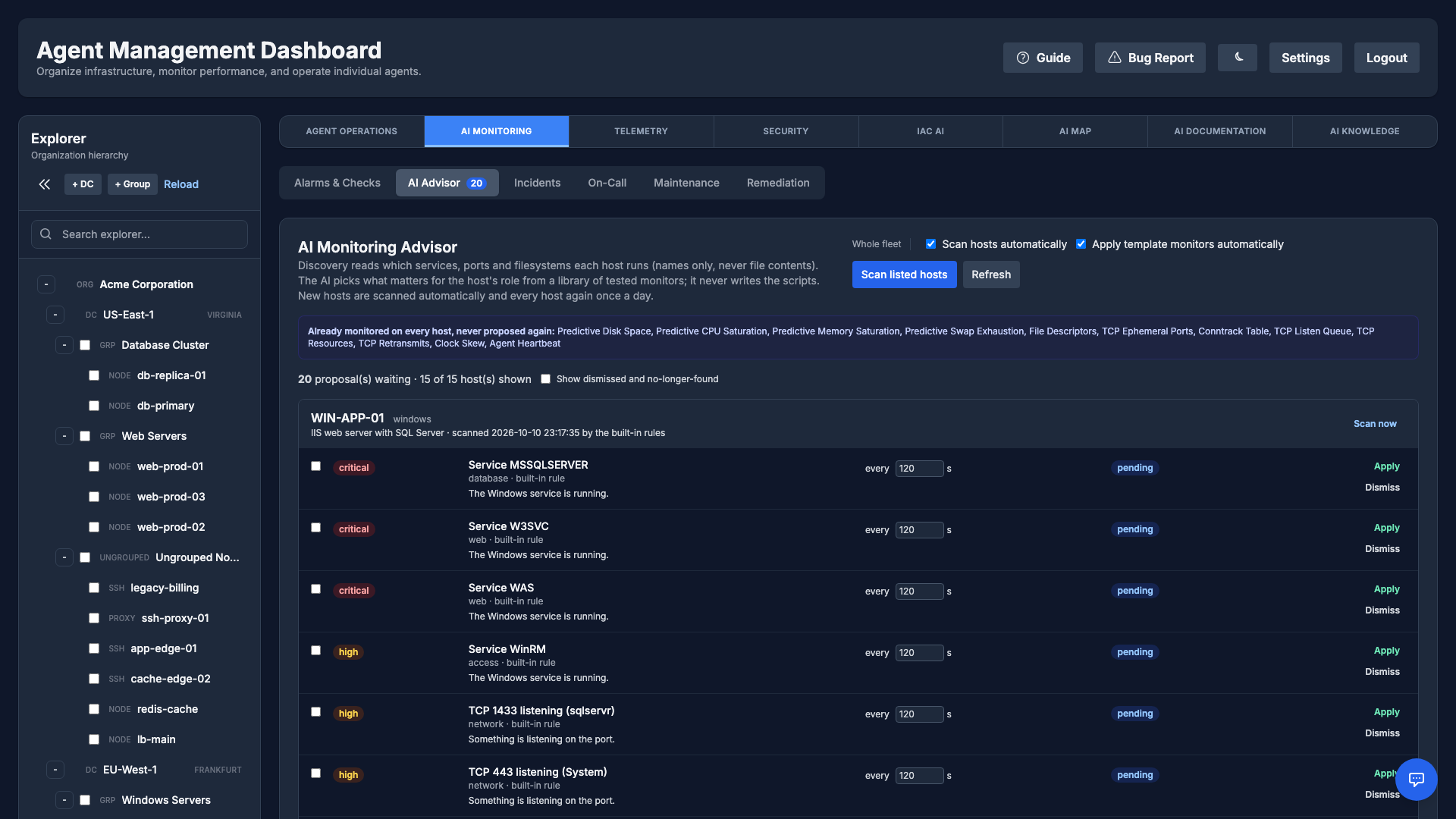
- Discovery: a read-only probe lists the running services, the listening TCP ports and the process behind each, mounted filesystems and process names — names only, never file contents. New hosts are scanned within minutes of connecting and every host again once a day, so a service installed later is noticed (an Administrator can turn this off with Scan hosts automatically; scans use the organization's AI tokens); Scan now runs it on demand. Agentless SSH hosts are scanned through their proxy. Ports that normal (non-system) users listen on are never picked automatically, since anyone on the host can open one.
- AI picks, templates run: the organization's AI model reads the discovery and decides which monitors matter for the host's role, with a priority, a one-line reason and, where the role justifies it, adjusted thresholds. It can only choose from a library of tested monitors — a systemd unit being active (and not restart-looping), a listening port whose accept queue is filling up, inodes per filesystem, failed systemd units and restart-looping or unhealthy containers, plus, as an optional stricter extra to the built-in open-files alarm, one service's open files against its own
LimitNOFILE; on Windows a service running, a port listening and (optionally) a process's handle count. The model never writes a script and can only name services and ports the probe actually found. Without an AI provider (or when the token limit is reached) built-in rules pick the well-known services instead, and an unchanged host is not sent to the model again. - Applied automatically, editable afterwards: with Apply template monitors automatically on (the default, an Administrator setting), each proposal becomes a monitoring check named
Advisor: …; hosts of the same organization with the same monitor share one check. Change thresholds or the interval on the check like any other, or switch automation off and apply proposals yourself with edited thresholds. A service the AI considers important but no template covers is only suggested, marked needs a script — Write a check opens the AI check generator for that host, and once the saved check runs on the host the proposal shows as check written. - Decisions stick: a dismissed proposal is not proposed again, and deleting an advisor check (or removing the host from it) counts as dismissing it, so automation never recreates what someone removed. Every scan, application, dismissal and setting change is written to the organization's audit log.
- Exclude monitors that do not apply: where Dismiss covers one host, Exclude... (Administrators) stops a monitor — for example Service chronyd.service or TCP 8080 accept queue — from being proposed or applied automatically anywhere in the organization, a datacenter or a machine group. Matching proposals are hidden as excluded by rule. A monitor that already runs can be excluded from its row too: Also stop it where it already runs (on by default) takes the hosts in scope off the advisor check; leave it unticked to keep existing checks. Removing the rule from Excluded monitors brings the proposals back. Both changes are audited.
- No double alarms: CPU, memory, disk space, open files and the TCP stack, clock skew and heartbeat are already watched on every host by the built-in System and Predictive checks, so the advisor never proposes them; the panel lists that coverage.
Incident Correlation & Postmortems
An incident is opened per check and host, so a single sick machine with ten failing checks used to page ten times, and one bad change that broke the same check fleet-wide paged once per node. That is the fastest route to operators muting the channel, so related symptoms are now grouped under the incident that already paged. Incidents are listed under AI Monitoring → Incidents.
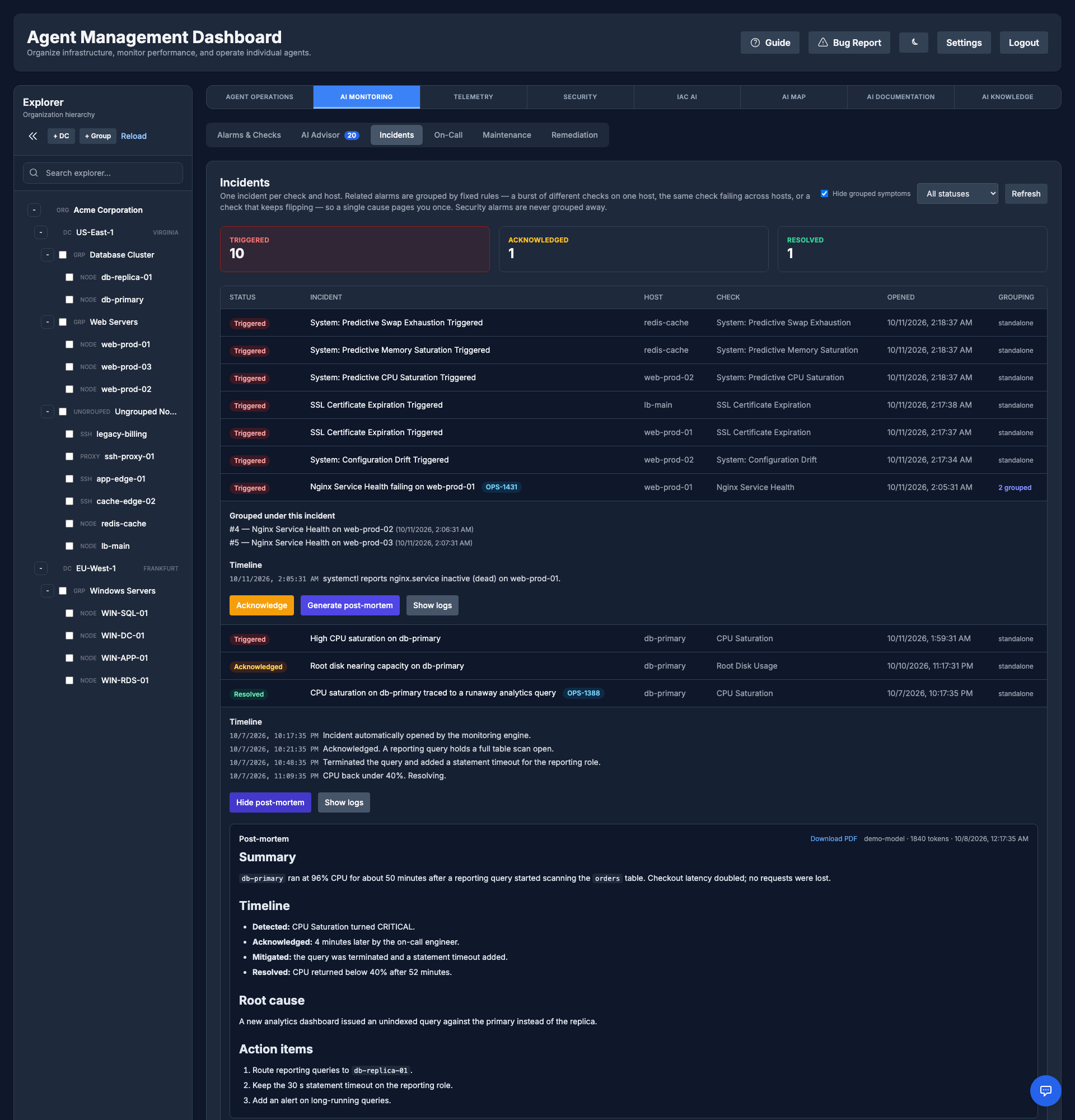
- Three grouping rules, no AI in the notification path: Three or more different checks failing on one host within five minutes are one degraded host; the same check failing on three or more hosts is one common cause; and a check that flips state six or more times in thirty minutes is throttled so a marginal threshold cannot page all night.
- Two guarantees: The first page for a cause is never suppressed, and recovery notifications are always delivered — an operator must always learn that something came back.
- Security is never grouped away: Security findings and certificate expiry always page on their own, so no burst of unrelated failures can hide a file-integrity change.
- Postmortems: Writing one means reconstructing what happened, and the system already holds every piece — the check history, the commands anyone ran on the host, the remediations that fired, the security events and the telemetry around the window. That timeline is assembled deterministically; the AI is then asked only for the summary, probable cause and follow-up actions. If the model is unavailable the timeline is still stored and rendered, because the deterministic half is what makes it worth keeping.
- Credentials never reach the model: Passwords, tokens, bearer headers, connection strings and private keys are masked out of command lines, check output and operator comments before anything is sent or stored.
Log Investigation
When an incident or a threat alert points at a host, the evidence is usually in its logs. sysAgent reads them on demand; it never collects them centrally.
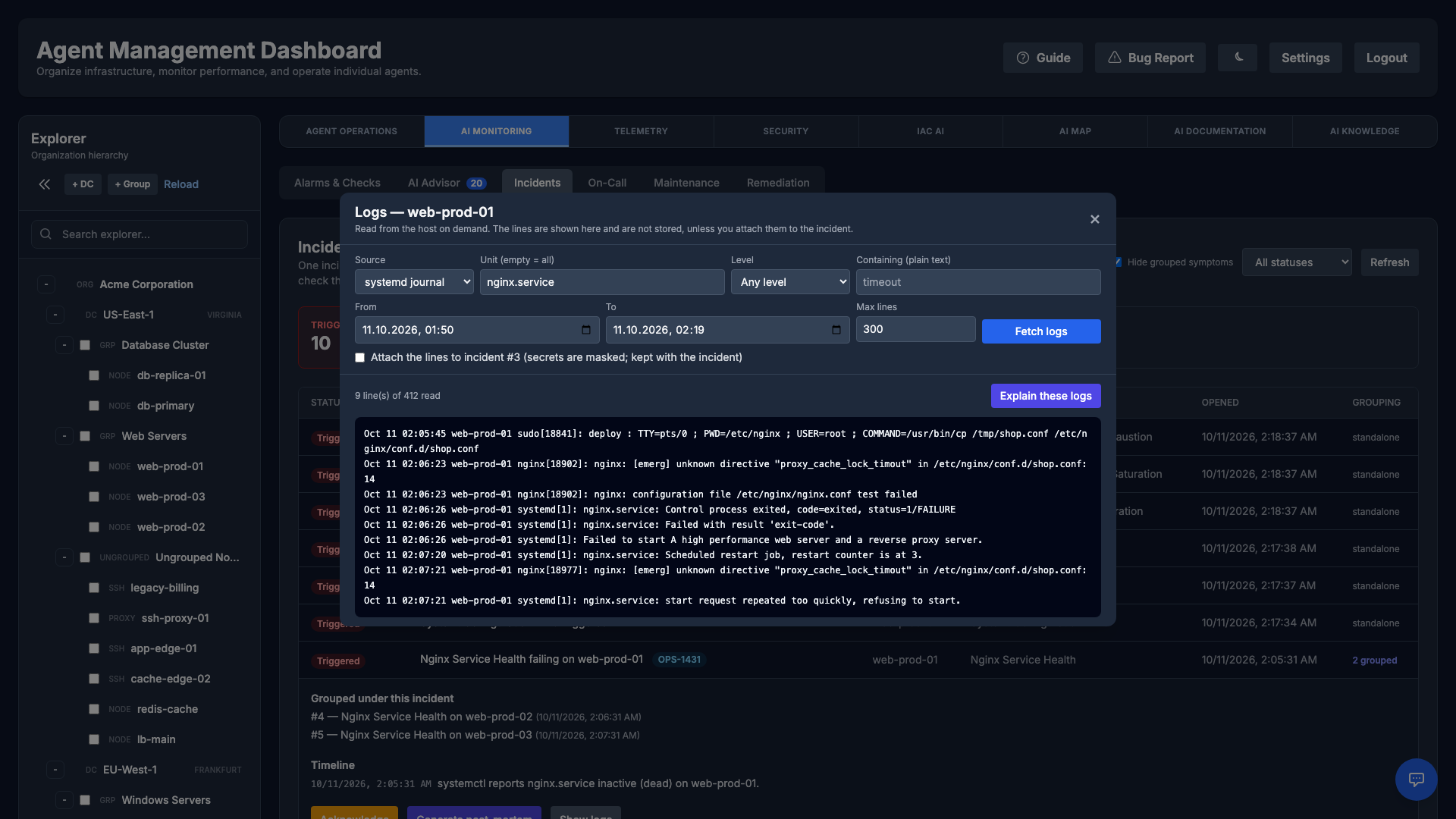
- Show logs: on an incident (AI Monitoring → Incidents) or a threat alert. Choose the systemd journal (optionally one unit), a Windows event log, or a file under
/var/log; the time window starts 15 minutes either side of the event. Narrow it with a minimum level, plain text to look for, and up to 2000 lines. - Not stored: the lines are shown to you and then dropped from the command history. You can attach them to the incident (secrets masked) when you want them kept.
- Explain these logs: sends only those lines, with passwords, tokens and keys masked, to your organization's AI provider and returns what happened, the likely cause and the next checks.
- Safe by construction: the request is a structured query, never a shell command, checked by the manager and again by the agent. It needs the run-commands permission and is in the audit log. Requires agent 2026.10.6 or later; agentless hosts are not supported yet.
On-Call & Escalation
Make sure the right person is notified when something breaks. The On-Call module lets you organize engineers into Departments, build rotating On-Call Schedules, and define Escalation Rules that page the next responder if an alarm is not acknowledged in time.
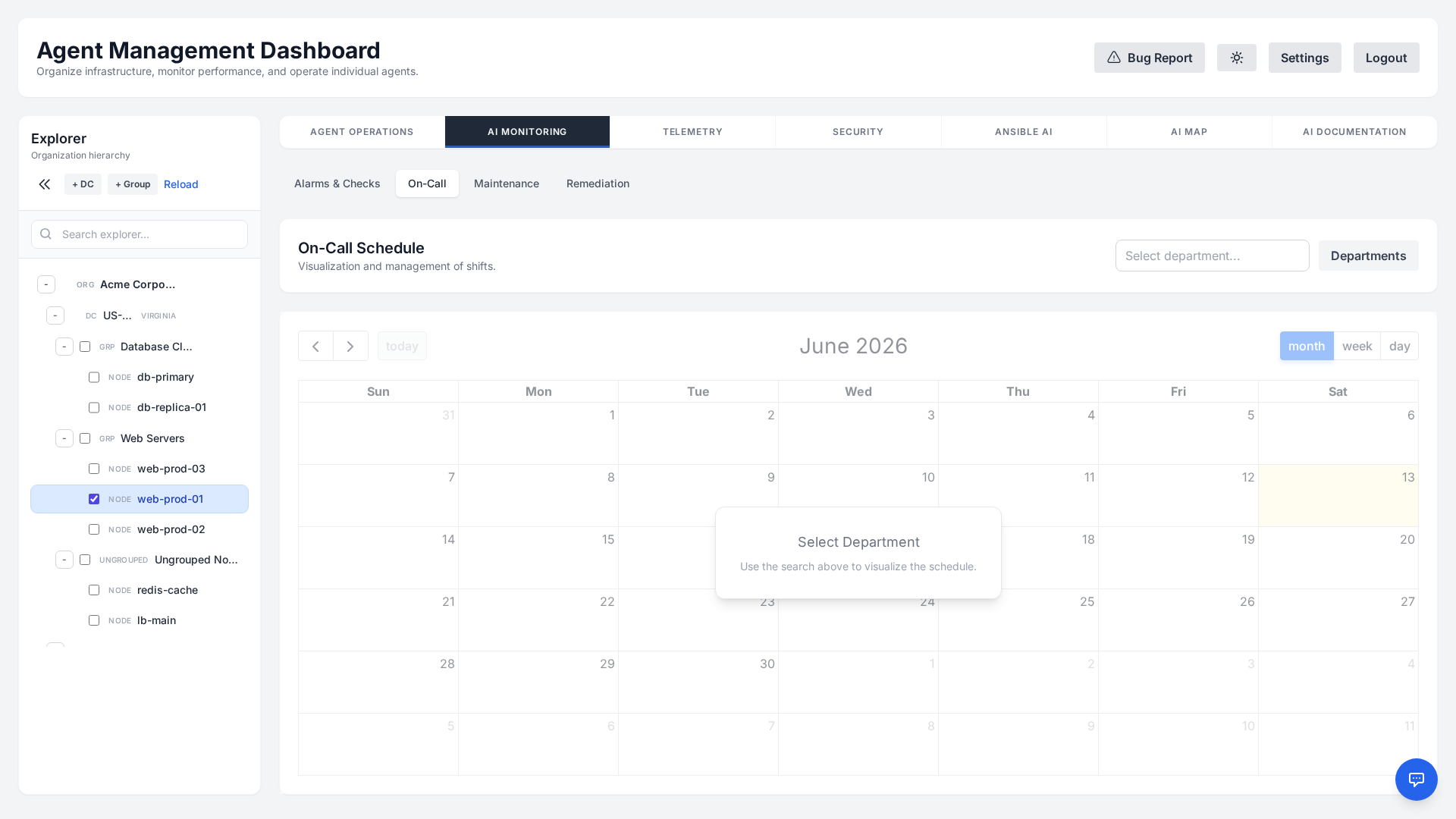
- Departments: Group responders by team (e.g., Platform, Database, Security).
- Schedules: Build the rota on a calendar — add a single shift, or generate a rotation from a list of engineers, a start date, a shift length and an interval. Note that the schedule records who is on call; the paging order itself comes from the department's escalation rules, which are not filtered by the calendar.
- Escalation rules: Each step names a responder and how long to wait before the next one, so an incident that nobody acknowledges climbs the chain instead of going quiet. Acknowledging stops it. Build the chain in the Escalation Chain panel under the calendar; a department with no steps pages nobody. Escalation reaches responders by email. Departments and the escalation chain can only be changed by an Administrator; operators manage the rota itself.
Maintenance Windows
Avoid noisy, false alarms during planned work. A Maintenance Window temporarily suppresses alerting for a chosen scope — the whole organization, a datacenter, or a single agent — over a defined time range.
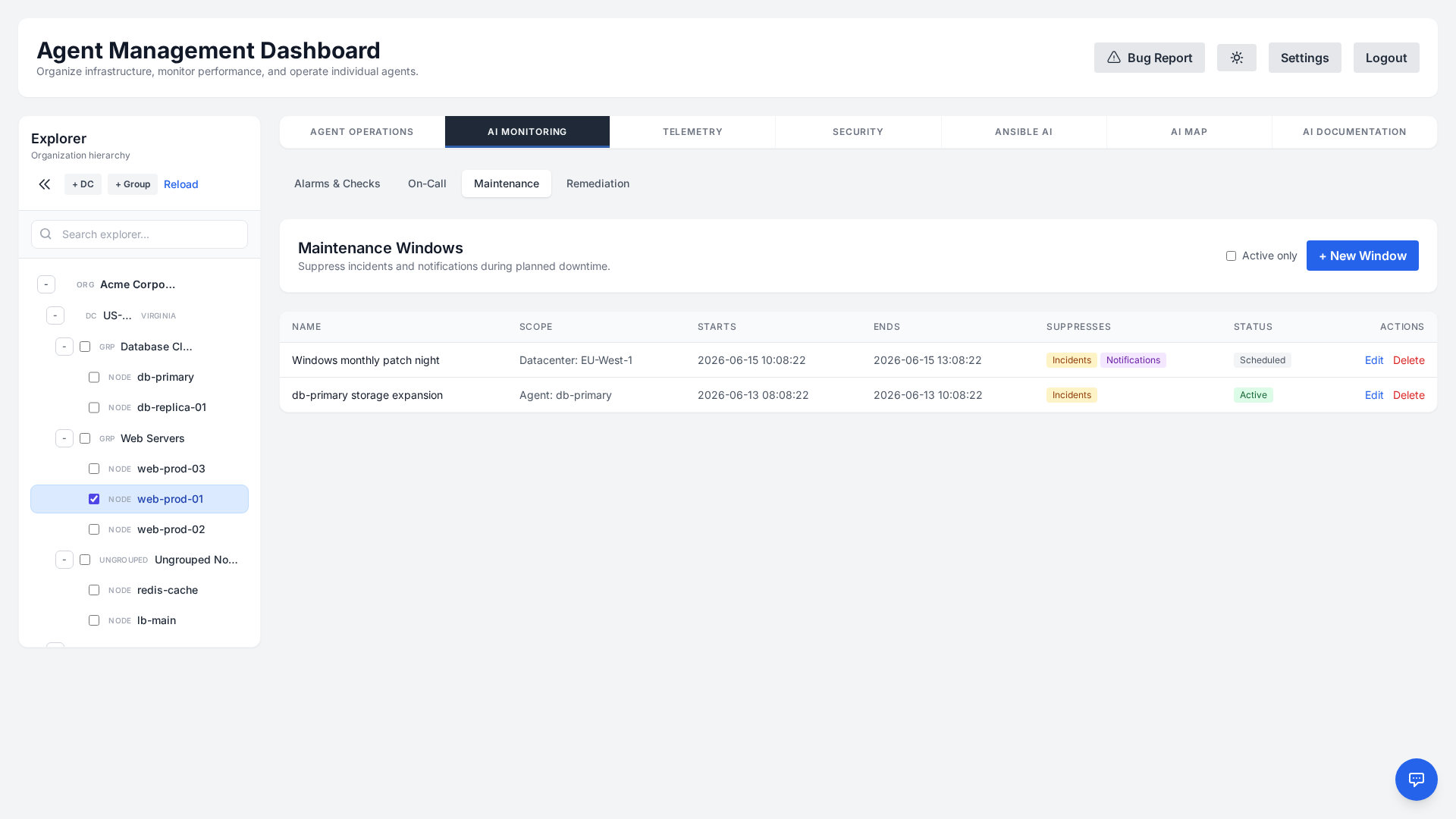
- Flexible scope: Apply a window to a single server, to every agent in a datacenter, or to the entire organization.
- Two independent switches: Suppress incident creation stops a failing check from opening an incident at all — which also stops auto-remediation, since a remediation is only triggered by a freshly opened incident. Suppress notifications stops warning and critical alerts going out, and pauses the escalation chain for the duration; an incident that was already climbing resumes where it left off once the window closes. Recovery notifications are never suppressed.
- Checks keep running: A window silences alerting, not monitoring. Results, telemetry and the alarm list carry on as normal, so you can still watch the host you are working on.
- Clear audit trail: Each window records who created it and why, and opening, changing or closing one is written to the audit log. Scheduling a window is an Administrator action — operators can see what is planned but cannot silence alerting — and no single window may span more than 30 days, so a mistyped end date cannot quietly suppress a tenant for years.
Auto-Remediation
Turn repetitive fixes into self-healing automation. A Remediation Rule binds a monitoring alarm to a saved Ansible playbook, so a failure you have seen before is diagnosed — and, once someone approves it, fixed — without anyone typing anything.
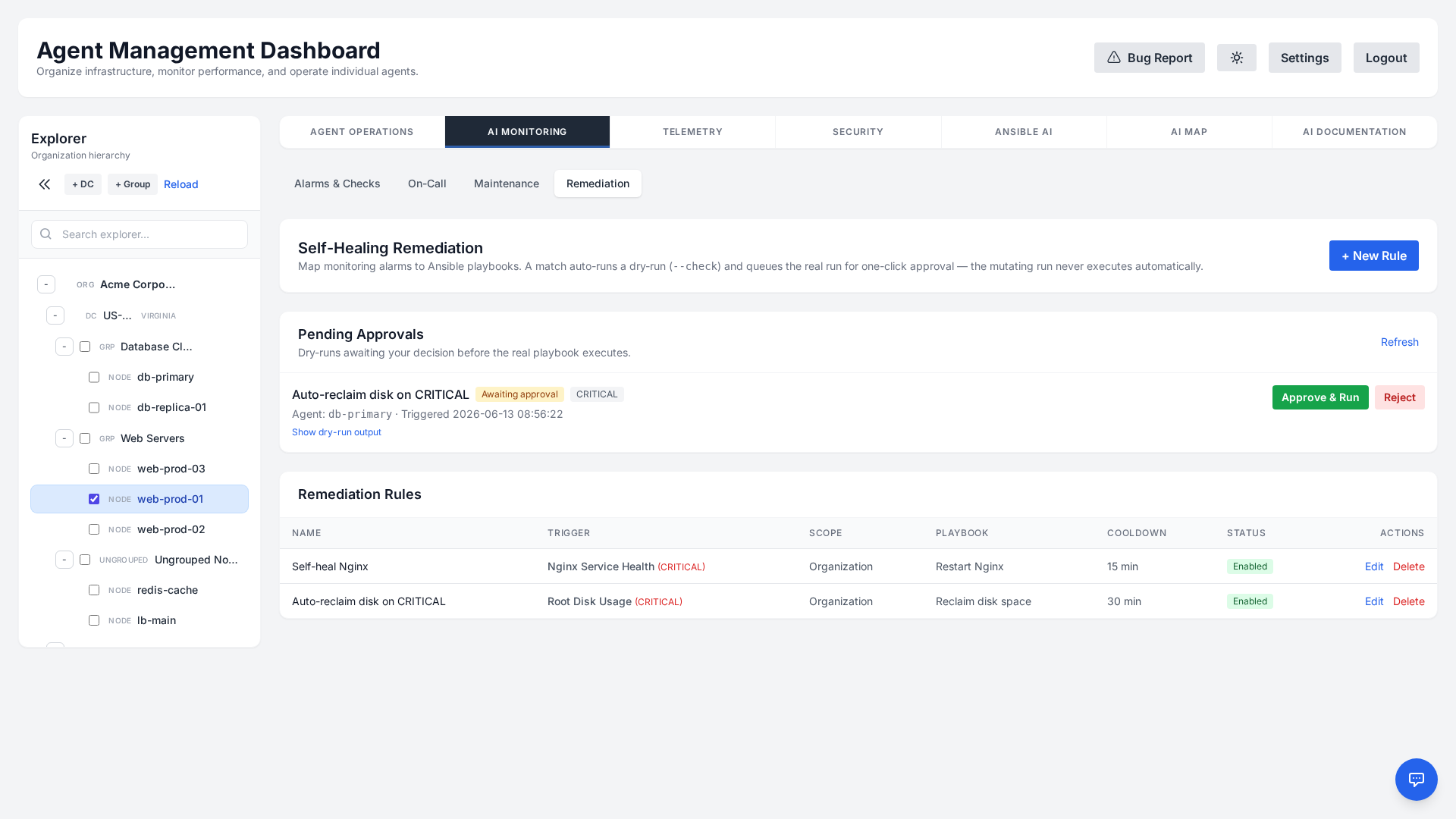
- Trigger: A monitoring check — matched by name or by id — opening a new incident at or above the rule's severity. A rule set to WARNING therefore also reacts to CRITICAL, and a check that is already alarming does not re-trigger while its incident stays open. The rule can be narrowed further to one agent, one machine group or one datacenter; where several rules match, the most specific one wins.
- Action: A saved Ansible playbook, run on the affected agent. Nothing runs straight away: the playbook is always executed in
--checkmode first, and if that dry run fails the rule stops there and nothing is changed. - Guardrails: A successful dry run waits for someone holding the Run Ansible and Run commands permissions to approve the real thing, unless the rule is explicitly opted into auto-execute. Authoring, editing or deleting a rule needs those same permissions, because a rule is command execution scheduled in advance. A cooldown stops a flapping check re-triggering the same fix. And because a remediation is only ever triggered by a freshly opened incident, a maintenance window that suppresses incident creation also stops it — a window that only suppresses notifications does not.
- History: Every attempt is recorded with its status, the dry-run output, the output of the real run, and either who approved it or that it ran automatically.
Telemetry
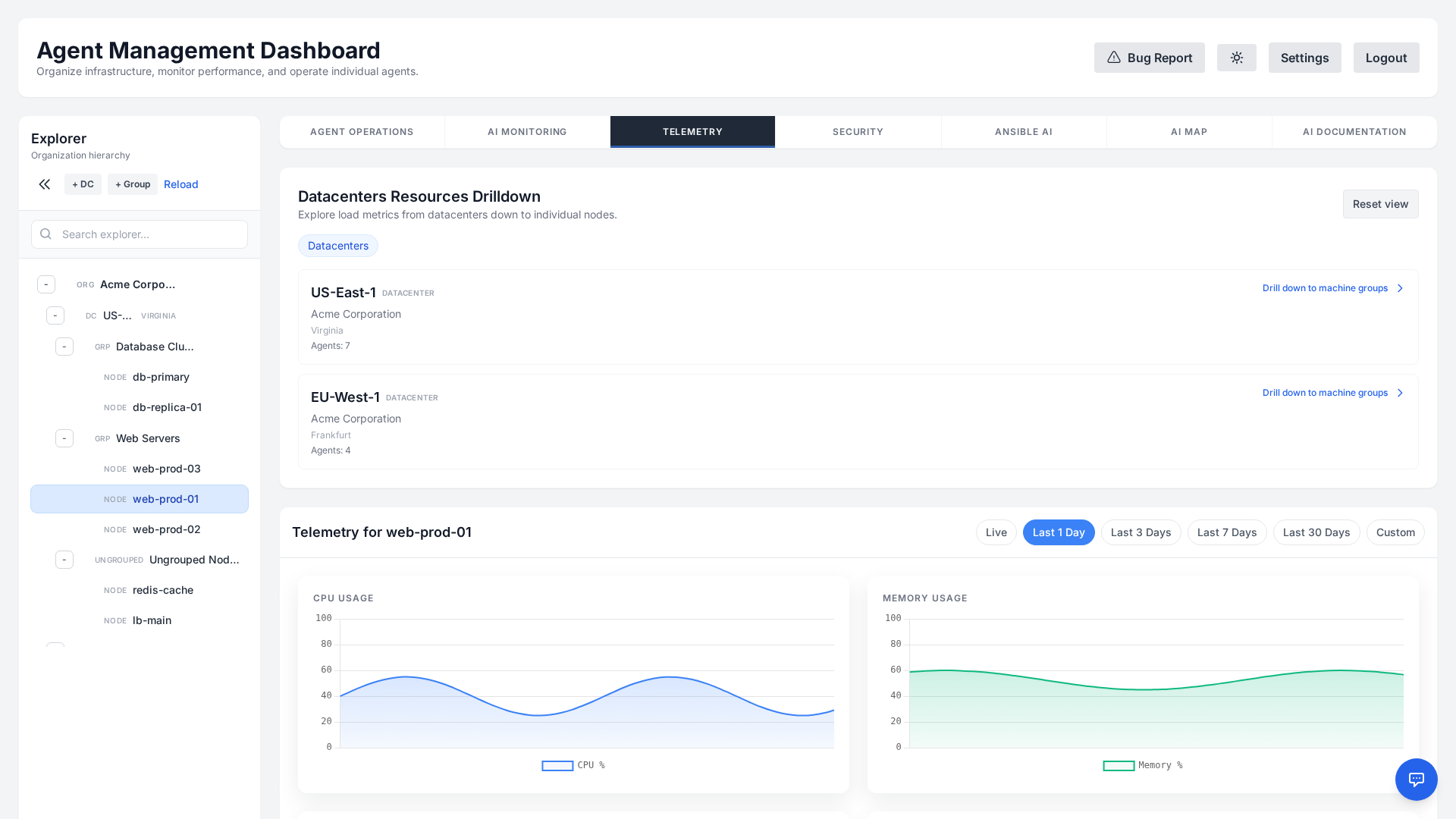
The Telemetry tab gives you a deep, time-series view of any single agent's health. Select a server in the Explorer and open Telemetry to see its historical metrics rendered as interactive charts.
What you can see
- CPU & Memory usage over time, with selectable ranges (Live, 1d, 3d, 7d, 30d, or a custom window). The CPU chart shows the average of all cores and a band from the least busy to the busiest core, so one saturated core (a single-threaded process) stands out even when the average looks calm; the chart title gives the number of cores.
- Reading the charts. Each chart's legend shows every series with its current value; hover any point and all charts move a crosshair to that moment and their legends switch to the values at that time, with the timestamp above them. Click a legend entry to show only that series (click it again to bring the others back), or Shift+click to toggle one. A thin amber / red strip along the top of every chart marks when a check was WARNING / CRITICAL on this host, and hovering inside it names the check in the legend header. Where an alarm began, a coloured dot sits at the top of every chart with a faint dashed line below it; hover the dot or the line to highlight it and see the exact start time and the checks that began there, or click it to keep it highlighted with its details on every chart while you scroll (click the chart again or press Esc to release), so you can see whether CPU, memory, disk, network or connection usage moved just before or with the error.
- Chart toolbar and layout. Each chart has a small toolbar in its top-right corner: switch the series between Area, Line and (for charts with several comparable series, such as disk I/O per device) Stacked, and open the chart full screen (Esc closes it). Drag a chart's bottom-right corner to make it taller; the style and height are remembered per chart in this browser, and ↕ resets the height. Network throughput is drawn mirrored — received above the axis, sent below it. A row of section buttons above the charts jumps to CPU & Memory, Disk, Network, Files & TCP and Processes.
- Swap usage & logged-in users, side by side under the memory chart. Swap is shown as a percentage of the configured swap (a host without swap says so instead of drawing a flat zero), and a steady climb raises System: Predictive Swap Exhaustion. The logged-in users chart counts interactive sessions at each sample; hover a point to see who was logged in, on which terminal and from where (the first 20 sessions are named, the count is always exact).
- Disk I/O — read/write throughput (KB/s), IOPS, utilization, and access time — plus disk usage percentage.
- Network throughput — bytes sent and received, totalled across the host's interfaces.
- Open files and the TCP stack — charts below Network Throughput: Open Files as a share of the system limit and of the worst process's own limit; TCP Sockets in use, in TIME_WAIT and orphaned, with the kernel's TIME_WAIT and orphan limits in the title; TCP Socket Limits, the share of those two limits and of TCP memory in use; Ephemeral Ports & Conntrack used; TCP Retransmits as a share of sent segments; and listen-queue overflows and drops per minute. These are the same numbers the built-in
System:file-descriptor and TCP alarms judge, so you can see how close a host was running to a limit before an alarm fired. A chart appears only when the host reports it (Windows hosts have no system-wide open-files limit, for example).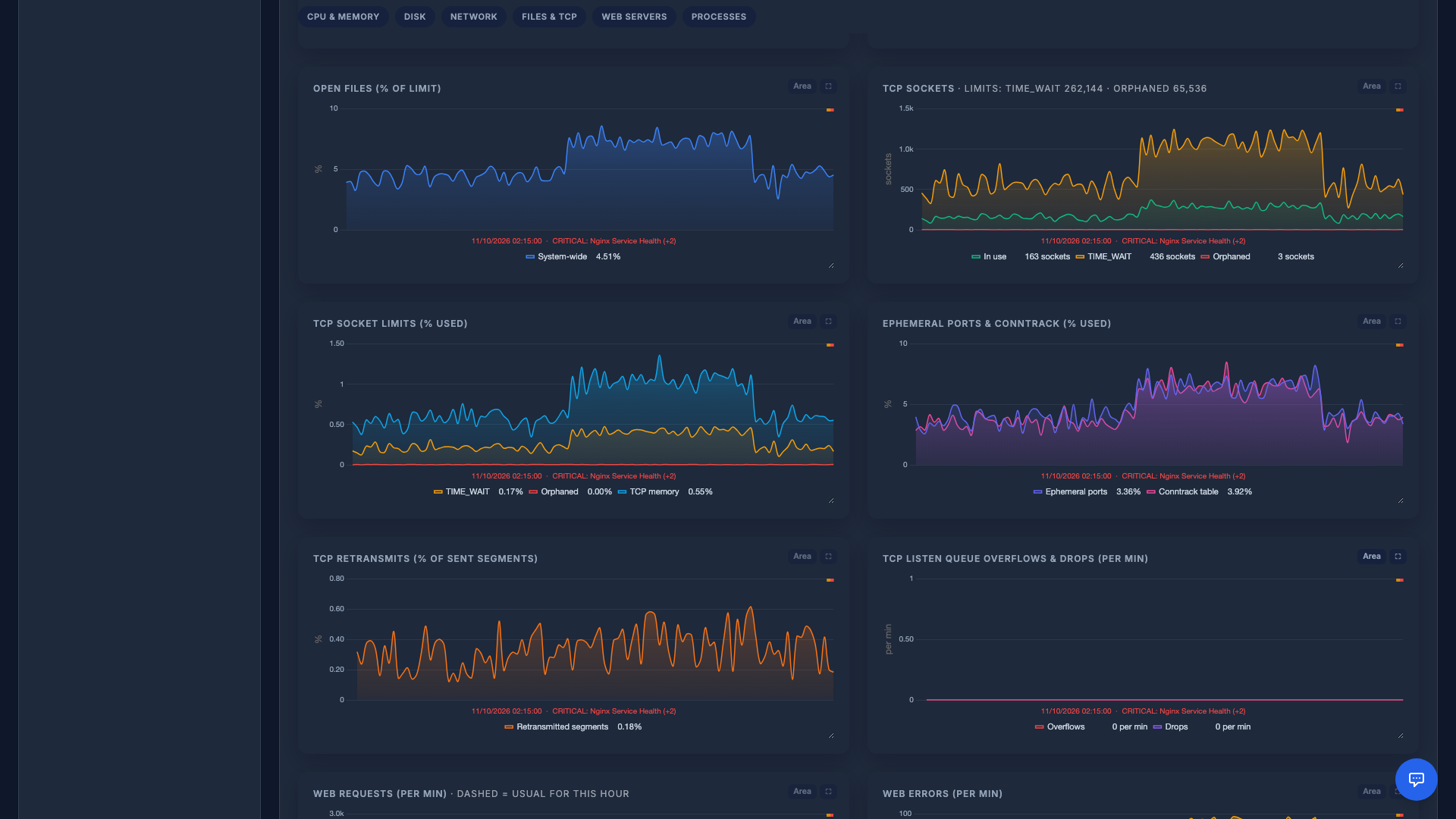
- Top processes by CPU and by memory, so you can immediately spot what is driving load. Each value has a bar coloured by load (blue, amber from 25%, red from 60%). On a historical range the tables follow the chart you hover: they show the processes at that moment, with a vs now column and a left top 10 tag for processes that are no longer in the latest list. Click a chart point to pin that moment while you scroll down; ✕ returns to the latest sample. Aggregated (long) ranges do not keep process lists.
How long history is kept
Per-minute samples are what makes an incident investigation possible, and they are also what makes a year of them unaffordable. Both are true, so the data is aged rather than deleted: raw samples are kept for 30 days, hourly aggregates for a year, and daily aggregates for two years.
Aging changes the resolution, not the subject. Every series on this page — processor, memory, disk usage, disk throughput and IOPS, utilisation, access time and network — is carried into the aggregates as an average and a peak per mountpoint, device and interface. So a range from last spring draws the same charts as a range from this morning; the points are hourly means rather than per-minute readings. The one thing that does not survive is the top-process tables: those are point-in-time snapshots of what was running, and averaging them would be meaningless, so they are available for as long as the raw samples are. The per-core CPU band, the swap and logged-in users charts and the open-files / TCP charts are also drawn from raw samples only, so they cover the last 30 days. The page says which kind of answer you are looking at.
While the raw samples still cover the window you asked for, they are what answers it, whatever the range. Retention never runs ahead of aggregation: raw samples are only removed once they have actually been rolled up, so a rollup that has not yet run cannot cause silent data loss. Charts and the AI read the same numbers, so a long-range answer and the graph beside it cannot disagree.
Switch to the Live range to follow a connected agent in near real time — a rolling five-minute window the manager keeps in memory and the page refreshes as new samples arrive — or pick a historical range to investigate a past incident. The same telemetry feeds the Predictive Analytics forecasts below.
Predictive Analytics
The system includes built-in Predictive Monitoring, enabled by default. The manager re-reads each host's stored telemetry once an hour and fits a trend to it, so a resource that is going to run out announces itself while there is still time to do something about it.
Algorithms Used
- Linear Regression (Disk Usage): Fits the fill rate of each mountpoint over the last 30 days and extrapolates to 100%. A mountpoint that is flat or emptying is ignored.
- CRITICAL: Predicted to fill within 7 days.
- WARNING: Predicted to fill within 14 days.
- Holt's Linear Trend (CPU & Memory): Uses exponential smoothing over the last 7 days to detect saturation trends.
- CRITICAL: Forecast > 95% saturation.
- WARNING: Forecast > 85% (CPU) or > 90% (Memory).
- Linear Regression (Open files, Ephemeral ports, Conntrack): Fits the last 48 hours of each limit's usage and extrapolates to 100%. Only hosts already past 30% of a limit are forecast, so ordinary daily load does not raise alarms; a restart that frees a leak resets the line.
- CRITICAL: Predicted to run out within 24 hours.
- WARNING: Predicted to run out within 72 hours.
A forecast needs something to extrapolate from: at least three telemetry samples carrying disk usage, and ten carrying CPU or memory. Below that the host is skipped silently rather than being reported as healthy. Nothing needs configuring, and it applies to every host the manager has telemetry for — Linux, Windows and agentless SSH hosts alike, since the forecast runs on the manager rather than on the host.
Forecasts surface alongside your other checks as system alarms — System: Predictive Disk Space, System: Predictive CPU Saturation, System: Predictive Memory Saturation, System: Predictive File Descriptors, System: Predictive Ephemeral Ports, System: Predictive Conntrack Table and System: Predictive Swap Exhaustion — in AI Monitoring → Alarms & Checks, and trigger your configured notification channels and on-call escalations exactly as a normal check does. When the trend recovers, the next hourly pass posts an OK result and the alarm clears itself. Active Alarms tags each alarm as Predictive (a forecast), System (any other built-in check, such as a limit being hit now, a missed heartbeat or an expiring SSL certificate), Advisor (applied by the AI Monitoring Advisor) or Custom.
Open files & TCP stack
Busy servers usually fail on a kernel limit long before CPU or memory run out: "Too many open files", "Cannot assign requested address", "nf_conntrack: table full", or clients timing out because SYNs are dropped at a full accept queue. Agents and agentless SSH hosts report how close the host is to each of those limits with every telemetry snapshot, and the manager judges the latest sample every two minutes. Each alarm names the limit, the numbers and the setting to change, is posted only when its state changes, and clears once the value is clearly back under the warning line.
- System: File Descriptors — open files against
fs.file-max, and each busy process against its own soft open-files limit (LimitNOFILE), which is where nginx, Java or database servers actually hit the wall. Warning 80%, critical 90%. On Windows, where there is no such limit, the processes holding the most handles (warning 50,000, critical 100,000). The per-process scan runs on installed agents every 5 minutes. - System: TCP Ephemeral Ports — client ports in use against
ip_local_port_range(Windows: the dynamic port range), overall and towards the single busiest destination, which is where exhaustion really happens; the TIME_WAIT count is included. Warning 70%, critical 85%. - System: Conntrack Table —
nf_conntrack_countagainstnf_conntrack_max, on hosts that load conntrack. Warning 80%, critical 90%. - System: TCP Listen Queue — incoming connections dropped per minute because an accept queue was full, with
net.core.somaxconn. Warning at 1 per minute, critical at 10. - System: TCP Resources — orphaned sockets, TCP memory and TIME_WAIT buckets against
tcp_max_orphans,tcp_memandtcp_max_tw_buckets. Warning 80%, critical 90%. - System: TCP Retransmits — the share of sent segments retransmitted between samples, once at least 1,000 segments were sent. Warning 2%, critical 5%.
All thresholds are manager settings (NETSTACK_*), and the whole feature can be turned off with NETSTACK_MONITORING_ENABLED=false.
Web servers: errors, traffic and attack patterns
Installed agents find nginx, Apache httpd, HAProxy, IIS, Caddy, lighttpd, Tomcat and Traefik on their own, on the host and in Docker or Kubernetes containers, and do nothing on hosts that run none of them. The agent reads the server's own configuration to find its access and error logs and the virtual host each log belongs to, reads only the lines added since the previous minute (at most 16 MiB a minute; above that it reads the newest part and scales the counts up), and sends counters, not log lines: requests, 2xx/3xx/4xx/5xx, 401/403, 404 and 429 responses, error-log lines by level and cause (upstream timeouts, refused upstream connections, too many open files, exhausted workers…), and requests matching attack signatures (path traversal, .env/.git probes, SQL injection, XSS, JNDI, CMS login probes, command injection). It also counts established connections on the server's listening ports and reads stub_status, Apache server-status and the HAProxy stats socket where they are enabled. Container logs are read from Docker's json-file logs (honouring a custom data-root) and Kubernetes/containerd pod logs; containers using another log driver are reported but not read.
Every two minutes the manager turns each host's counters into per-minute rates and compares them with that host's own running baseline (after ten samples). Changes are posted only when the state changes, and an alarm is held while the value stays near its line, so it does not flap:
- System: HTTP 5xx Error Spike — at least 10 server errors a minute that are 5% of all requests (critical 20%), or three times the usual rate (critical ten times). Names the virtual hosts with the most errors.
- System: HTTP Server Error Anomaly — two or more crit/alert/emerg lines a minute (or one with a severe cause such as a crashed worker or exhausted connections), a jump in error lines with their causes, HAProxy servers DOWN (warning) or a backend with no server up (critical).
- System: HTTP Request Spike — requests (from 300 a minute) or open connections (from 200) three times above the baseline, naming the virtual hosts that spiked.
- System: HTTP Traffic Drop — a server that usually handles 60+ requests a minute falls under 10% of that while still running.
- Security: HTTP Attack Pattern — 20+ attack-signature requests a minute (critical 200), a surge of 401/403 (credential brute force) or 404 (content scanning), or one public client sending half of all requests while traffic has at least doubled (a proxy, CDN or load balancer in front is not flagged). WordPress and Joomla admin paths count only when the server refused them. Lists the top clients.
Client IP addresses and up to ten example log lines leave the host only when the agent itself sees an anomaly in that minute (10+ attack-signature requests, 10% server errors, a burst of error lines, or one public client sending 30% of the traffic). Both are redacted on the agent and again on the manager — query strings, credentials, cookies, bearer tokens, long tokens in paths, e-mail addresses and the client address inside each line are removed — are stored apart from the counters, and are erased after one hour. Client IPs named in an alarm stay in that alarm's text. Client IPs are personal data under the GDPR; turn the feature off per agent or machine group in the Explorer's Feature settings if that is not acceptable, or on the host with AI_LINUX_HTTP_MONITORING=false; standing alarms clear when you do. The agent runs as root, so it only reads the configuration of web servers that run as root themselves (or in a container); a web server started by an ordinary user is ignored, except Tomcat, whose logs are read only when that user owns them. Rootless and user-namespaced containers are not monitored. Thresholds are manager settings (HTTP_*), and HTTP_ANOMALY_MONITORING_ENABLED=false turns the alarms off.
Daily and weekly rhythm. Once an hour the manager builds a profile of each server's usual requests, server errors, error-log lines and connections for every hour of the day (UTC) from the last week of hourly history, and, after three weeks, for every hour of the week. A spike is then judged against the higher of the running baseline and the usual level for that hour, and a drop against the usual level for that hour: a daily 9:00 peak is normal at 9:00 but still a spike at 3:00, and a quiet night is not reported as an outage. Until a host has three days of history for an hour, only the running baseline is used.
Charts. The host's Telemetry tab gains a Web servers section on hosts that run one: requests per minute with a dashed line for what that hour usually sees, 4xx/5xx responses and error-log lines per minute, open connections (per server when there are several), and the five busiest sites. They are kept in the hourly and daily history too, so the 30-day and longer ranges show them as hourly or daily averages, and the live view draws them as they arrive.
AI analysis. Nothing is sent to a language model automatically. When you press AI Analyse on one of these alarms in Active Alarms, your organization's AI provider receives the alarm text and a bounded summary of that host's web servers: the current rates against the running baseline and the usual level for the hour, error-log causes, attack signatures, the busiest sites, the last six hours of hourly averages and, while they are still kept (one hour), the top clients and the redacted example log lines. The log lines are marked as untrusted text written by remote clients, and because of that the analysis never comes with one-click fix commands for these alarms — suggested commands appear in the text for you to review. In every AI alarm diagnosis, images in the model's answer are not loaded and links are shown as plain text with their address.
Clock skew
Every telemetry snapshot carries the host's own time, and the manager records when it arrived, so a drifting clock is caught with no extra probe. A host 60 seconds or more off raises System: Clock Skew as a warning, 5 minutes or more as critical — the point where TLS, TOTP codes and signed-command expiry start to fail. The alarm says how far and in which direction, and clears itself once the host is back within half the warning threshold. Each host is judged on the best of its last three samples, so a single delayed snapshot never pages. When hosts in several organizations are off in the same direction at once, the manager's own clock is the likely culprit: the per-host alarms are held back and the manager logs an error instead. That vote is counted per organization, so one organization's hosts (or its own time server) never silence the alarm for anyone else. Installed agents only: agentless SSH hosts are not judged, because their samples can arrive late through a proxy.
Rightsizing Advisor
Machines that idle at 3 % CPU for months cost money; machines that live at the limit cost incidents. The rightsizing advisor turns the telemetry history you already have into a list of both.
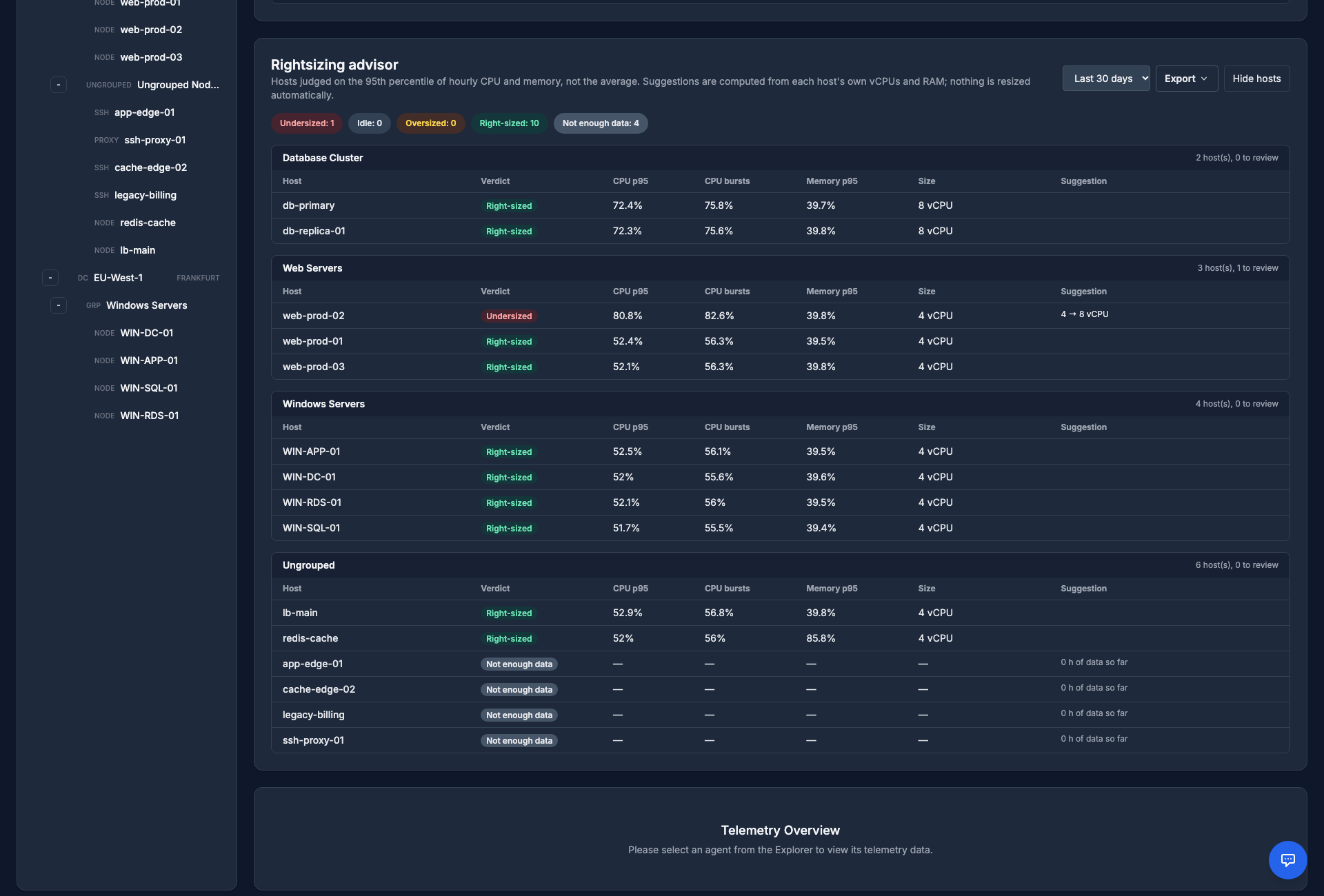
- Where: the Rightsizing advisor card at the top of the Telemetry tab, over the last 30 or 90 days, grouped by machine group.
- How it judges: the 95th percentile of hourly CPU and memory, not the average — a quiet night does not hide a busy day. Verdicts: undersized, oversized, idle, right-sized, or not enough data (less than a week).
- Suggestions: for under- and oversized hosts, a vCPU and RAM size computed from the host's own hardware. Nothing is resized automatically and no cloud pricing service is called.
- Reports: the operations report (download or scheduled email) includes a rightsizing section. When Cloud Inventory knows the provider size, the advisor also names a smaller family-preserving size from its bundled offline catalog; it never calls a pricing API.
- Export: the Export drop-down on the advisor card downloads a PDF or CSV report with verdict counts and matching hosts' p95 usage, size, recommendation and reason. It follows the selected window and verdict filter; counts cover all analyzed hosts. Analysis is limited to 1,000 hosts, with a warning in the report if truncated.
Security Scanning
The Security area at a glance
Everything below lives under the Security tab, in three groups. Most panels follow the hosts ticked in the Explorer, so select the hosts, a machine group or a datacenter first.
- Vulnerabilities — CVE Report (missing security updates on the hosts), Image Vulnerabilities (Docker images and Kubernetes workloads), End-of-Life (software that no longer gets fixes) and Patching (rolling the fixes out).
- Configuration & Compliance — Hardening & Compliance (OpenSCAP scans and framework scoring, below; the audit-ready Compliance Reports are built from them), Drift, Access Review and SSL Management.
- Threat Detection — Threat Alerts and File Integrity.
Cloud instances without an agent are listed separately under Agent Operations → Cloud inventory (see Cloud Inventory). Starting a scan needs the operator permission Trigger security scans.
Hardening & Compliance (OpenSCAP)
Measure your Linux hosts against a recognised hardening baseline with OpenSCAP. Pick a profile — PCI-DSS, HIPAA, CIS, STIG and whatever else the host's SCAP content offers — and the agent evaluates every rule in it and reports each one as passed, failed or not checked, with its severity and rule id.
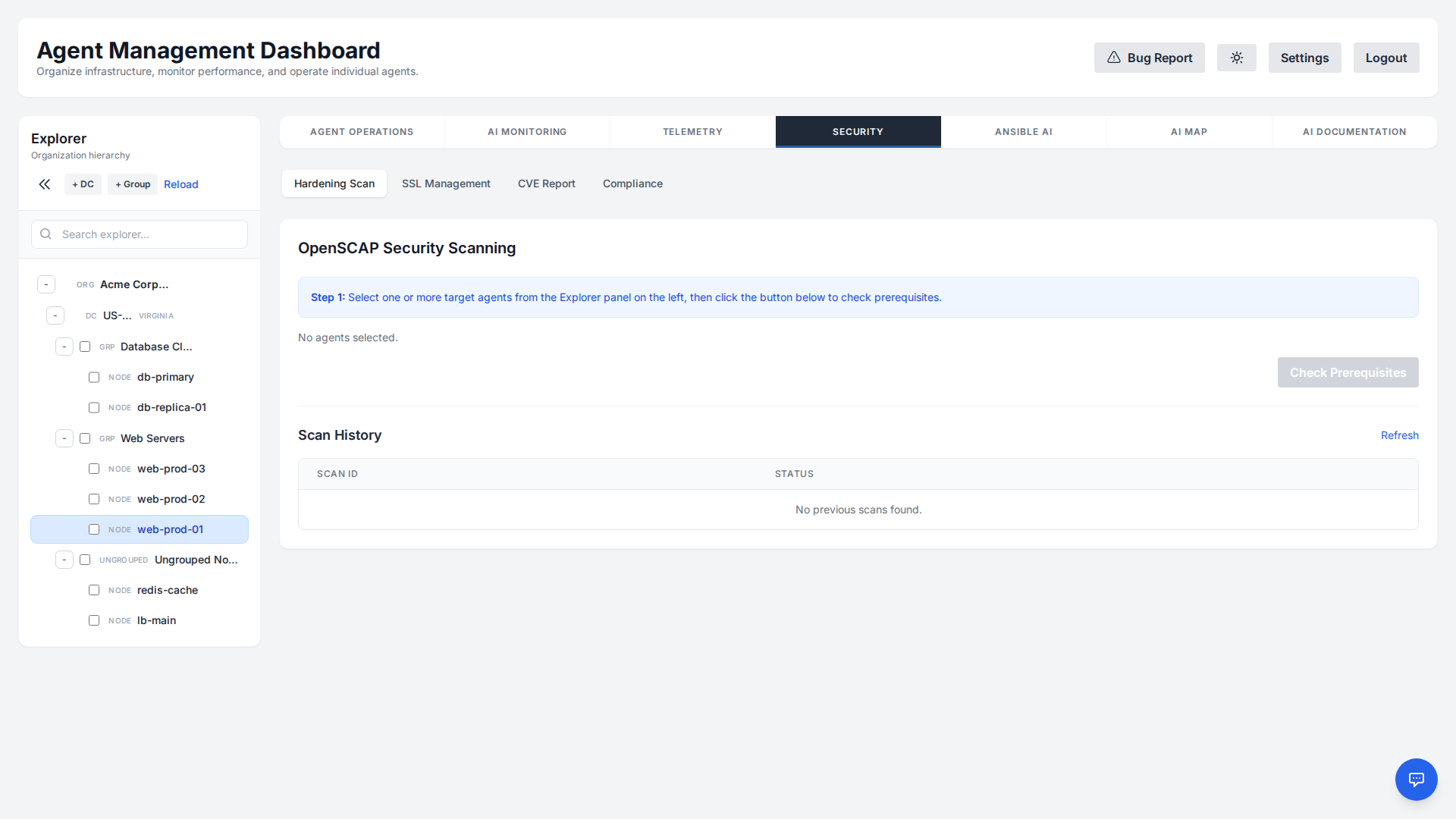
The profile list is not a fixed menu: it is read from the SCAP content actually installed on the host, so you are only ever offered profiles that machine can be measured against. If the tooling is missing the dashboard says so and can install it for you. Scans are started from the dashboard against the hosts you select and require the Trigger security scans permission; there is no recurring schedule — you run them when you want the answer.
For failed rules you can generate a remediation script, and there are two kinds — the difference matters, because you are the one running them as root. Picking specific rules gives you the fixes the SCAP Security Guide ships inside the profile itself, pulled out of the report and assembled into one script; nothing there is written by a model. Fix all failed instead asks your configured AI to author a single consolidated script for everything failing in the chosen framework — it uses the built-in fixes as reference and writes its own for the rules that have none. That one is labelled as AI-authored in the dialog. Either way the script is editable, nothing runs until you press apply, and both go out through the same approval-gated path.
Beyond the raw pass/fail list, Compliance Hardening scores the selected host against a framework — CIS, STIG, PCI-DSS, HIPAA and others, plus governance frameworks like SOC 2 and ISO 27001 that are measured against the CIS technical baseline — and shows the count of passes, failures and failures at high severity. Controls that cannot be measured from a machine at all are listed separately as procedural, rather than being quietly counted as passes.
Windows hosts are not covered by this. OpenSCAP is a Linux toolchain and there is no equivalent baseline scan for Windows, so Windows machines are refused up front rather than failing mid-scan; what they get instead is CVE scanning, which answers a different question — missing patches rather than configuration hardening.
CVE Scanning
Stay ahead of known vulnerabilities across your fleet. The CVE Scanner asks each host's own update tooling which security updates are pending, then resolves those packages to published CVEs so you can prioritize patching by severity.
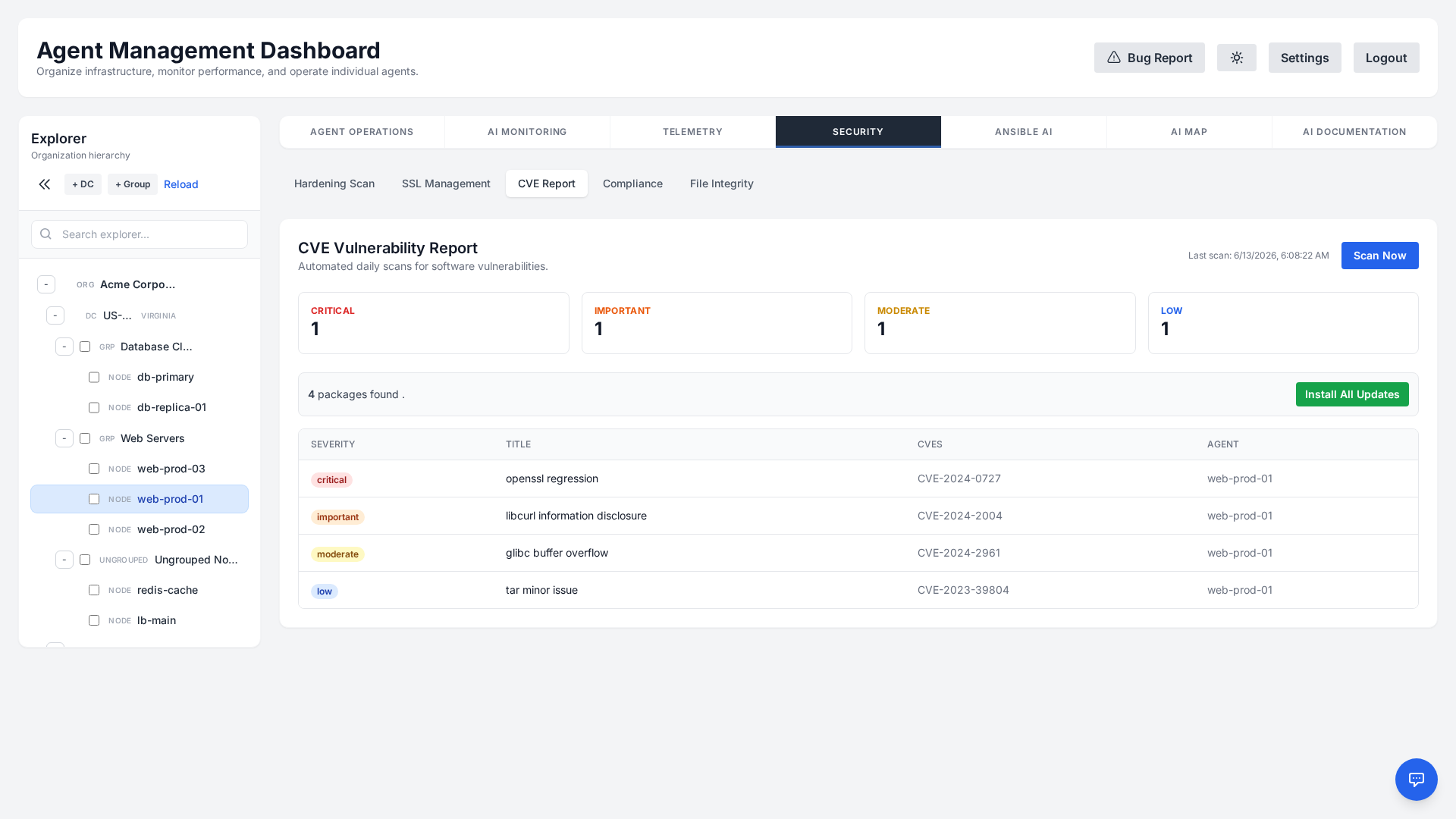
- Severity breakdown: The summary has four cards — Critical, Important, Moderate and Low. A finding the feeds could not rate is shown with an Unknown badge on its row.
- Cross-platform: On Debian and Ubuntu the pending security updates are matched against published advisories to give you the CVE and its distribution priority. On RHEL, Oracle Linux, Rocky, AlmaLinux, Fedora and Amazon Linux the vendor advisory and its severity come straight from
dnf updateinfo(oryum updateinfoon older releases). On Windows the scan queries Windows Update for the CVE identifiers, KB articles and Microsoft severity of updates that have not been applied. - Live progress: Scan Now opens a progress panel above the report: an overall bar and one row per host that shows whether the scan is waiting (for example because the agent is offline — it runs when the host reconnects), running, done with its number of findings, or failed with the reason. A scan that could not run — an unsupported distribution, a package tool that failed, repositories that could not be reached — is reported as failed with that reason rather than as “no vulnerabilities”, and when a host's latest attempt failed the report says so next to the older results it still shows. On Debian and Ubuntu the scan also warns when the host's package lists are more than a week old, since updates published after the last
apt-get updatecannot be seen. - Find and fix what matters: search the findings by package, CVE, advisory or host, page through large fleets 25, 50 or 100 at a time, and use the Remote code exec. card to show only findings whose advisory text describes remote code execution (marked
RCE; this is read from the vendor's wording, not an exploitability rating). Tick individual findings — or every matching finding at once — and press Update selected to patch only those: the manager checks each one against the host's latest scan and updates just that package (apt), advisory (dnf/yum) or KB (Windows). Install All Updates still applies everything pending. Both need the permission to run commands and are recorded in the audit log. - Reports: Export generates a PDF report or a CSV spreadsheet for the selected hosts with the current severity and remote-code-execution filters: a table of every server with its number of critical, important, moderate, low and unrated findings, followed by each server's findings with their advisory and CVE ids, the package, the impact and what the flaw causes. For RHEL-family hosts the manager looks up each CVE's own description and weakness type (CWE) from Red Hat's public CVE data, because vendor advisories such as Oracle's only carry a package changelog; when a scan reported an Oracle advisory without its CVE ids, the manager finds them in Oracle's public OVAL errata. The impact (remote code execution, memory corruption, denial of service, information disclosure, privilege escalation and so on) comes from that weakness type or, failing that, from the wording of the CVE.
- Actionable detail: Each finding lists the affected package, the version installed when it was found, the related CVE identifiers and a short description.
- Patching: Remediation applies the pending updates and reports whether a restart is required — through the package manager on Linux, and through the same Windows Update session the scan already queries on Windows, so nothing extra has to be installed on the host. It applies every pending update rather than only the vulnerable package, requires the command-execution permission rather than the scanning one, and is written to the audit log.
The scan itself only reads. It runs as a signed observe-only command, installs nothing, and needs no internet access on the host: the lookup against the advisory feed happens on the manager. If that feed is unreachable, or you run air-gapped and turn it off, the scan still reports which packages have a pending security update — those findings are simply labelled SECURITY-UPDATE with a severity of Unknown rather than being given identifiers nobody could look up.
Image Vulnerabilities
A host can be fully patched while the containers on it run an image built a year ago. Image Vulnerabilities scans the container images on the selected hosts with Trivy — the Docker images on the host and the workloads of a Kubernetes cluster — and lists every CVE with its severity, package, fixed version and the host and image it was found in.
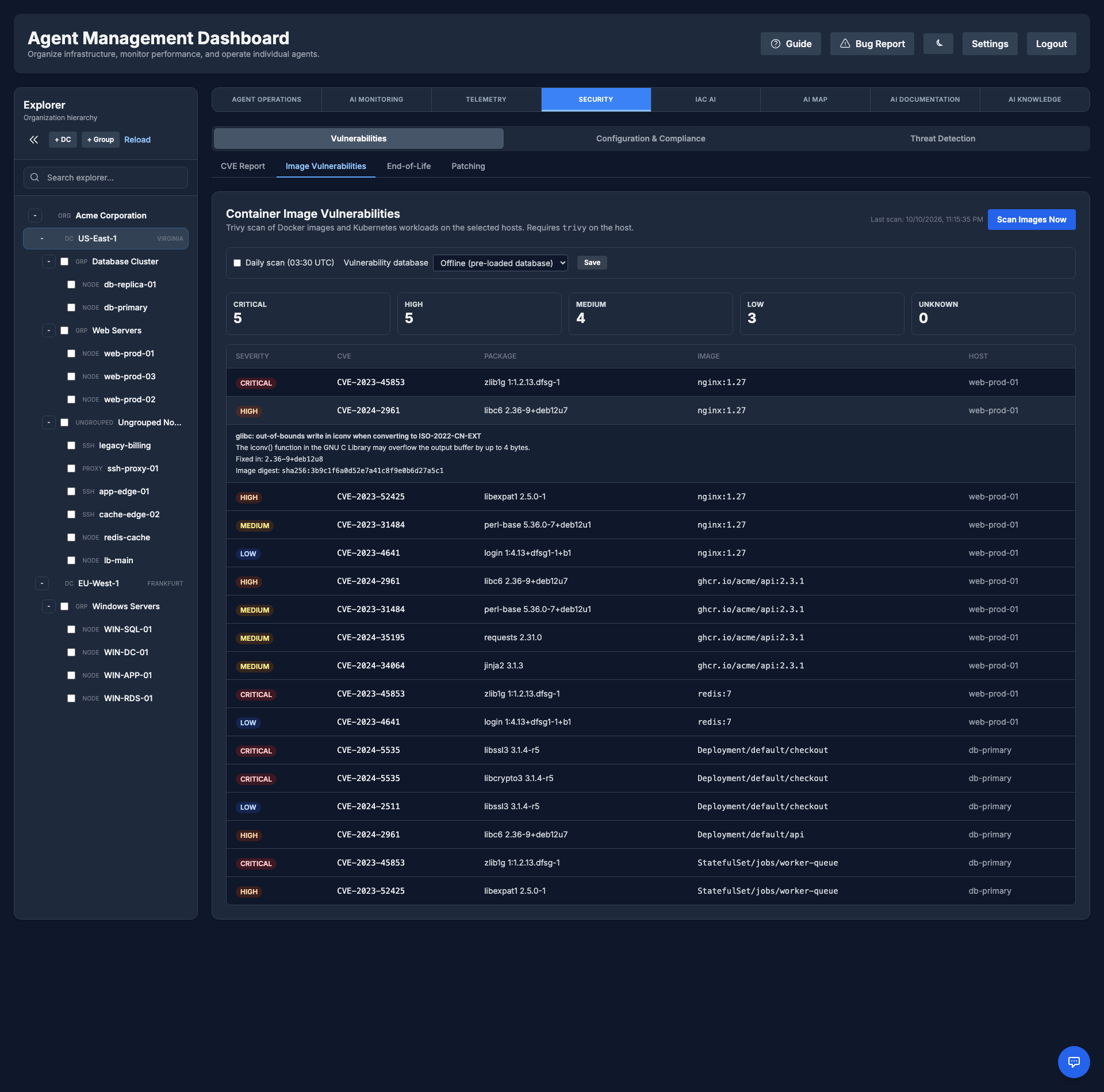
- Where: Security → Vulnerabilities → Image Vulnerabilities. Tick the hosts in the Explorer and press Scan Images Now. The cards at the top count Critical, High, Medium, Low and Unknown findings; click a row for the description and the image digest.
- Requirements:
trivymust be installed on the host; for Kubernetes workloads the host also needs read-onlykubectlaccess to the cluster. Windows hosts are skipped. A host that cannot be scanned (no Trivy, Docker not answering, a scan longer than 20 minutes) is reported as completed with errors instead of looking clean. - Local images only: images are read from the host's Docker, never pulled from a registry, and the image names are discovered on the host rather than typed in, so a scan cannot be pointed at something else.
- Database mode: by default Trivy uses the vulnerability database already on the host (Offline), so a scan needs no internet access. An administrator can allow Trivy to refresh its database (Online) and can switch on a daily scan at 03:30 UTC; both settings are audited.
- In the Containers tab: each scanned image and Kubernetes container gets a Critical/High badge next to it (see Container & Kubernetes Inventory).
- Limits: results are kept for 90 days and at most 5,000 findings are stored per host. The scan runs a constant, read-only command, so it can be pre-signed under Command Signing.
End-of-Life Inventory
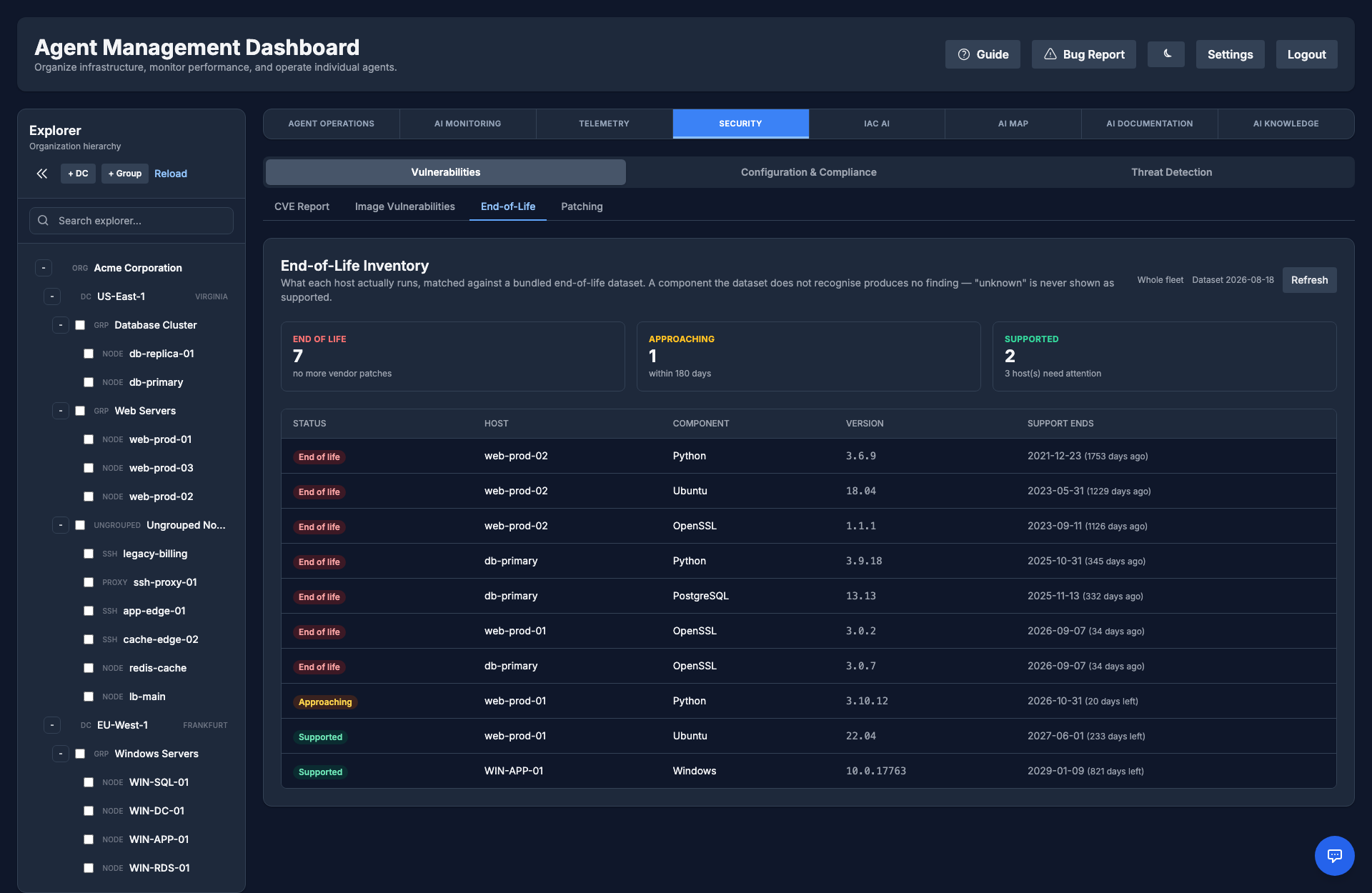
A CVE scan tells you which patches are missing. It cannot tell you that a host runs an operating system whose vendor stopped shipping patches eleven months ago — which is the more serious finding, because there is nothing left to patch. A daily read-only probe reports what each host actually runs, and the manager matches it against a bundled end-of-life dataset.
- What is checked: The distribution and version, kernel, OpenSSL, OpenSSH, Python, systemd, and any installed PostgreSQL, MySQL/MariaDB, Node.js, PHP, nginx or Apache. On Windows, the build and edition.
- Three verdicts:
supported,approaching(within 180 days of its end date) andeol. A host that crosses into end-of-life raises the Security: End-of-Life Software alarm through the normal incident and notification path, and it clears itself once the host is upgraded. - Silence is never a verdict: A component or version the dataset does not recognise produces no finding at all. “We do not know” is never rendered as “supported”, and even less as “end of life”.
- Works offline: The dataset ships with the release and is never fetched at runtime, so an on-premise manager needs no outbound access and does not phone home.
- Where to read it: Security → Vulnerabilities → End-of-Life leads with the three counts and lists every finding ordered by the date support ends, with the host, the component, the version found and the days remaining. Clicking a count filters to it. The same posture is available as
GET /api/security/lifecycle. Both require the security-scanning permission, and the panel shows which dataset release answered you.
Patch Orchestration
Finding vulnerable packages is half the job. Patch orchestration installs the fixes across the fleet in a controlled order, and stops by itself when something goes wrong.
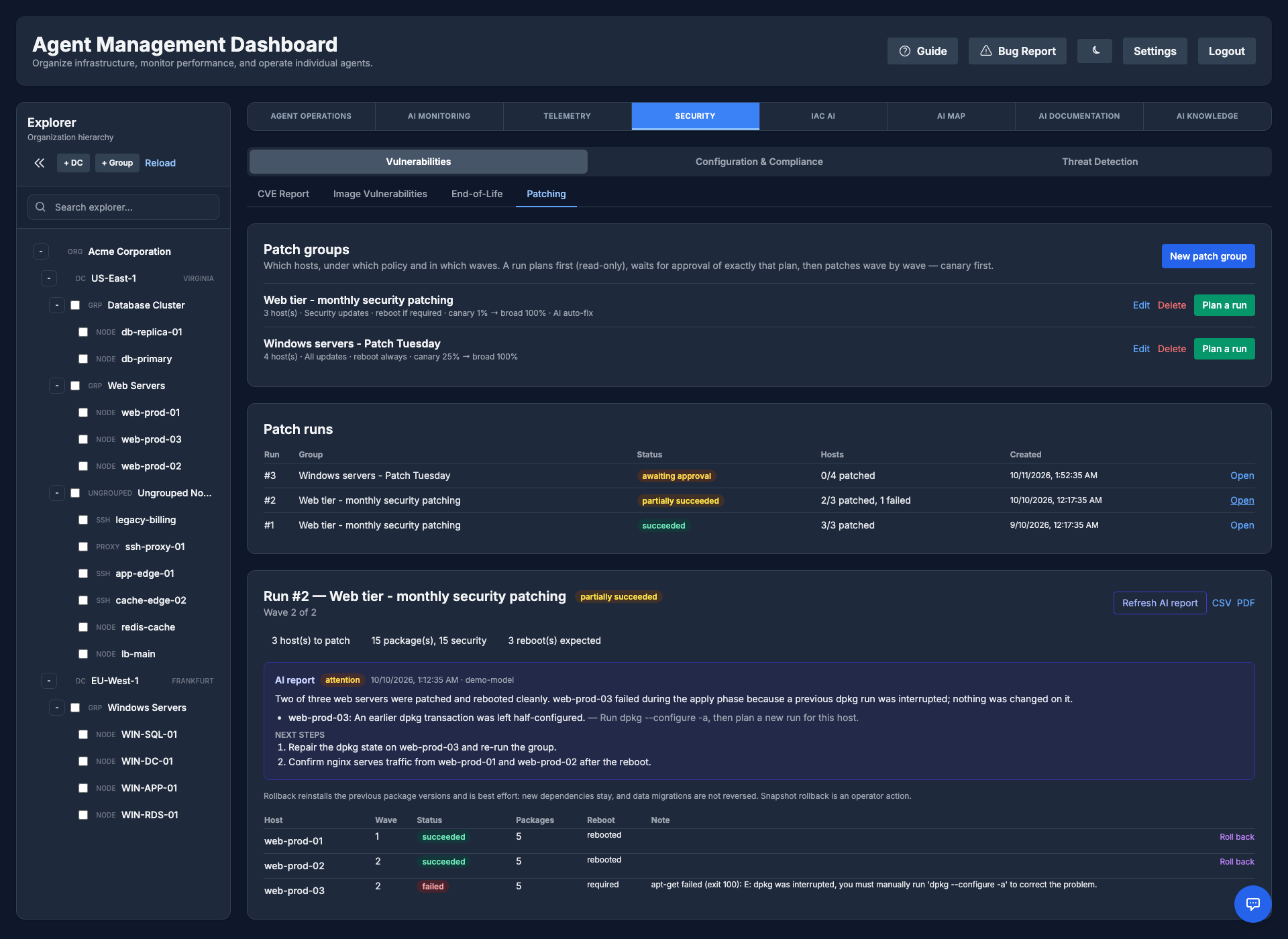
- Patch groups: Security → Vulnerabilities → Patching. Choose hosts by machine group or datacenter, all updates or security updates only, packages to include or never touch (for example
kernel*on database hosts), the reboot policy, how many hosts at once and how many per machine group may be down together, and an optional maintenance window. - Plan, then approve: a run first asks every host, read-only, which updates it would install. You approve exactly that plan (hosts, packages, reboots); the commands install those exact versions, never a blind upgrade.
- Waves: a canary host goes first and must succeed; later waves need their success threshold and a quiet soak period (no new alarms) before the next one starts.
- Safety checks on every host: disk space, package-manager health, pending reboots, critical alarms and services are checked before; after the update the probe confirms the packages are in place and the critical services still run. Expected reboots do not page anyone, and a host that does not come back raises a critical notification.
- Pause, cancel, roll back: runs pause automatically above the failure percentage. Rollback reinstalls the previous versions and is best effort (new dependencies and data migrations are not reversed); snapshot rollback stays an operator action.
- AI assistance: AI report on a run summarises what happened, the probable cause per failed host and the next steps. For a failed host, AI fix options proposes up to three remediations (with risk and the exact commands); an administrator picks one, and on success the host goes back into the run. With Let the AI fix failed hosts on a patch group, the engine applies the recommended option by itself, once per host. Every suggested command passes the destructive-command guard; unattended fixes must also be one of a short list of known repairs (finishing an interrupted package install, cleaning package caches, rebuilding the RPM database, vacuuming the journal, restarting the group's own critical services), and no new host starts while one is being fixed. What reaches the model is redacted, nothing runs on offline hosts or under hard command-signing enforcement, and each step is audited.
- Evidence: every step is in the audit log, and each run has a CSV/PDF report including how many CVE findings disappeared. The scheduled operations report (Reports) adds a Patching section for security teams: hosts patched and failed, security packages applied, CVE findings closed, which hosts have not been patched in 30 days, and which still wait for a reboot.
Compliance Reports
Demonstrate adherence to common frameworks with on-demand Compliance Reports. The platform consolidates scan results and configuration evidence into shareable, AI-generated assessments for the standard you select.
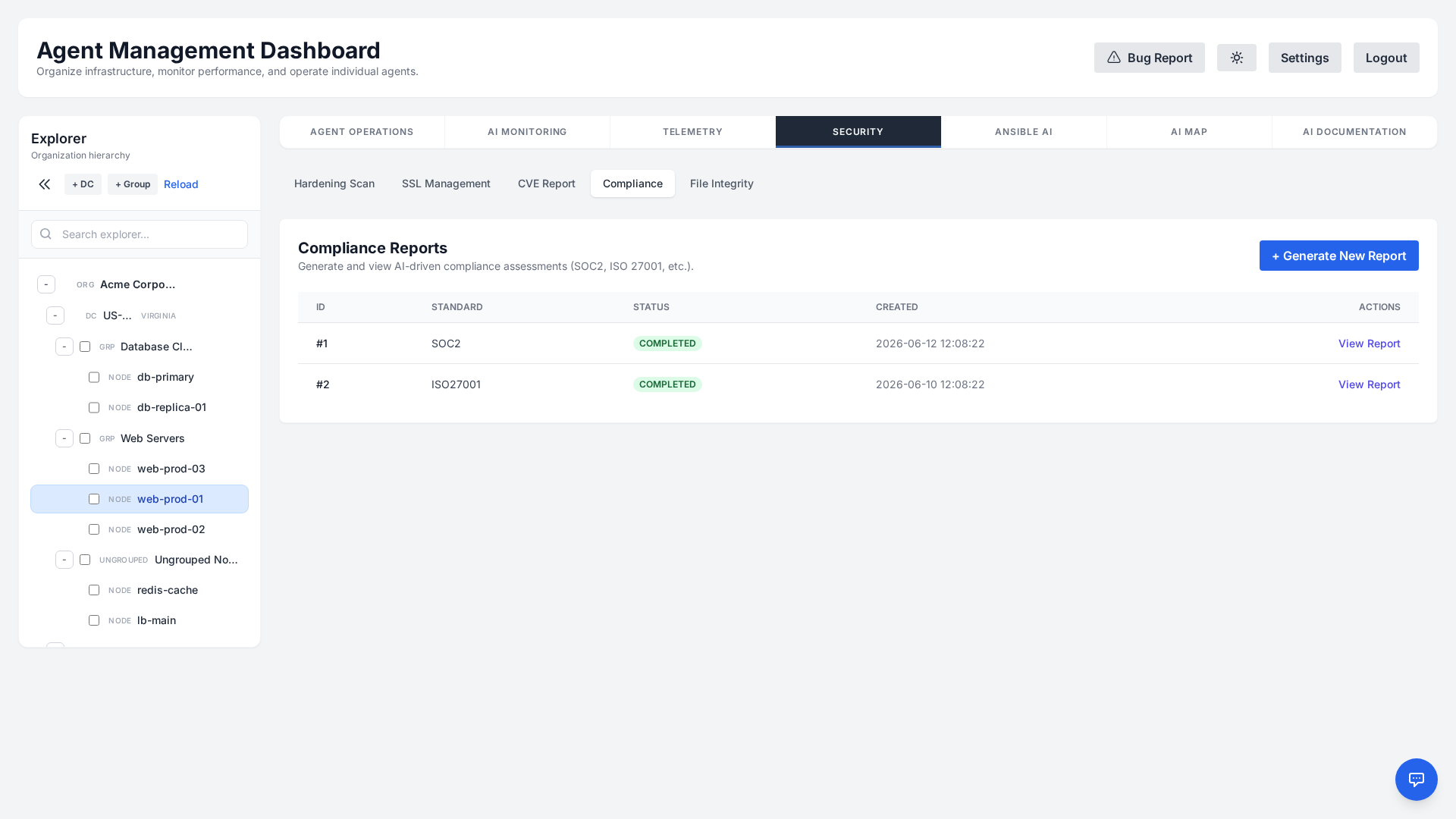
Choose from the following supported frameworks:
- SOC 2 Type II — Security and availability trust-service criteria.
- ISO 27001 — Information security management system controls.
- HIPAA — Safeguards for protected health information.
- DORA (EU) — Digital Operational Resilience Act ICT risk and resilience requirements.
- NIS 2 (EU) — Cybersecurity risk-management measures under the EU NIS 2 directive.
Reports render as formatted HTML you can review in the dashboard. Download report saves a self-contained HTML file — the report, its standard and the time it was generated, with no external assets — which is what you hand to an auditor or attach to an evidence request; Export PDF / Print opens your browser's print dialog for a PDF. Every export is written to the audit log, so you can show who took a copy of the evidence and when.
The control analysis is grounded in what was actually measured. Each host's most recent hardening scan is re-scored against the control families the selected standard cares about, and those scores, the per-family pass and fail counts and the failing rules are what the report is written from, alongside the host's CVE totals, its active alarms and its certificates. Where a host has no scan behind it, the report says the evidence is missing rather than inferring a result. A report is a point-in-time snapshot of the hosts you selected, not a certification.
Configuration Drift
A fleet is only manageable while its members are alike. The host someone patched by hand at 2 a.m., or the one whose service was disabled “temporarily” two years ago, is what breaks the next rollout — and nothing notices, because each host looks perfectly healthy on its own. Drift is only visible by comparison, so each host is scored against the other members of its machine group.
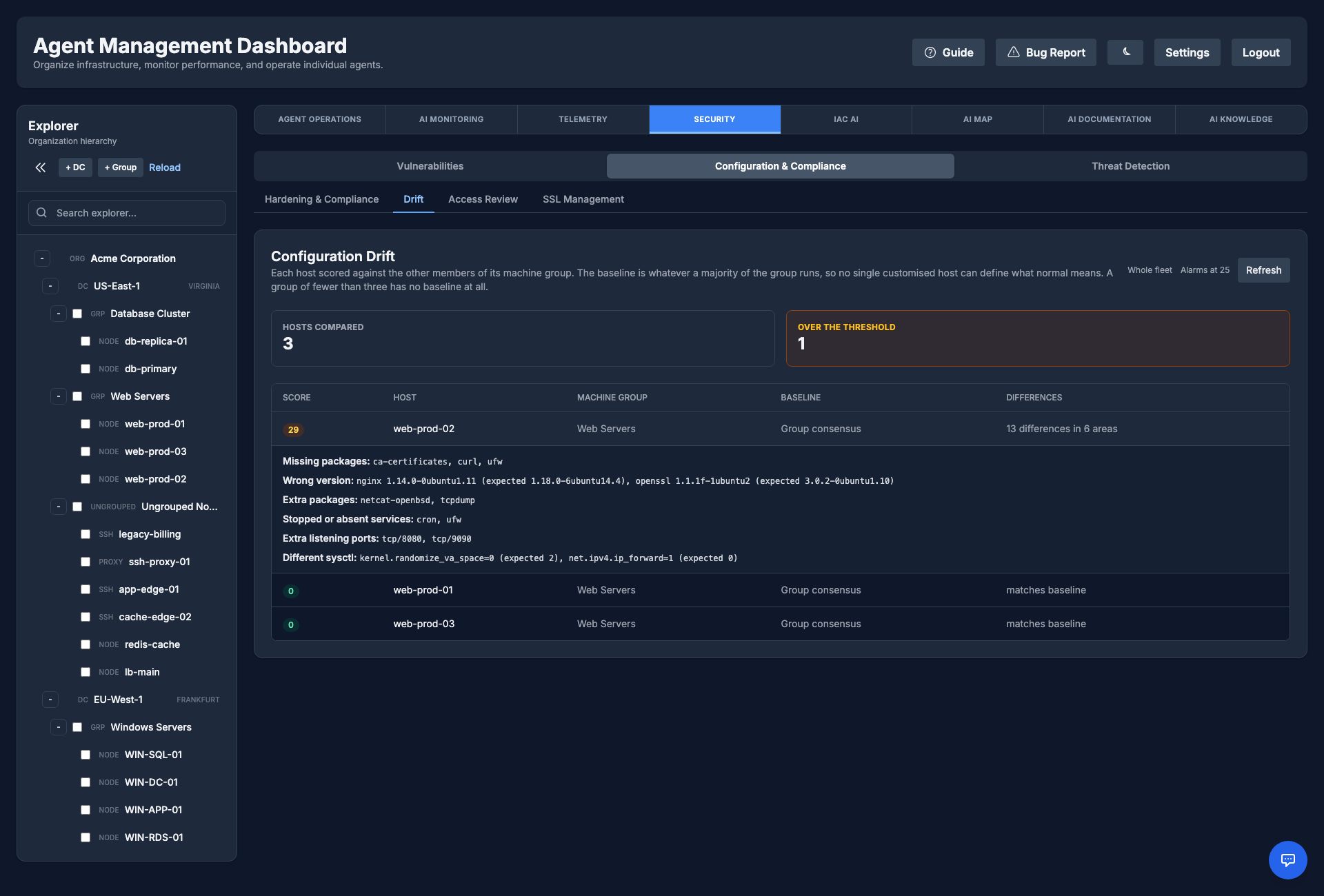
- Consensus baseline by default: For every attribute, the baseline is whatever a majority of the group runs. That needs no curation, so it works on day one, and no single heavily-customised host can define what “normal” means. A group that wants to be explicit can instead pin a golden host.
- What is compared: Installed packages and their versions, enabled services, listening ports, the kernel and a few sysctl values — with a weighted score in which a missing package or a stopped service costs more than an extra one, because that is what actually breaks automation.
- Fingerprints only: The probe never reads file contents. Package names, service names, ports and versions — nothing else — so the feature stays inside the privacy boundary.
- Deliberately quiet where it should be: A group of fewer than three members has no baseline at all, because a “majority” of two means nothing. An even split asserts nothing rather than picking a side. And the kernel is compared on its release line, so the first host to take a routine security update is not flagged for it.
- Where to read it: Security → Configuration & Compliance → Drift lists the fleet worst-first with each host's score, its machine group and whether the baseline came from consensus or a pinned host. Opening a row shows the actual differences — which packages are missing or the wrong version, which services are stopped, which ports are open that the group's other members do not have, and which sysctl values differ — because a score tells you something is wrong but not what to go and fix. Crossing the threshold raises System: Configuration Drift, and the same data is available as
GET /api/security/drift. Both require the security-scanning permission.
Access Review
"Who can log in to this host, and who has root?" is the first question of every DORA or ISO 27001 audit. A daily, read-only probe answers it for every host, so the review no longer means logging in to each server.
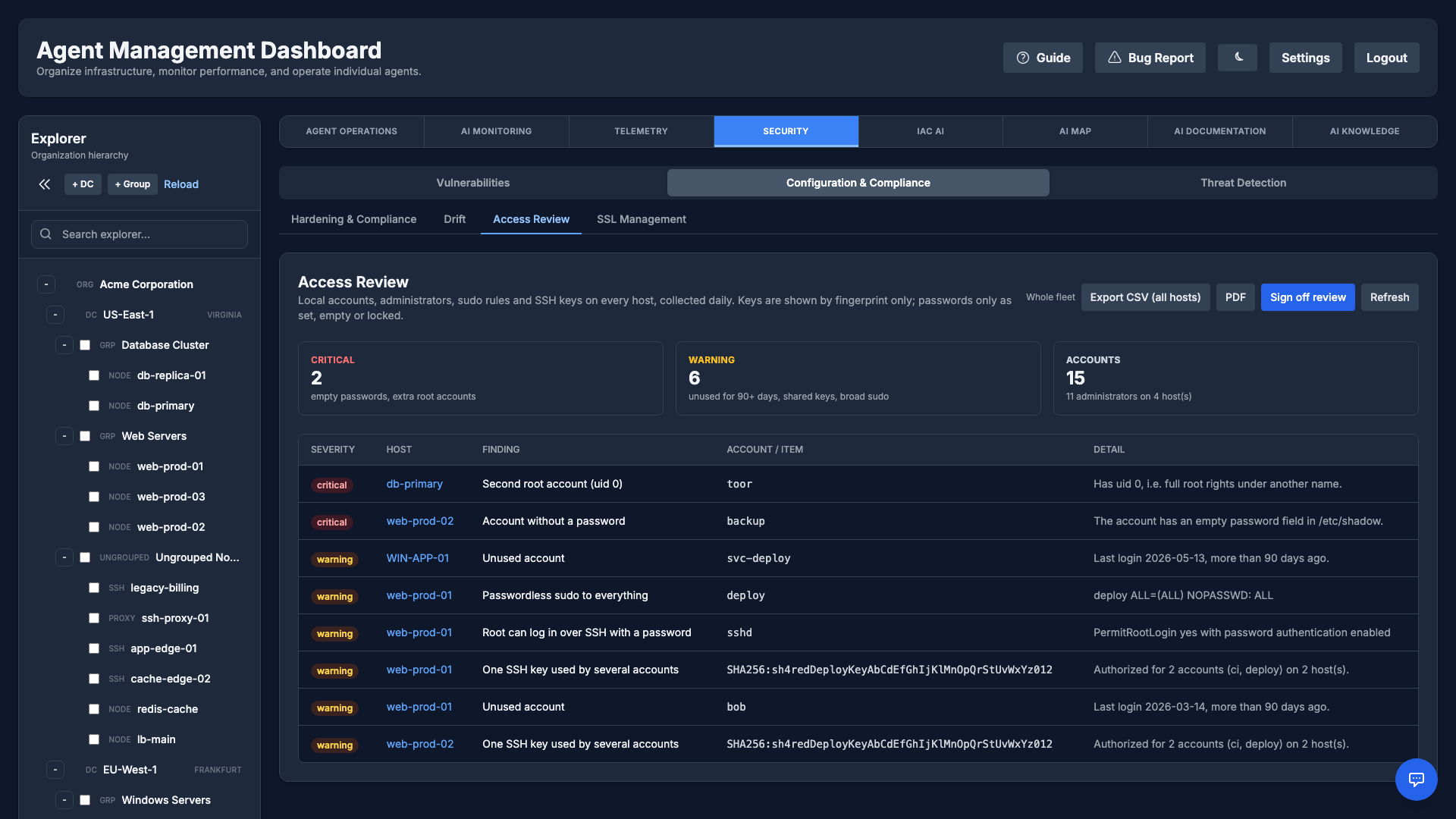
- What is collected: Accounts that can log in (with uid, last login and whether the password is set, empty or locked), membership of the
sudo,wheel,adminand Windows Administrators groups, sudoers rules, the SSH daemon'sPermitRootLogin/PasswordAuthentication/PermitEmptyPasswords, and everyauthorized_keysentry by fingerprint only. Key material and password hashes never leave the host. - Findings: critical — an account with an empty password, a second uid 0 account, SSH accepting empty passwords; warning — an account that can log in but has not for 90 days (
ACCESS_STALE_DAYS),NOPASSWD: ALLsudo rules, root password login over SSH, and one SSH key authorized for several different accounts in the organization. - Where to read it: Security → Configuration & Compliance → Access Review follows the Explorer selection; click a host for its full account list. Export CSV produces audit evidence for every host you may review, PDF exports the summary, findings, recent sign-offs and accounts as a document, and Sign off review (organization Administrators only) records in that organization's audit log who reviewed its access, when, and the organization-wide counts at that moment. The API is
GET /api/security/access(security-scanning permission, checked per organization). - Limits: keys are read from
~/.ssh/authorized_keysandauthorized_keys2only (a customAuthorizedKeysFileorAuthorizedKeysCommandis not covered), and only when the file is a regular file owned by the account. Last-login data comes fromlastlog/lastlog2; where neither exists (busybox, some minimal images) the account shows unknown and is never reported as unused. Key-only automation (scp, rsync,ssh host command) does not record a login, so a key-only account that has "never logged in" is not flagged. Sudoers rules are stored with secrets in their arguments redacted, and the raw probe output is not kept in the command history.
SSL Management
The platform automatically scans for and inventories SSL certificates on your servers, alerts you before they expire, lets you order and auto-renew certificates from a commercial CA, and replaces them from a secure local certificate store — all from the dashboard.
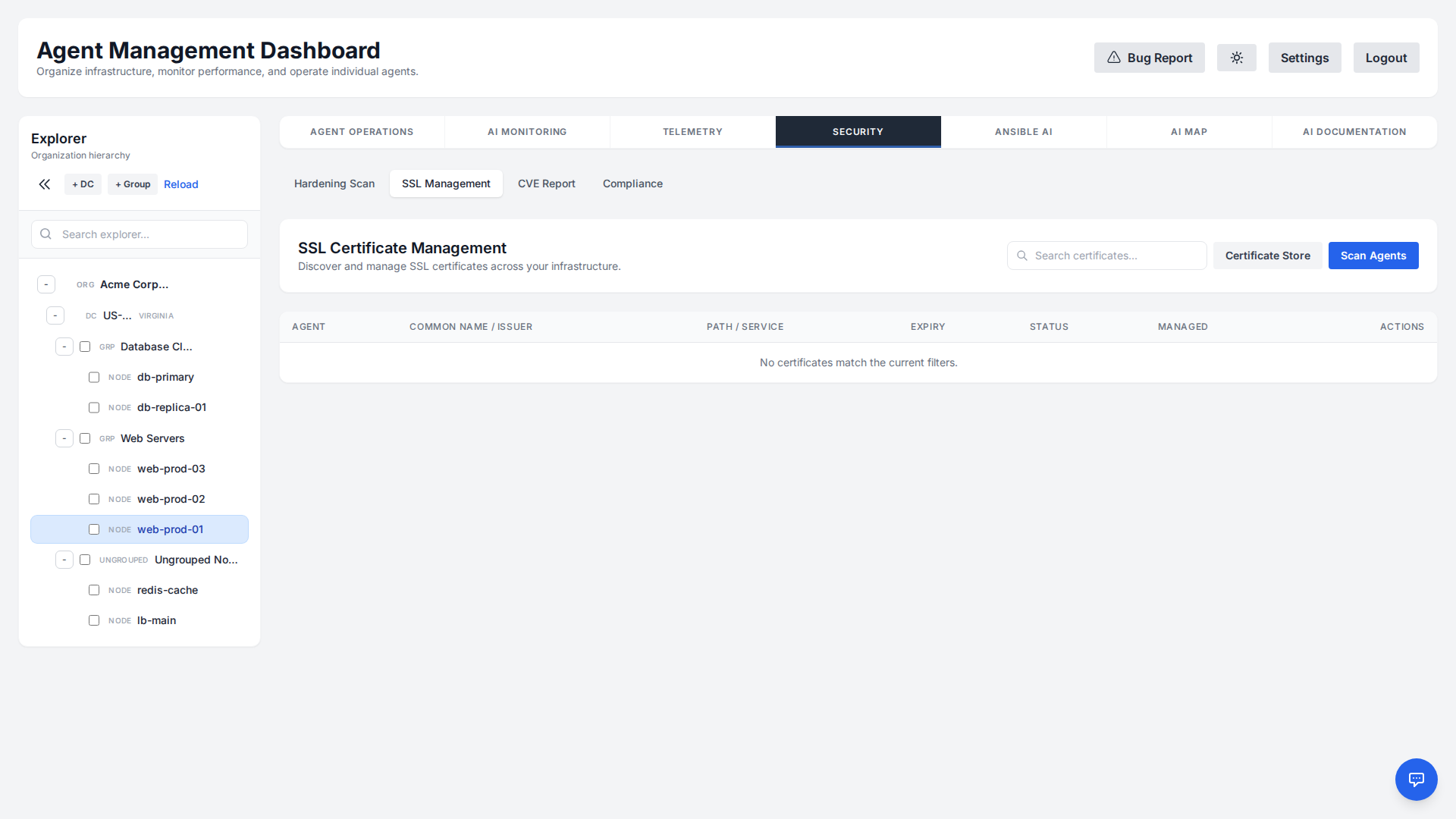
Discovery & Inventory
A discovery script walks the usual certificate locations — /etc/ssl/certs, /etc/pki, the nginx and Apache configuration trees and anything else you add — and on Windows it also reads the Windows Certificate Store (LocalMachine\My, WebHosting, Root and CA) as well as the IIS content directories under C:\Inetpub.
On Linux it parses .pem, .crt and .cer. On Windows it additionally opens .pfx, .p12, .der, .p7b and .p7c — though a .pfx protected by a password is skipped rather than prompted for, since discovery runs unattended.
It extracts key details:
- Common Name (CN)
- Issuer
- Expiration Date
- Associated Service, inferred from where the file lives — a certificate under the nginx tree is attributed to nginx, one under
C:\Inetpubto IIS. This is a path heuristic, not a binding lookup: IIS site bindings are not queried, so a certificate bound to a site but stored elsewhere is inventoried without that association.
Expiration Alerts
The platform continuously watches every discovered certificate and raises an alert as expiry approaches, so a forgotten renewal never causes an outage:
- WARNING: The certificate expires in less than 30 days.
- CRITICAL: The certificate expires in less than 7 days.
These alerts flow through the same incident and notification pipeline as your monitoring checks, so they reach your configured channels and on-call schedule.
Issue & auto-renew certificates
Beyond discovery, you can order certificates from a commercial Certificate Authority — DigiCert, Sectigo, or GlobalSign — without leaving the dashboard. From SSL Management, click Order Certificate to open the ordering workflow.
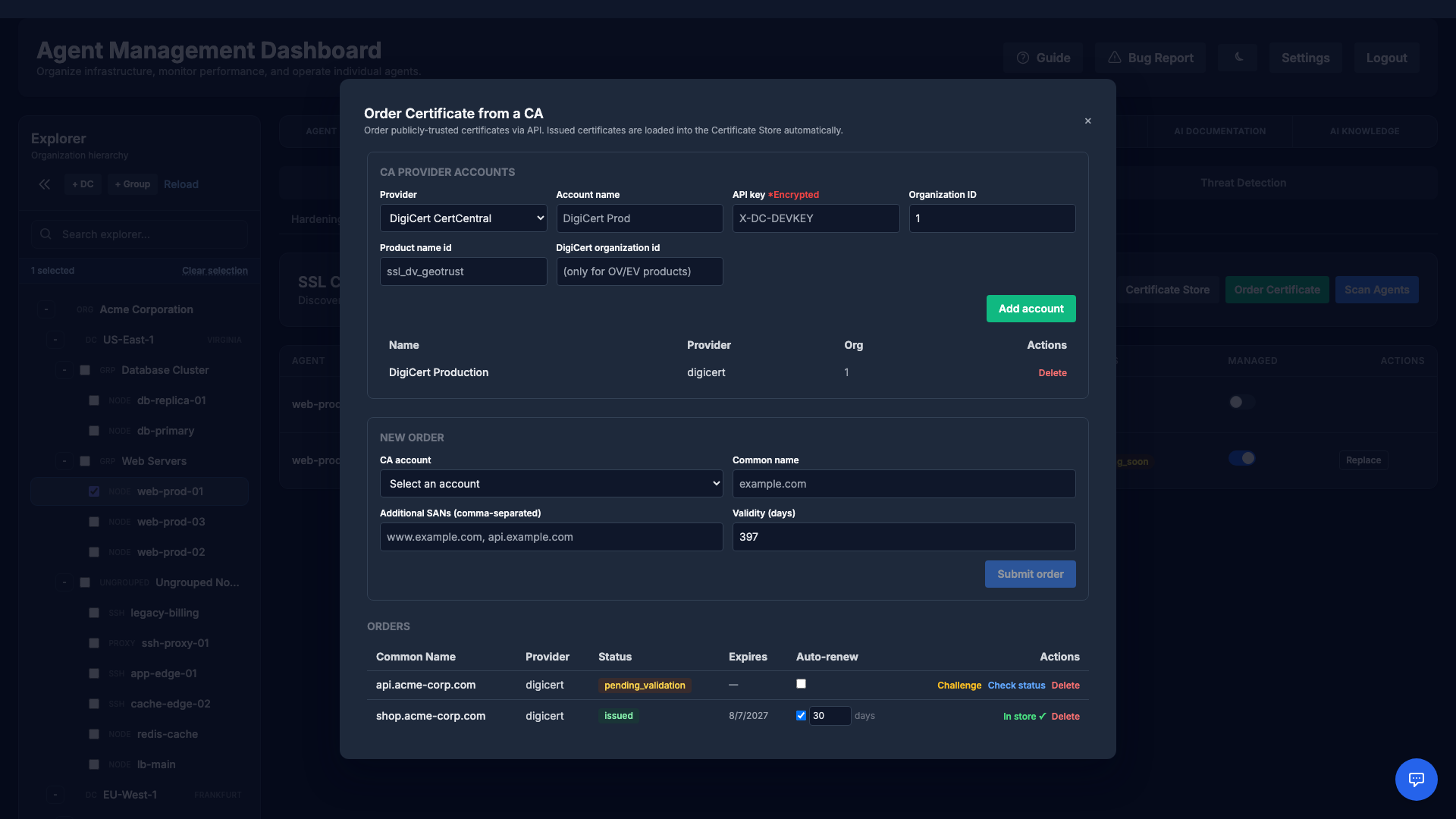
- Add a CA provider account. Store your CA API credentials once (encrypted at rest, never returned to the browser) plus any provider-specific options such as the DigiCert product and organization id.
- Create an order. Enter the domain (Common Name) and any additional SANs and submit. The manager generates the private key and CSR locally and sends only the CSR — your private key never leaves your infrastructure and is never sent to the CA.
- Prove domain control. The platform shows the DNS TXT (DCV) challenge to publish. Once the record is live, click Check status; when the CA issues the certificate it is downloaded and loaded straight into the Certificate Store below.
Each order can be set to auto-renew a configurable number of days before expiry. An hourly scheduler re-orders and re-issues automatically, so certificates you manage here never lapse. Issued and in-flight orders are listed with their status (issued, pending validation, failed), expiry, and auto-renew state.
Certificate Store & Replacement
You can replace or renew certificates directly from the dashboard. Upload a new certificate to the secure, organization-scoped Certificate Store (public key, private key, and optional chain/bundle), then deploy it to a target location on any agent:
- Store securely: Keep reusable certificates in the per-organization certificate store.
- Deploy on demand: Pick a target certificate path on an agent and the stored certificate to install.
- Review before applying: The platform generates an AI-assisted deployment plan that you review and confirm before it runs on the agent.
The private key is never put into the deployment script. It is stored encrypted under your organization's key, the AI that drafts the plan is told only that the key will be in an environment variable, and the manager resolves that variable at the moment the command is dispatched — the agent receives it as ephemeral environment, which it passes to the process and never writes to disk. So the key is absent from the prompt sent to the model, from the plan shown in your browser, and from the command history kept for that host. A deployment queued while the agent was offline gets the same treatment when it is re-sent, and a reference that points at another organization's certificate is refused.
Threat Alerts
Runtime threat detection watches host-local signals — suspicious service behavior and out-of-scope interactive sessions — and surfaces a verdict in the Threat Alerts tab under Security. Most findings never reach a model at all: they are settled by a deterministic rule on the manager. What is stored against an alert is the verdict plus a short evidence excerpt — the last twenty observed events — not the whole session.
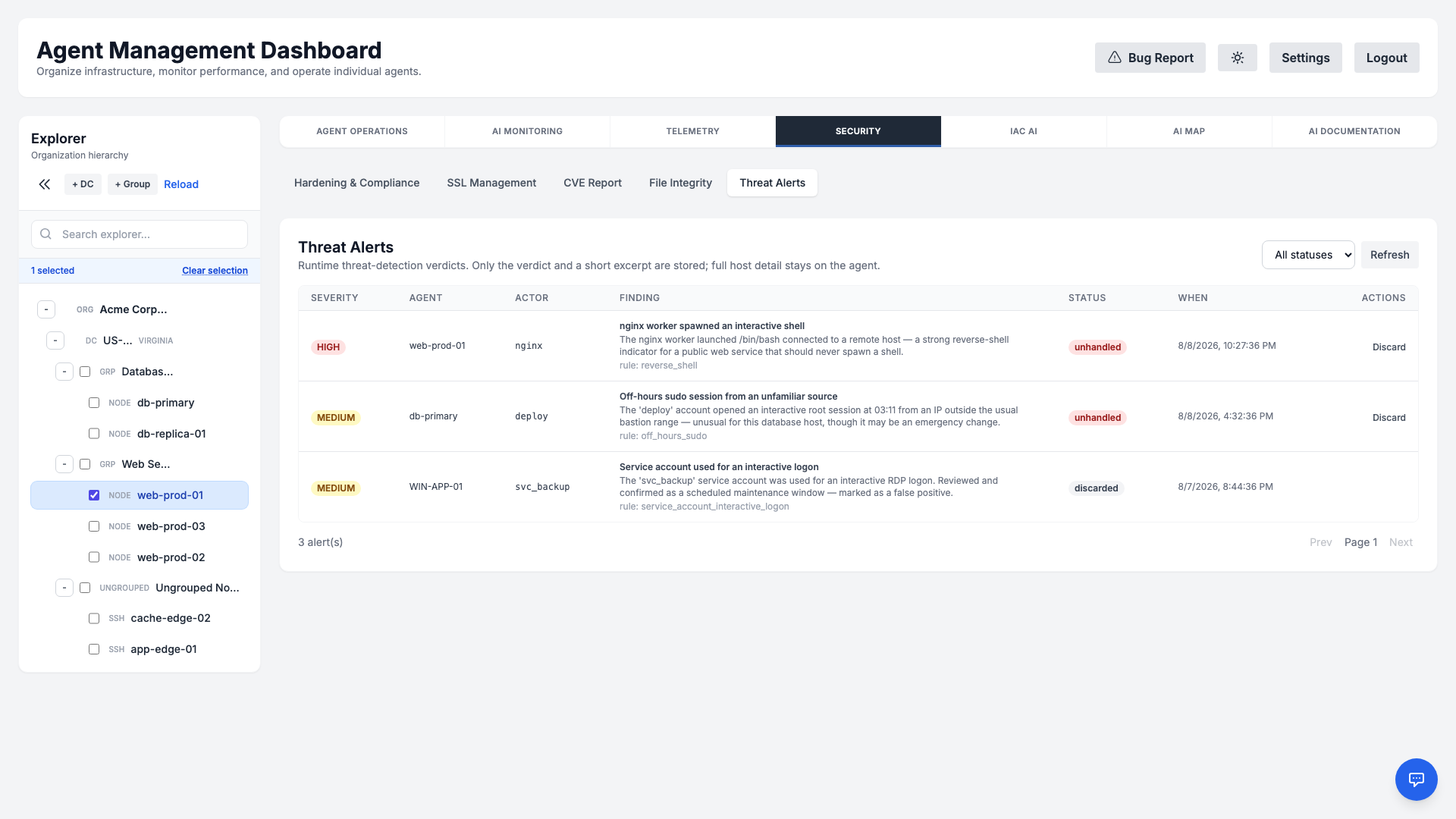
- Decided in code where no judgement is needed: Some signals are malicious whatever the host is for — a reverse-shell command line, a download piped straight into an interpreter, a service reading the shadow file, persistence written to
cron,authorized_keysor a systemd unit. Those are settled by a deterministic rule before the model is consulted, so the verdict is instant, reproducible and unit-tested. Genuinely ambiguous signals still go to the AI: a shell spawned by an application server may be a deploy hook or a webshell, and only the host's role tells you which. - MITRE ATT&CK technique: Rule-decided findings carry their ATT&CK technique (for example
T1059.004for a reverse shell,T1053.003for cron persistence), shown as a badge that links to the technique page. AI-judged findings carry no technique rather than a guessed one. - Expected behaviour: When something is normal for you (a deploy hook your PHP or Java service runs), click Expected… on the alert or add it under Expected behaviour (exceptions): name the service and the start of the expected command line, optionally one host, and say why. A command line only matches if it starts with that text and chains nothing else after it. Matching signals then skip the AI. Clear-cut attacks decided by the fixed rules can never be excepted, and each exception shows how many signals it dropped and when, so one that hides too much is easy to spot. Only organization administrators can change exceptions, and every change is audited.
- Severity & kind: Each finding is graded High or Medium and classified as a suspicious service or session; benign activity never raises an alert.
- Plain-English explanation: The verdict explains why the behavior was flagged — for example, a public web service spawning an interactive shell — along with the rule that fired.
- Triage workflow: Filter by status and Discard false positives; repeat fires of the same finding are coalesced into a single row. Discarding is written to the audit log.
- What reaches the model, and what it looks like: Rule-decided findings are judged entirely on the manager and no model is called. When a signal is genuinely ambiguous, the observed events — process, parent, and the command line, up to fifty of them — are sent to whichever AI provider your organization has configured, along with the hostname and the host's role. Command lines are passed through the same credential redaction used elsewhere in the product, so passwords, bearer tokens, connection strings and key blocks are masked before they leave the manager and before they are stored. If your policy is that command lines must not leave your infrastructure at all, run a local model (see Local LLM) or turn threat detection off per agent or machine group.
- Linux and Windows: Each platform has its own detections and its own ATT&CK technique, because they are not the same behaviour. On Linux: reverse shells, a download piped into an interpreter, reads of
/etc/shadowor a private key, and persistence written tocron, a systemd unit orauthorized_keys. On Windows: encoded or hidden PowerShell (T1059.001), fetch-and-run throughInvoke-Expression,certutil,bitsadminormshta(T1105), LSASS and SAM-hive credential theft (T1003.001), and persistence through Run keys (T1547.001), scheduled tasks (T1053.005) or service creation (T1543.003). Credential theft is flagged whoever runs it; persistence is flagged only when a network-facing service such as an IIS worker is the one doing it, because scheduling a task is otherwise ordinary administration.
File Integrity Monitoring (FIM)
Detect unauthorized or unexpected changes to critical files. File Integrity Monitoring establishes a cryptographic baseline for the paths you choose, then re-fingerprints them on a schedule — hourly by default — and reports what moved. It is a periodic comparison, not a live filesystem watcher: a file changed and changed back between two passes is not reported.
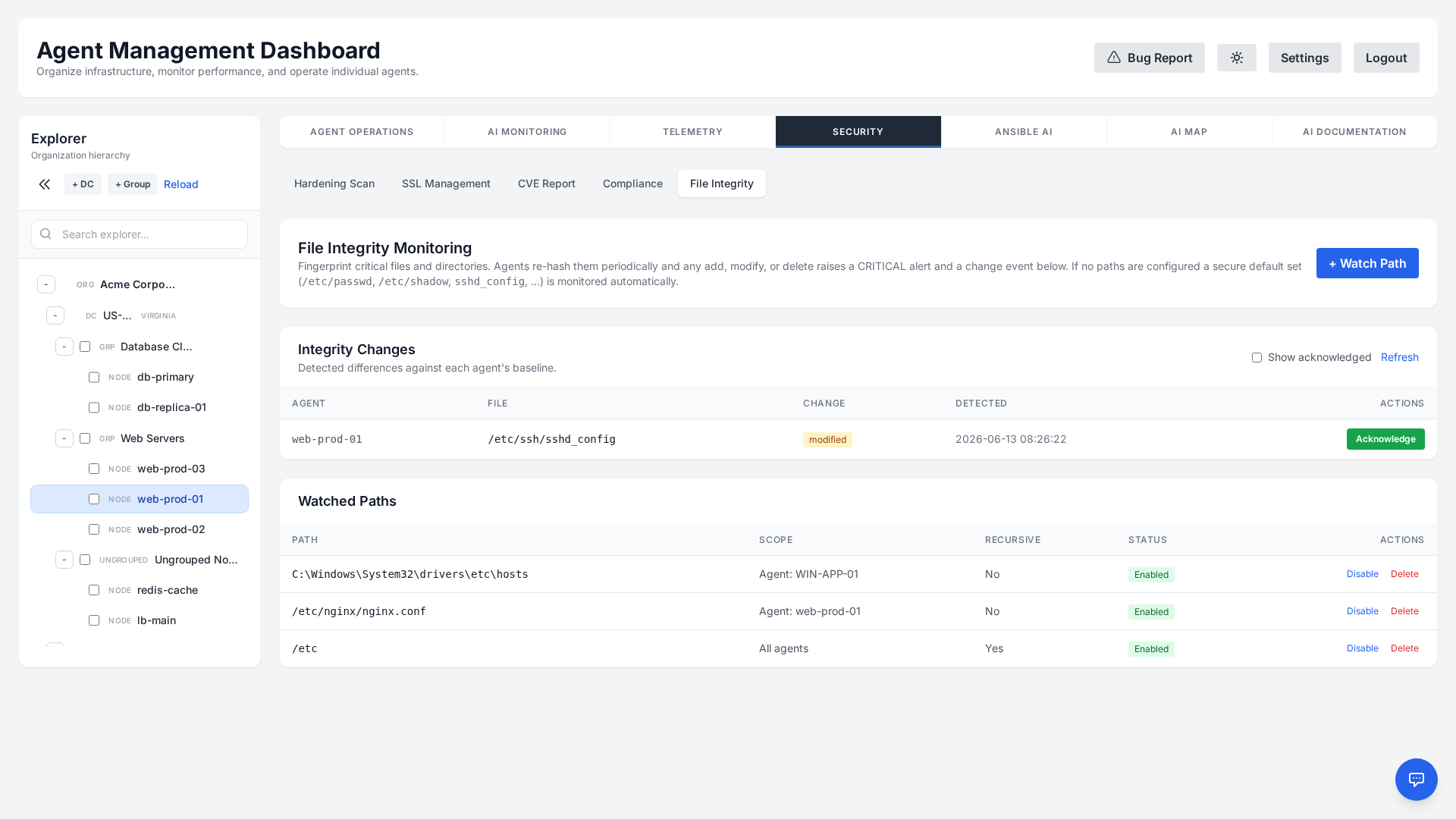
- Monitored paths: Track sensitive files and directories, per host or across the whole organization. Out of the box a Linux host watches
/etc/passwd,/etc/shadow,/etc/sudoers, the SSH server config and/etc/systemd/system; a Windows host watches thedrivers\etcdirectory, the scheduled-task folder and the startup folder. The locked SAM and SYSTEM registry hives are deliberately left out — they cannot be read while Windows is running, so watching them would produce nothing but errors. You can add your own paths on either platform. - Baseline hashes: Each file is hashed with SHA-256, alongside its size, mode and owner. The first pass establishes the baseline and raises nothing; every later pass is compared against it.
- Change events: Additions, modifications and removals each generate an event showing the path, what changed and when. The hashes are recorded, never the file contents. A change raises a Security: File Integrity alarm through the normal monitoring path, and acknowledging every outstanding change on a host clears it.
- Acknowledging is not approving. Acknowledging an event silences the alarm and records who did it; the baseline rolls forward only when a later scan sees the file settled. Every acknowledgement is written to the audit log.
Ansible Automation
Generate Ansible playbooks for complex deployments. The AI ensures idempotency, follows best practices, and correctly targets winrm or ssh connections based on the operating system.
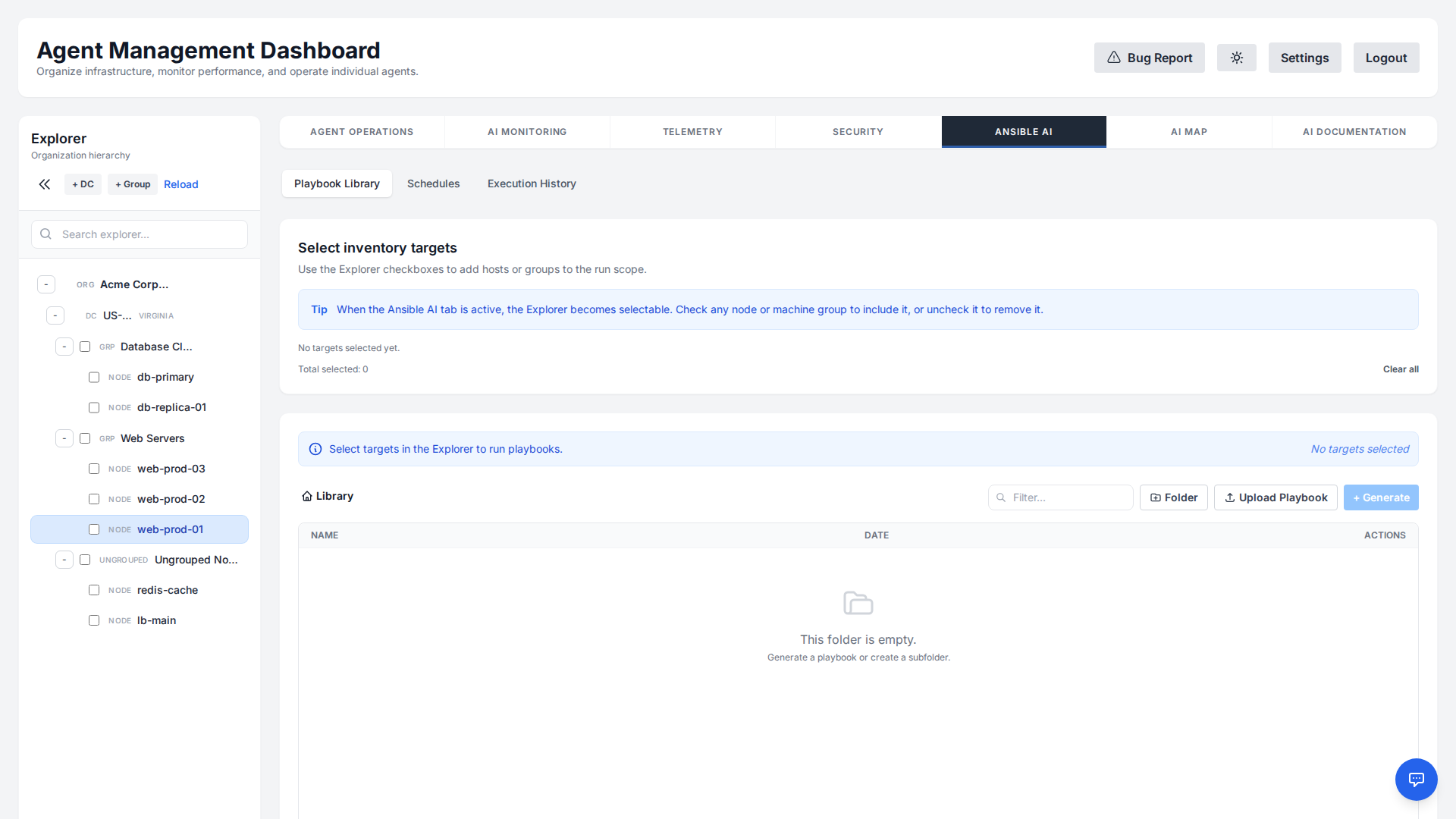
Open IaC AI → Ansible and tick the target hosts or machine groups in the Explorer — + Generate is enabled once at least one target is selected. The Playbook Library keeps generated and uploaded playbooks in folders, ready to Run against the current selection or edit.
- Schedules: run a saved playbook on a cron schedule against a host or group (+ Schedule Playbook), and enable or pause each schedule.
- Execution History: every playbook run with its targets, status and output.
Terraform Provisioning
The Terraform tab of IaC AI turns a plain-English objective into production-ready Terraform (HCL) for the major clouds — AWS, GCP, Azure, and VMware. Describe what you want to provision and the AI writes the configuration, declaring proper variable blocks for anything it can't safely guess (AMI id, region, VPC/subnet, instance size, SSH key, …).
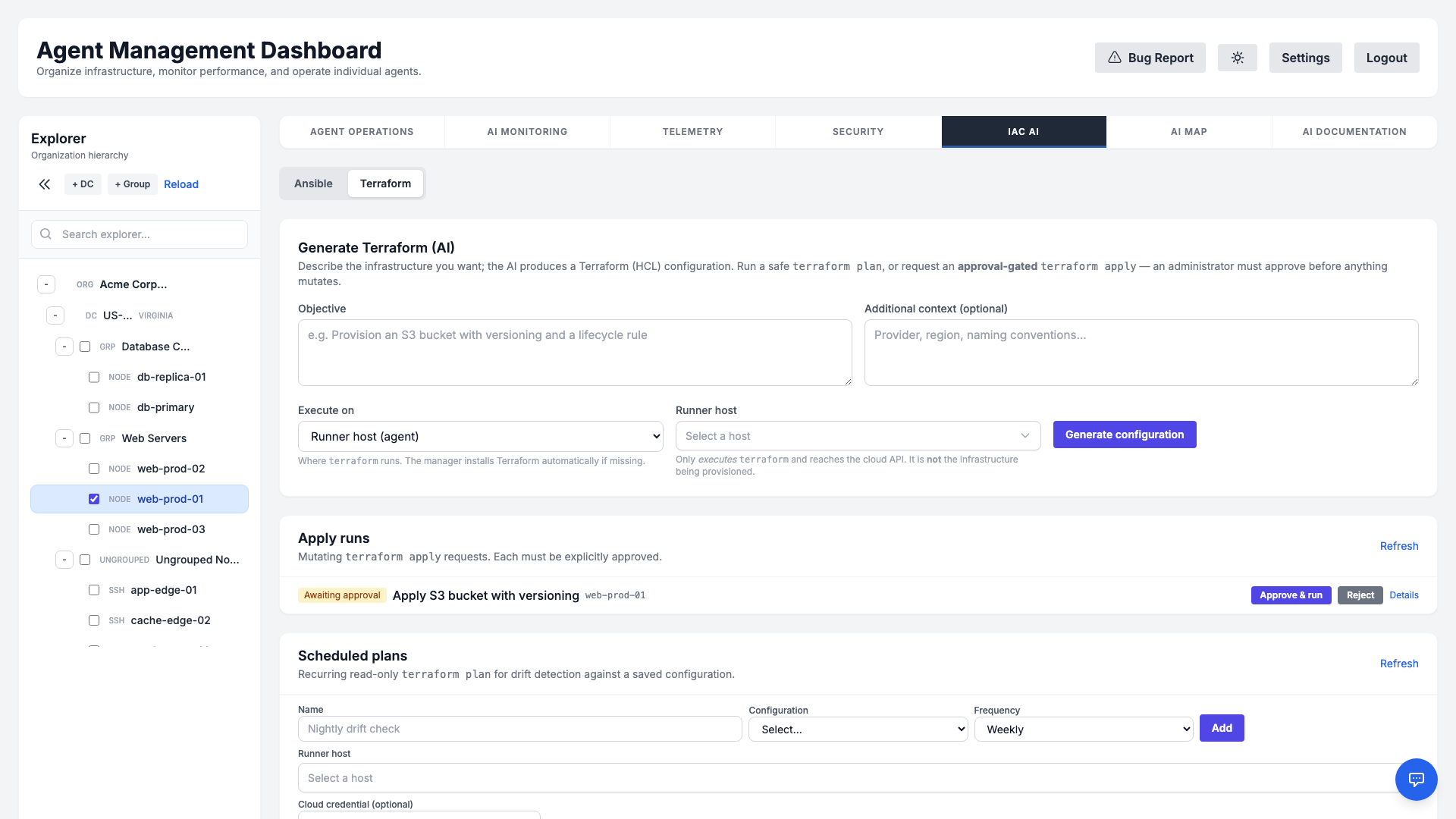
Iterative generate → validate → refine loop
Just like testing a monitoring check before saving it, you can iterate on a configuration before anything is applied:
- Required inputs form: Values the AI can't know are surfaced as a structured form you fill in, rather than guesswork or placeholder
terraform.tfvars. Apply inputs & regenerate bakes them into the configuration. - Validate (test): A fast, credential-free
terraform validatechecks config and schema correctness — no cloud API calls and no state changes. - Refine with AI: Describe a change in plain language (“add a lifecycle rule”, “change the region”) and the AI rewrites the current HCL in place.
Plan, and approval-gated apply
Run a safe, read-only terraform plan to preview changes at any time. A mutating terraform apply is approval-gated — it is submitted as a request that an administrator must explicitly approve before anything is created, changed, or destroyed. Recurring scheduled plans can run automatically for drift detection against a saved configuration.
Runner & cloud credentials
- Flexible runner: Choose Manager (this server) or a runner host to execute
terraform. The runner only runs Terraform and reaches the cloud API — it is never the infrastructure being provisioned. Ifterraformisn't installed, the runner downloads a pinned, checksum-verified release on demand. - Encrypted credential vault: Per-organization cloud credential sets (AWS/GCP/Azure/VMware) are stored encrypted, injected into a run only as ephemeral environment variables, and never written to command history, logs, or generated HCL. Secret values are write-only — the UI shows only variable names.
- Configuration library: Save, organize (in folders), and reuse generated configurations per organization.
AI Map
Visualize your entire infrastructure topology in real-time. The AI Map provides an interactive graph view of all connected nodes, their relationships, and current status, allowing for quick identification of network bottlenecks and structural dependencies. The Table view toggle lists the same nodes and connections as a table, and Regenerate rebuilds the map.
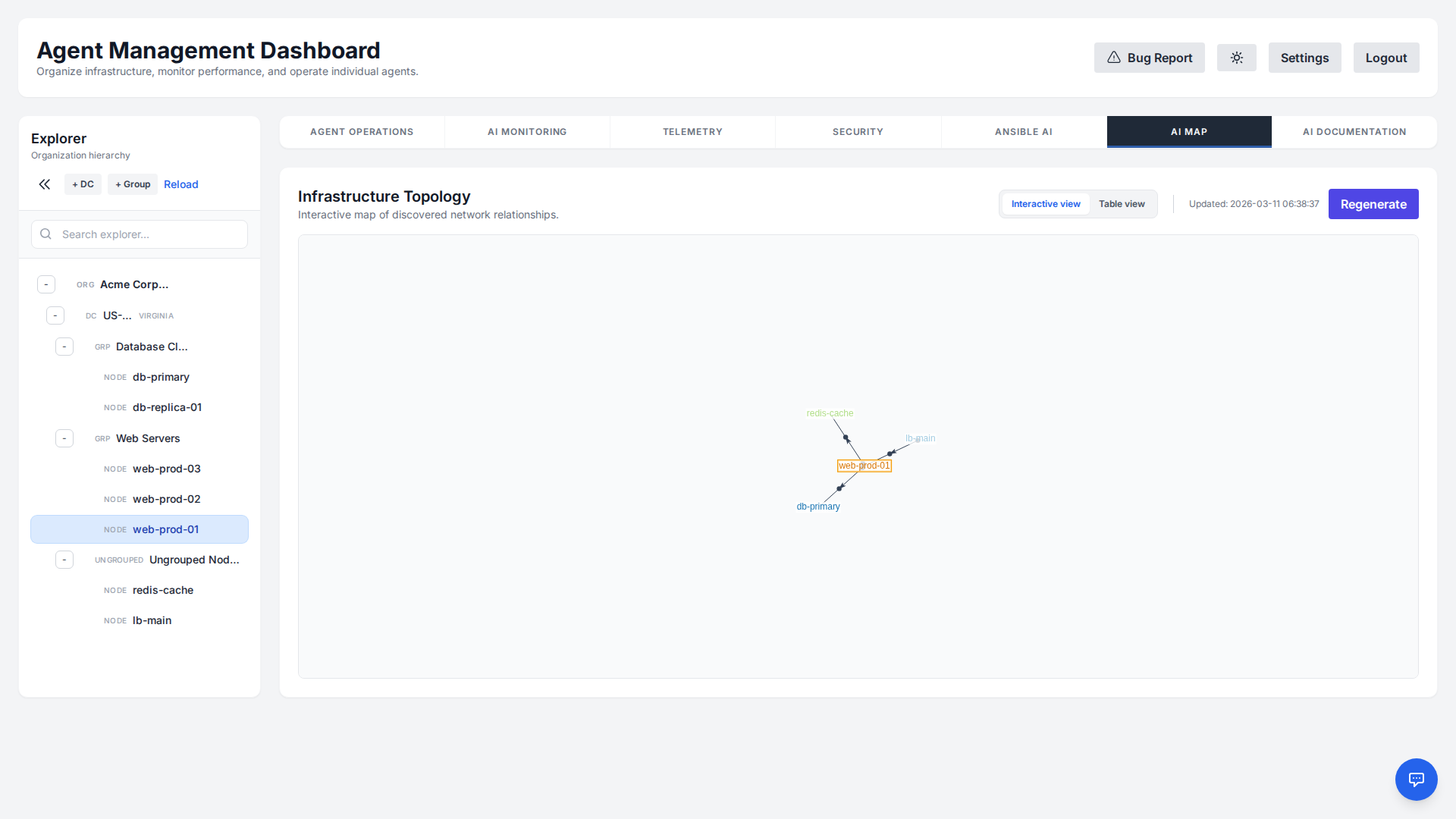
CMDB view
The CMDB view toggle arranges the same hosts as a configuration-item tree. Pick up to five levels and their order: host tags written as key:value (for example env:prod or role:database) each become a level, next to plain tags, datacenter, machine group, OS, cloud and connection type. A host with several values on one level, such as two groups, appears under each of them, and hosts without a value are collected under (untagged) or (none). Click a group to expand or collapse it, double-click it (or use Drill into) to make it the root, and use the breadcrumb to step back. Orientation switches between top-down, bottom-up, left-right, right-left and radial layouts. With Connections on, the discovered network links are drawn between the visible items and summed up between collapsed groups. Hovering a connection lists its ports, socket count, services (the server-side process, or the well-known name of the port) and the Docker container or Kubernetes pod behind it; clicking a connection highlights it and lists every flow it carries. Clicking a host opens its attributes, the services it offers and the services it depends on, and its container inventory; clicking a service or dependency there highlights the matching connections on the map. Traffic to and from addresses that are not your hosts is drawn to an Internet or Private network cloud (clients are summed per host and port, with the number of distinct client addresses), and connections to hosts outside the current drill-down or Explorer selection go to an Outside this view node; the External checkbox hides the clouds, and clicking a cloud highlights its traffic. The Explorer selection narrows the tree, and the chosen levels and orientation are remembered in the browser.
History opens a time scroller next to the map. The manager records every change to the map (a connection added, removed or changed, a host removed, host tags changed) for 30 days by default (TOPOLOGY_HISTORY_DAYS). Each change is a coloured marker on the scroller: green added, red removed, amber changed, blue a new host, rose a removed host, violet a tag change. Zoom from 15 minutes to 30 days with the slider, scroll the wheel to move back and forth, click or drag on the scroller to see the map at that moment, or use the arrows to step to the previous or next change. Picking a change shows the map just before or after it and highlights the affected connection or host; removed hosts are drawn with a dashed red border. Back to live returns to the current map. Full screen enlarges the view; press Esc or click outside it to close.
The Find box above the map searches host names, IP addresses, tags, groups, datacenters, operating systems, the services a host offers and the containers behind them; picking a result opens the groups on the way and selects the host. The Show only filters narrow the map to Internet-facing hosts, hosts with active alarms, hosts with critical or high CVEs in their latest scan, or hosts that drift from their group baseline. Hosts and groups carry small badges: red for critical alarms, amber for warnings, violet for critical/high CVEs and orange for drift (a group sums its hosts). In a host's panel, Impact lists the hosts that depend on it, or that it depends on, up to five hops away; Highlight shows the connections involved. Export saves the hosts or the connections as CSV, both as JSON, or the map as a PNG image.
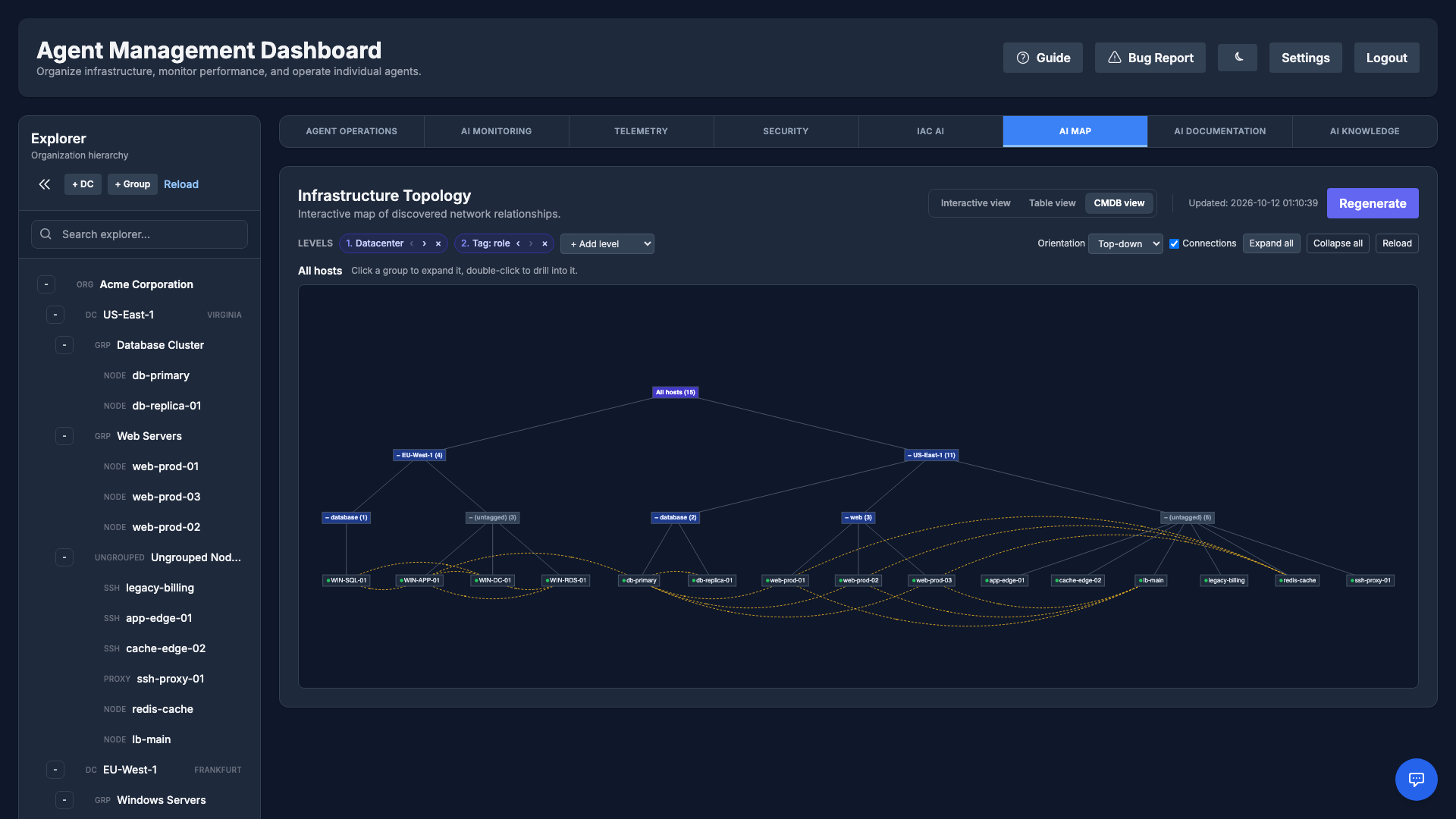
AI Documentation
Keep your infrastructure documentation in sync with reality. The AI Documentation feature automatically discovers installed packages, network configurations, running services, and more. Select a host in the Explorer first; the tab documents one host at a time.
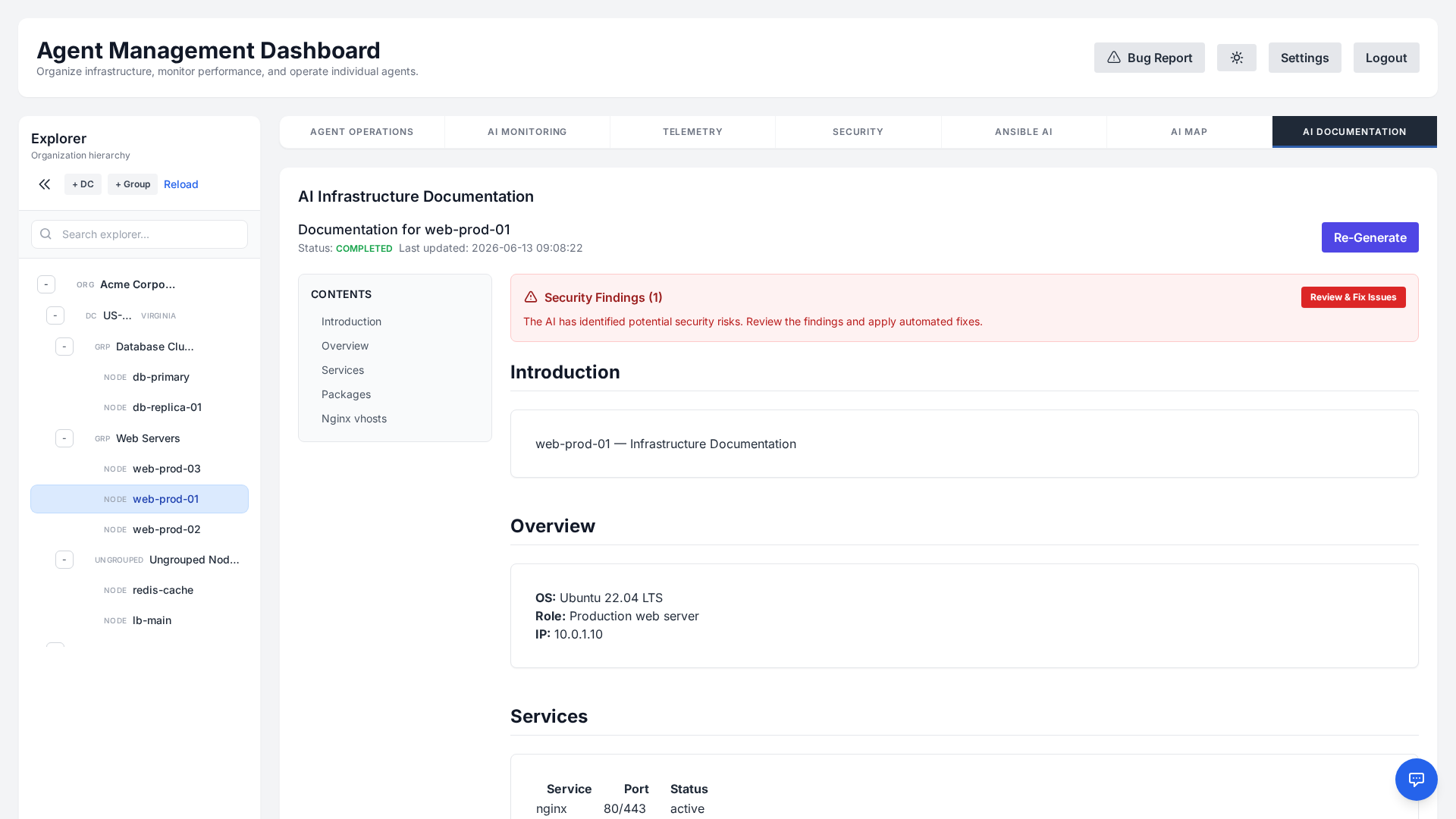
It then synthesizes this raw data into a structured, easy-to-read Markdown document, covering everything from OS details to IIS/Nginx vhost configurations. Read it in the dashboard and press Re-Generate whenever the host has changed. When the scan found security issues, Review & Fix Issues lists them and proposes fixes for you to review before anything runs.
AI Knowledge
The manager already knows the facts about your estate: which hosts exist, what they run, which datacenter, group and tags they carry. What it cannot infer is the intent — which host is the primary database, which nightly window is sacred, which service must never be restarted during business hours. Without that, every chat starts from zero and you end up retyping the same context.
A knowledge file captures it once. Open the AI Knowledge tab, click New knowledge file and choose what it covers.
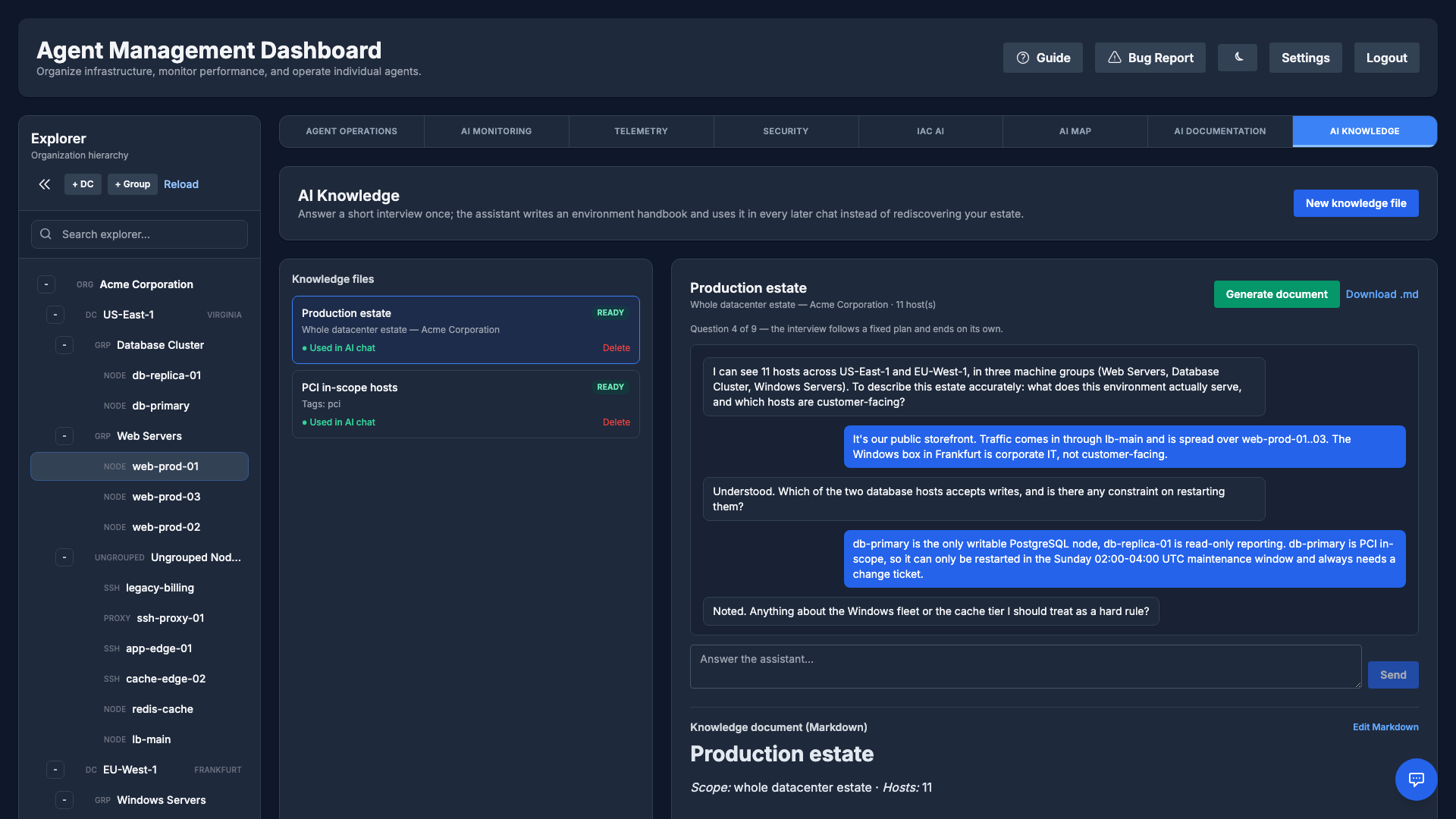
Choosing a scope
A file can describe the whole datacenter estate, specific datacenters, specific machine groups, a set of tags, or named servers. Scoping by tag is often the most useful: one file can describe every database host wherever it lives.
The interview
The assistant starts from what the platform has already discovered about the hosts in scope: the services and listening ports from the configuration fingerprint, the containers running on them, the certificate names they serve, anything out of support, and the “Software & Services” section of their AI Documentation. So it does not ask what a host runs — it asks what that means: “I can see MySQL listening on 3306 on db-01 — is that the production customer database, and who depends on it?”
From there it works through a fixed plan of nine topics — purpose, criticality, maintenance windows, dependencies, ownership, what must never be touched automatically, where the data lives, what warrants waking a human, and network constraints. One question per topic, in your language. Because the running order is fixed and owned by the manager rather than chosen by the model, the interview cannot loop back onto a topic it has already covered, and it always ends: the counter under the transcript shows which question you are on. Say “that's everything” at any point to stop early.
If a host has no AI Documentation yet, the questions about it stay more general — the panel tells you how many hosts are in that state so you can generate it first. Documentation is never generated automatically, because it requires the agent to be online and spends tokens per host.
On secrets: AI Documentation is built from a probe that reads web-server and cron configuration, so its text can contain credentials. Anything the knowledge base borrows from it is passed through the same redaction used for incident postmortems — passwords in connection strings, -p flags, API keys and private-key blocks are masked before they reach the model or the stored document.
The document
Generating merges the machine-collected inventory with your answers into a Markdown handbook: a summary, the datacenter/group/tag breakdown, the operating rules the assistant must respect, and per-host notes. If a host is named in the write-up that is not in the collected inventory, it is dropped — a handbook that confidently describes a machine which does not exist is worse than one that stays silent.
Editing it by hand
The document is plain Markdown and you own it. Edit Markdown opens the raw text in an editor; what you save is stored verbatim and is exactly what the assistant reads — there is no second interpretation step. Use it to correct a detail the interview got wrong, to add a section the plan never asked about, or to skip the interview entirely and write the handbook yourself (Write it manually on an empty file). Download .md exports the same text, so a file can be kept in Git and pasted back after review.
One caveat: pressing Generate document again re-runs the model and overwrites the whole document, manual edits included — the dashboard asks for confirmation first. Edit after generating, not before.
How it is used
Every knowledge file marked Used in AI chat is supplied to the assistant as background on later questions, so it starts already oriented instead of rediscovering the environment. The text is inserted into the chat prompt as delimited reference material, and only the files whose scope covers the hosts a question is about are included, with an overall size cap. Toggle a file off to keep it as a reference document without feeding it to the model. Knowledge never widens what the assistant is allowed to read, and it cannot bypass the approval step that guards command execution.
Notifications
Route alerts to wherever your team already works. From Settings → Notifications you can enable and configure multiple delivery channels, each toggled independently.
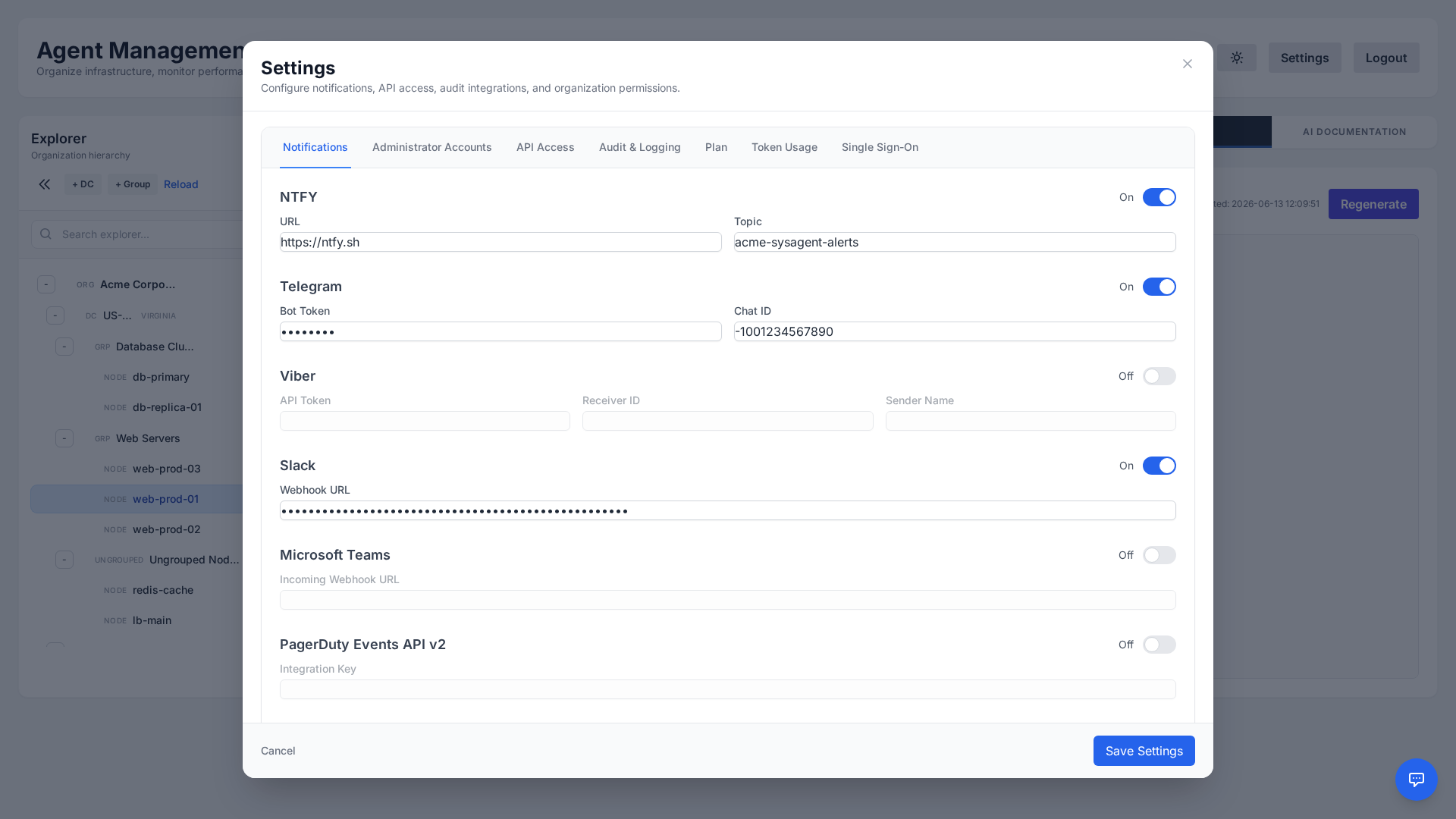
- ntfy: Lightweight push notifications via a topic URL (defaults to
https://ntfy.sh). - Telegram: Deliver alerts to a chat using a bot token and chat ID.
- Viber: Send alerts via an API token, receiver ID, and sender name.
- Slack: Post to a channel through an incoming webhook URL.
- Microsoft Teams: Post to a channel through an incoming webhook URL.
- PagerDuty: Trigger incidents through the Events API v2 using an integration key.
- Generic Webhook: POST a structured JSON payload to any HTTP endpoint, with optional custom headers, for custom integrations and chatops.
Each channel can be enabled and configured independently, and they integrate with on-call schedules and escalation rules so the right people are reached through the right channel.
RBAC & Permissions
Fine-grained Role-Based Access Control lets master administrators define exactly what each role can do. The Organization Permissions tab exposes a permission matrix covering every major function of the platform.
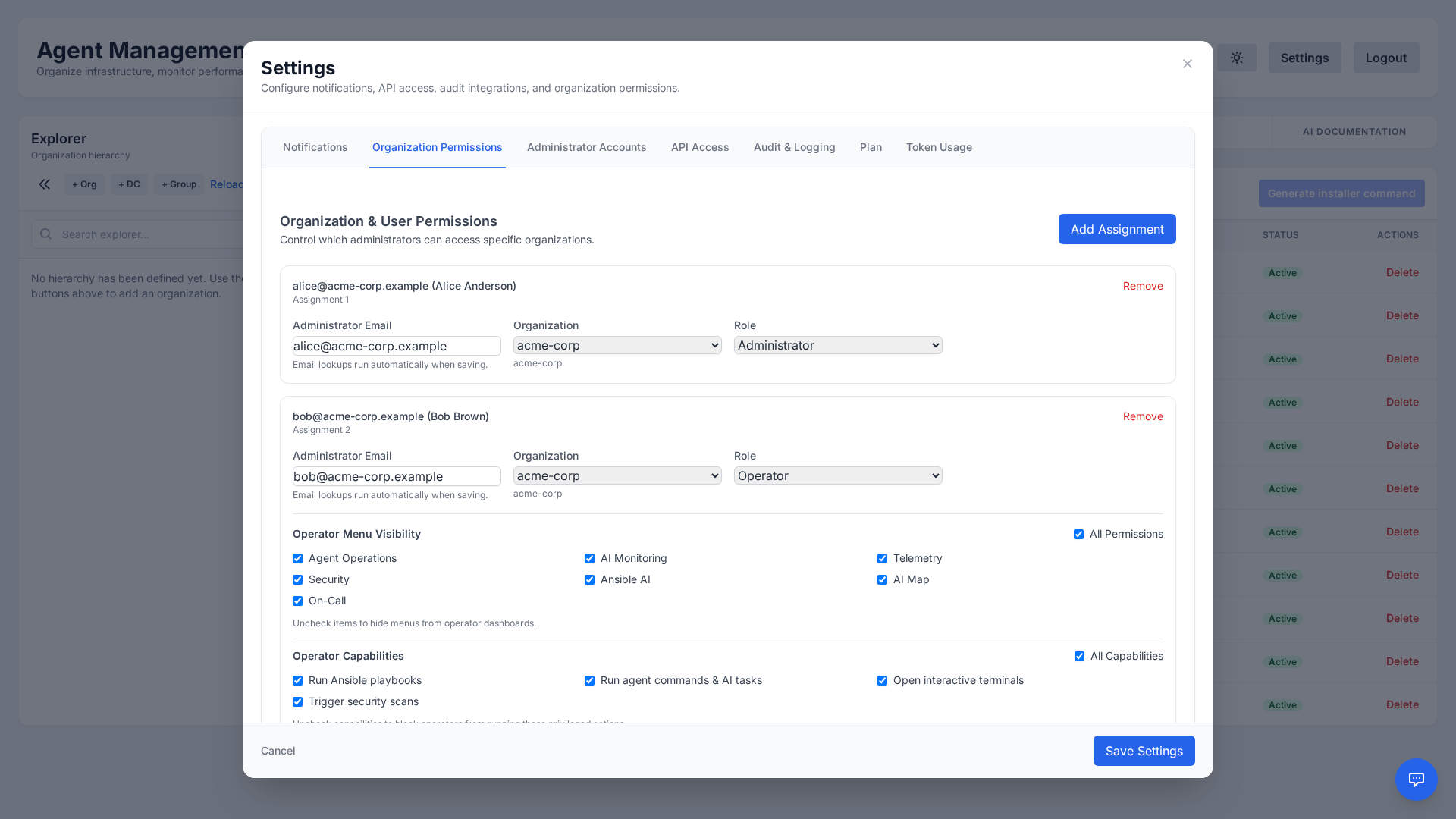
- Granular control: Toggle access to features such as command execution, remediation, security scanning, and settings.
- Least privilege: Give operators only the permissions they need, reducing the blast radius of any single account.
- Consistent enforcement: The same rules apply whether a user works in the UI or via the API.
Administrator Accounts
Manage the people who can access your organization from Settings → Administrator Accounts. Create accounts, assign roles, and review existing accounts in one place.
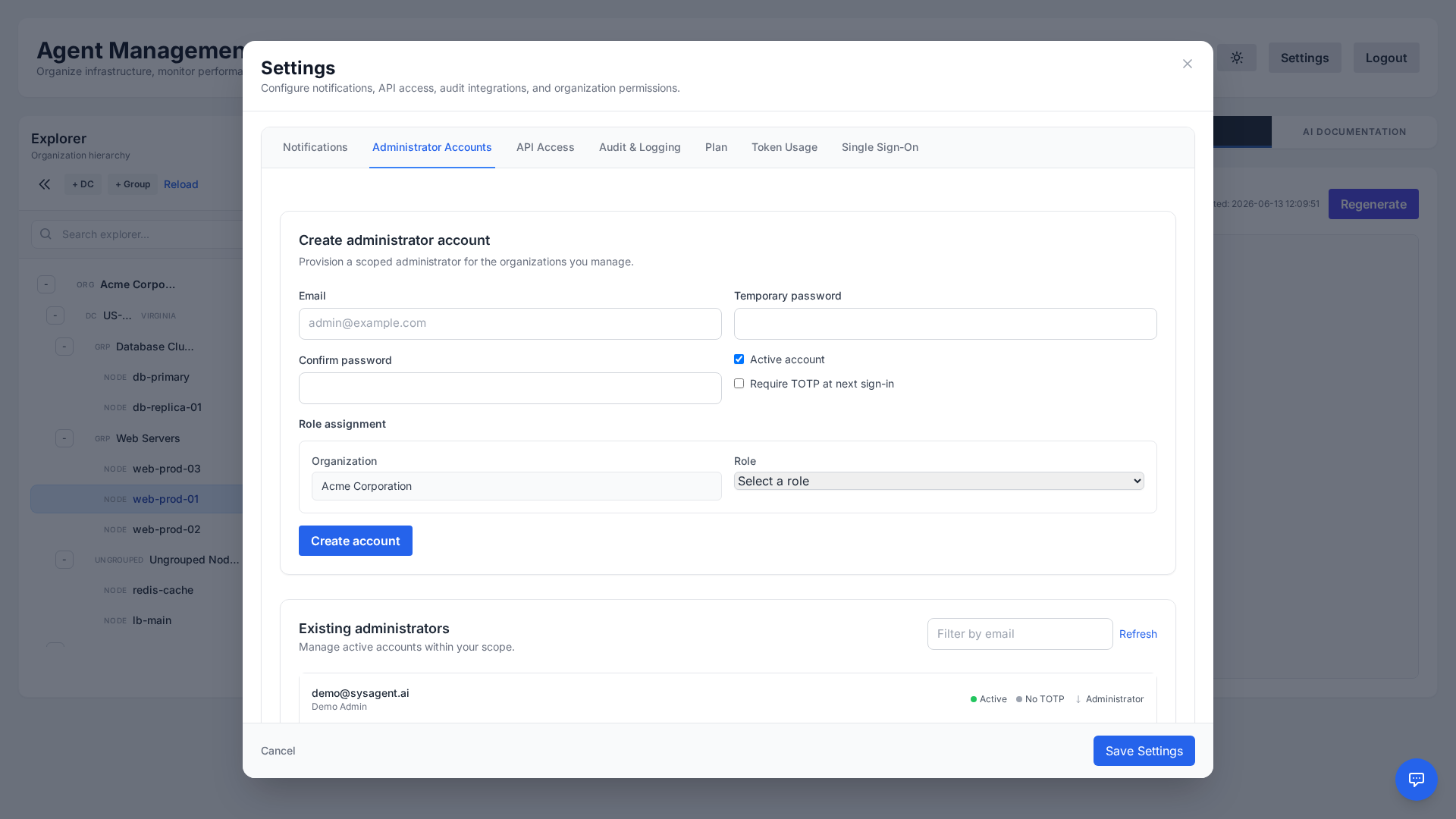
A new account is created with an email address and a temporary password that you hand over to the user; you can mark it active and require TOTP enrolment at the next sign-in. Each account gets one of three roles — Administrator, Operator or Viewer — and for operators you choose which menus they see and which privileged actions they may run. Permissions are enforced consistently across the dashboard and API.
API Keys & Metrics Export
Enterprises will not replace their existing observability stack, and they should not have to. Scoped API keys let a machine caller read a single organization's data, and the metrics can be pulled or pushed into whatever already runs.
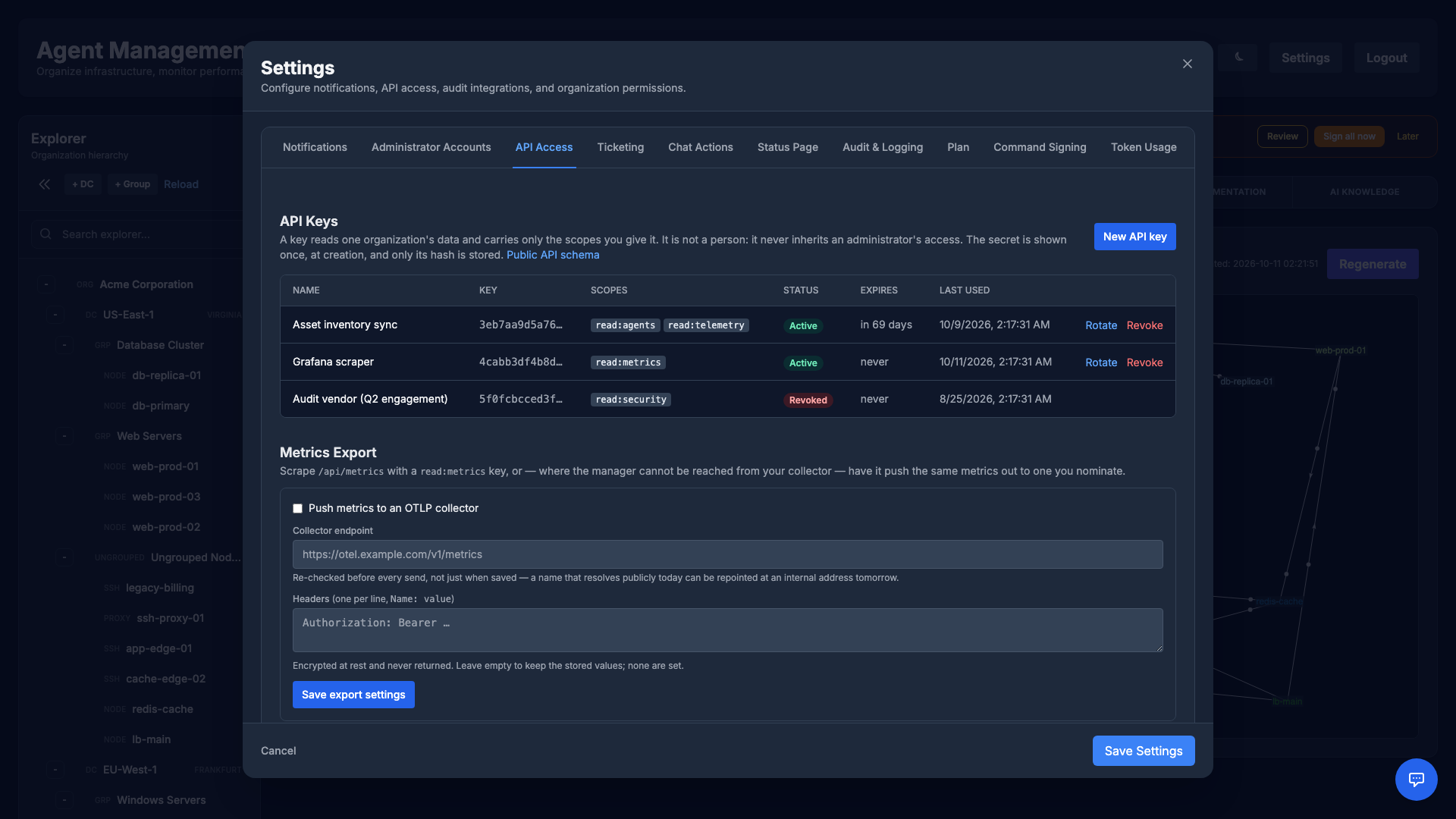
- Scoped keys: A key is created with an explicit scope list (
read:agents,read:telemetry,read:security,read:metrics), an optional expiry and immediate revocation. The secret is shown once, at creation, and only its hash is stored — so a database leak yields nothing usable. - A machine caller is not an admin: An API key resolves to its own identity, never to a human session, so it can never inherit a person's implicit access. Unknown, revoked and expired keys are rejected identically.
- Prometheus / OpenMetrics:
GET /api/metricsexposes agents, per-node CPU and memory, open incidents and unhandled threat alerts for the key's organization, with a hard cap on series per tenant. - OTLP push for those who cannot scrape: Where the manager sits behind a firewall, it can instead push the same metrics to an OTLP collector you nominate. The endpoint is re-validated on every send (DNS can be repointed after it was saved) and the collector's credentials are encrypted at rest and never returned by the API.
Public API
Read your organization's hosts, telemetry and security state from scripts, CMDBs or BI tools with a scoped API key. A key is not a person: it carries only the scopes you give it and sees one organization.
- Create a key: Settings → API Access → New API key. Choose the scopes (
read:agents,read:telemetry,read:security,read:metrics) and an optional expiry. The secret is shown once; Rotate issues a new one and disables the old one immediately. - Call it: send
Authorization: Bearer sk_…(orX-API-Key: sk_…), for examplecurl -H "Authorization: Bearer $KEY" https://your-manager/api/v1/agents. - Endpoints:
GET /api/v1/agents,GET /api/v1/agents/{id}/telemetry?hours=24,GET /api/v1/security/summaryand the Prometheus exportGET /api/metrics. - Schema: the OpenAPI document of exactly these endpoints is at
/api/v1/openapi.json— import it into Postman or generate a client from it. - Limits: keys are rate-limited; unknown, revoked and expired keys all get the same 401.
Jira & ServiceNow Ticket Sync
Where the work is tracked in Jira or ServiceNow, an incident that exists only in sysAgent is invisible to the change board and the SLA report. Ticket sync keeps the two in step in both directions.
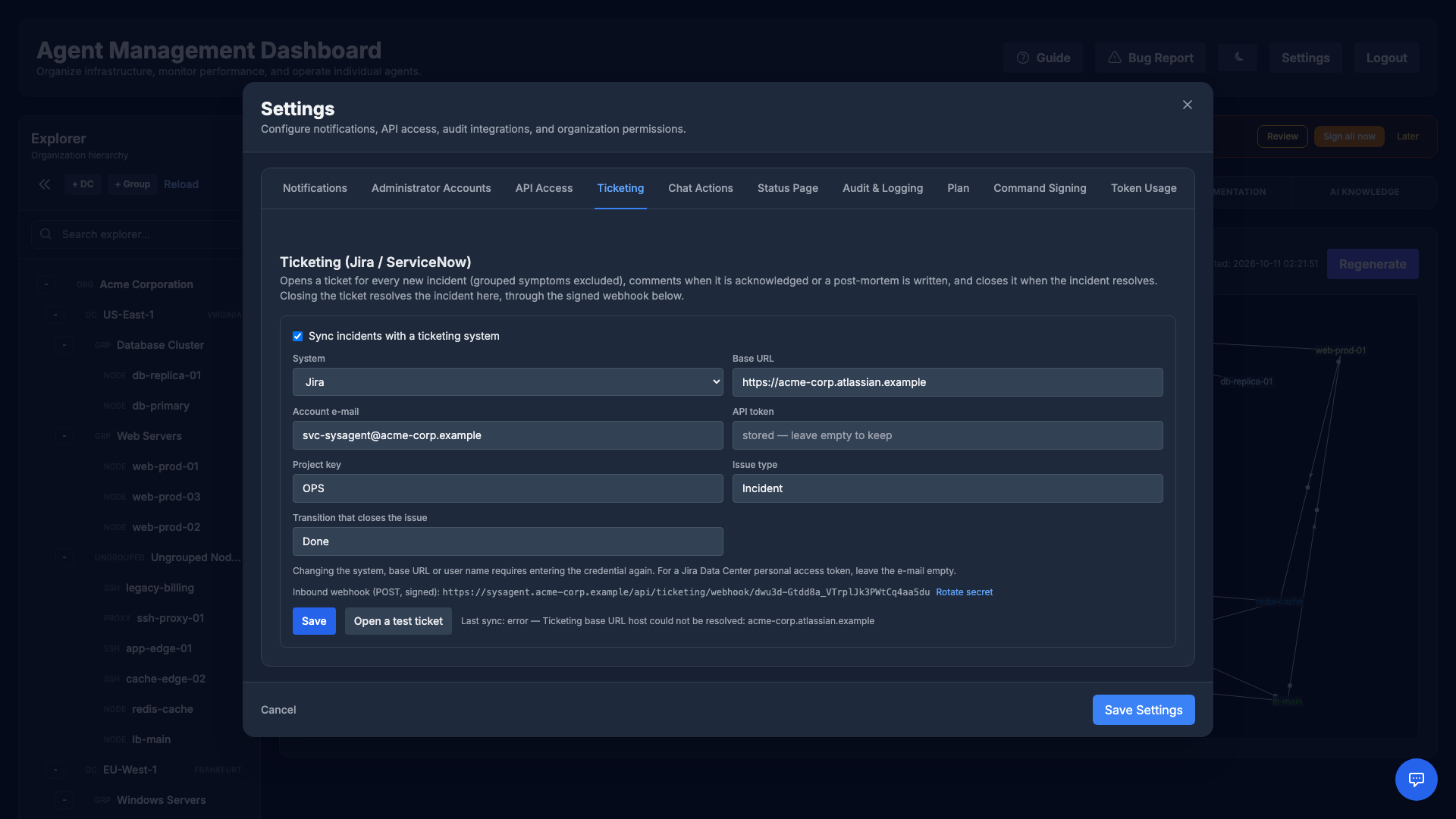
- One ticket per cause: A ticket is opened for every new incident that pages — symptoms grouped under it by correlation never get their own, and incidents from before the sync was enabled are not back-filled.
- Kept up to date: Acknowledging adds a comment, a written post-mortem adds a comment, and resolving closes the ticket (Jira: the transition you name,
Doneby default; ServiceNow: Resolved). A call that fails is retried with backoff and the last error is shown in the settings. - Closing the ticket resolves the incident: Point a Jira or ServiceNow webhook at the URL shown in the settings and sign the body with HMAC-SHA256 using the secret (header
X-Hub-Signature: sha256=<hex>). The organization comes from the webhook URL and the incident from that organization's own ticket link, never from the payload. - Credentials stay put: The API token (Jira Cloud, with the account e-mail), personal access token (Jira Data Center, leave the e-mail empty) or password (ServiceNow) and the webhook secret are encrypted with your organization's key and never shown again; the secret is displayed once, when it is generated or rotated. Changing the system, base URL or user name requires entering the credential again. The base URL must be a public
httpsaddress, is re-checked before every call and redirects are not followed. - Good to know: ServiceNow has no built-in webhook signing — send the callback from a Business Rule or Flow that computes the HMAC. Closing a ticket while the check is still failing resolves the incident, and the next failed result opens a new incident with a new ticket.
- Where to set it up: Settings → Ticketing (organization administrators), with an Open a test ticket button. Open incidents show their ticket as a link in Incidents.
Slack & Teams Actions
The on-call engineer is already in Slack when the alert arrives. Acknowledging an incident or approving a remediation there saves the trip to the dashboard — without giving the chat more power than the person pressing the button.
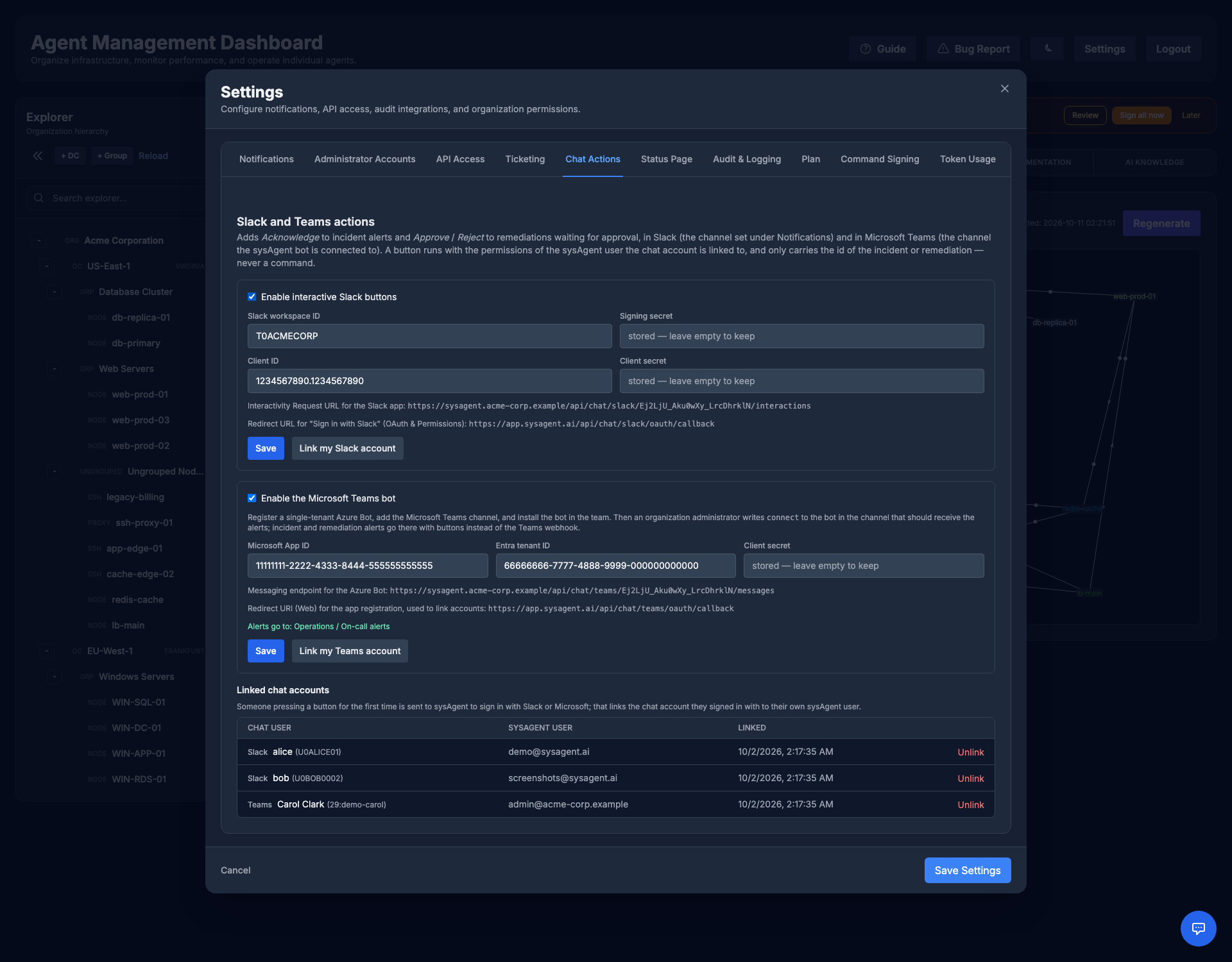
- Buttons: incident alerts get Acknowledge, remediations waiting for approval get Approve (with a confirmation) and Reject, and both get Open in dashboard when the manager's public URL is set. A button carries the id of the incident or remediation — never a command.
- Setup: create a Slack app with an Incoming Webhook (the Slack channel under Notifications), turn on Interactivity with the Request URL shown in Settings → Chat Actions, and add the Redirect URL shown there under OAuth & Permissions (Sign in with Slack). Enter the app's Signing Secret, Client ID, Client Secret and your workspace ID. The webhook must belong to the same app, or the buttons will not reach sysAgent.
- Verified clicks: every click must carry a valid Slack signature less than five minutes old and come from your workspace; anything else is refused. Alert text is escaped, so a message can never mention
@channelor show a link next to the buttons. - Your permissions, not the bot's: the first time someone presses a button, Slack sends them to sysAgent to Sign in with Slack. Slack itself confirms which account signed in, and it is linked to the sysAgent user who started the sign-in — so nobody can attach their Slack account to your user by sending you a link. From then on a click acts as that user, with their role in your organization; approving a remediation needs the same rights as in the dashboard. Administrators can see and remove links. A Slack login has no sysAgent two-factor check, so treat the Slack app's secrets like an approval credential.
- Audited: every acknowledge, approval and rejection from Slack is in the audit log with the Slack user id.
- Microsoft Teams: with the sysAgent bot, Teams gets the same buttons. Register a single-tenant Azure Bot, add its Microsoft Teams channel, set the bot's messaging endpoint to the one shown in Settings → Chat Actions, add the Redirect URI shown there to the bot's app registration, and enter the Microsoft App ID, client secret and your Entra tenant ID. Install the bot in the team; an organization administrator then writes
connectto the bot in the channel that should receive the alerts (nobody else can redirect them). Every request must carry a Bot Framework token signed by a key Microsoft publishes for Teams, issued for your bot and from your tenant; people link their Teams account with a Microsoft sign-in, exactly like Sign in with Slack, and a press acts with their sysAgent role. Card text is never interpreted as markdown. While the bot is connected, incident and remediation alerts go through it instead of the Teams webhook; other alerts (threats, system notices) still use the webhook.
Public Status Page
Tell your own customers whether the service is up without giving them a dashboard login — and without turning the page into a map of your servers. Nothing is public until you publish it, and every item on the page is chosen and named by hand.
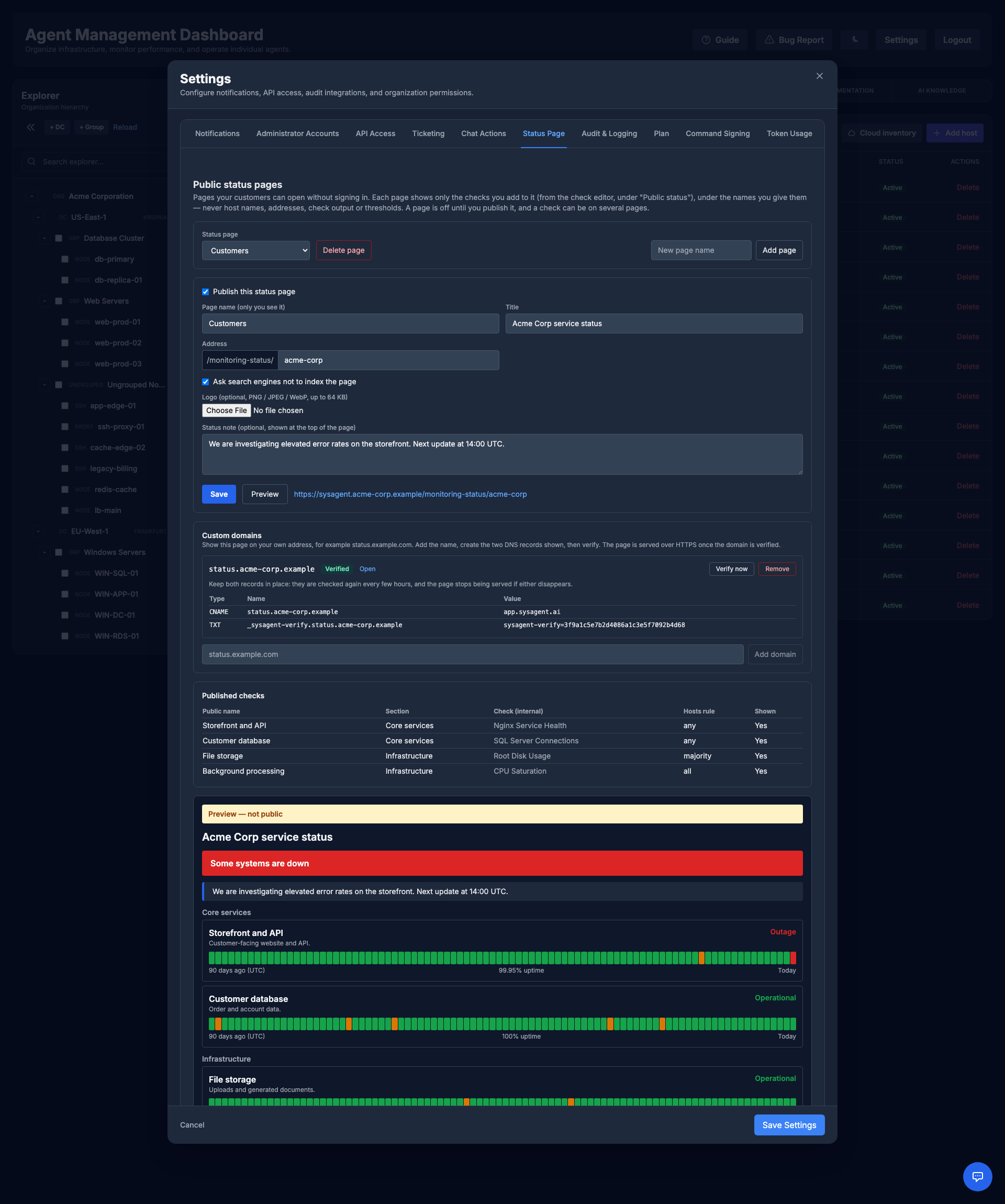
- Set it up: Settings → Status Page — page name, title, address (
/monitoring-status/your-name, 3–40 lowercase letters, digits and hyphens), whether search engines may index it, an optional status note such as “We are investigating slow checkout”, and an optional Logo (PNG, JPEG or WebP, up to 64 KB) shown at the top of the page. A changed address keeps redirecting for 30 days. - Several pages: an organization can keep up to 10 pages, each with its own address, checks, note and publish switch — for example one for customers and one for partners. Choose a page in the selector, use Add page for another, and a check can be shown on several pages under a different public name on each.
- Your own domain: in a page’s Custom domains add a name such as
status.example.com. The dashboard shows two DNS records to create: aCNAMEto our status address and aTXTrecord at_sysagent-verify.status.example.comthat proves you own the name. Once both are in place the domain is verified automatically (or press Verify now) and the page is served there over HTTPS at the root, with the JSON at/api/status.json. A page can have several domains; a domain whose DNS records are removed stops being served. Your administrator enables this on the server. - Choose the checks: open a check in Monitoring and fill in its Public status section: the status page, a public name, an optional description and section, and for checks on several hosts whether the item is down when any, most or all hosts fail.
- What it shows: Operational, Degraded (warning), Outage (critical), Under maintenance (a maintenance window) or No data, plus 90-day uptime bars. Host names, IP addresses, host counts, check output, thresholds and internal check names are never shown.
- Preview: the Preview button shows exactly what visitors will see, even before the page is published.
- For integrations: the same data as JSON at
/api/public/status/your-name.
Audit Log
Maintain a complete, tamper-evident record of activity across your organization. The Audit & Logging tab captures who did what and when — from logins and command executions to configuration changes.
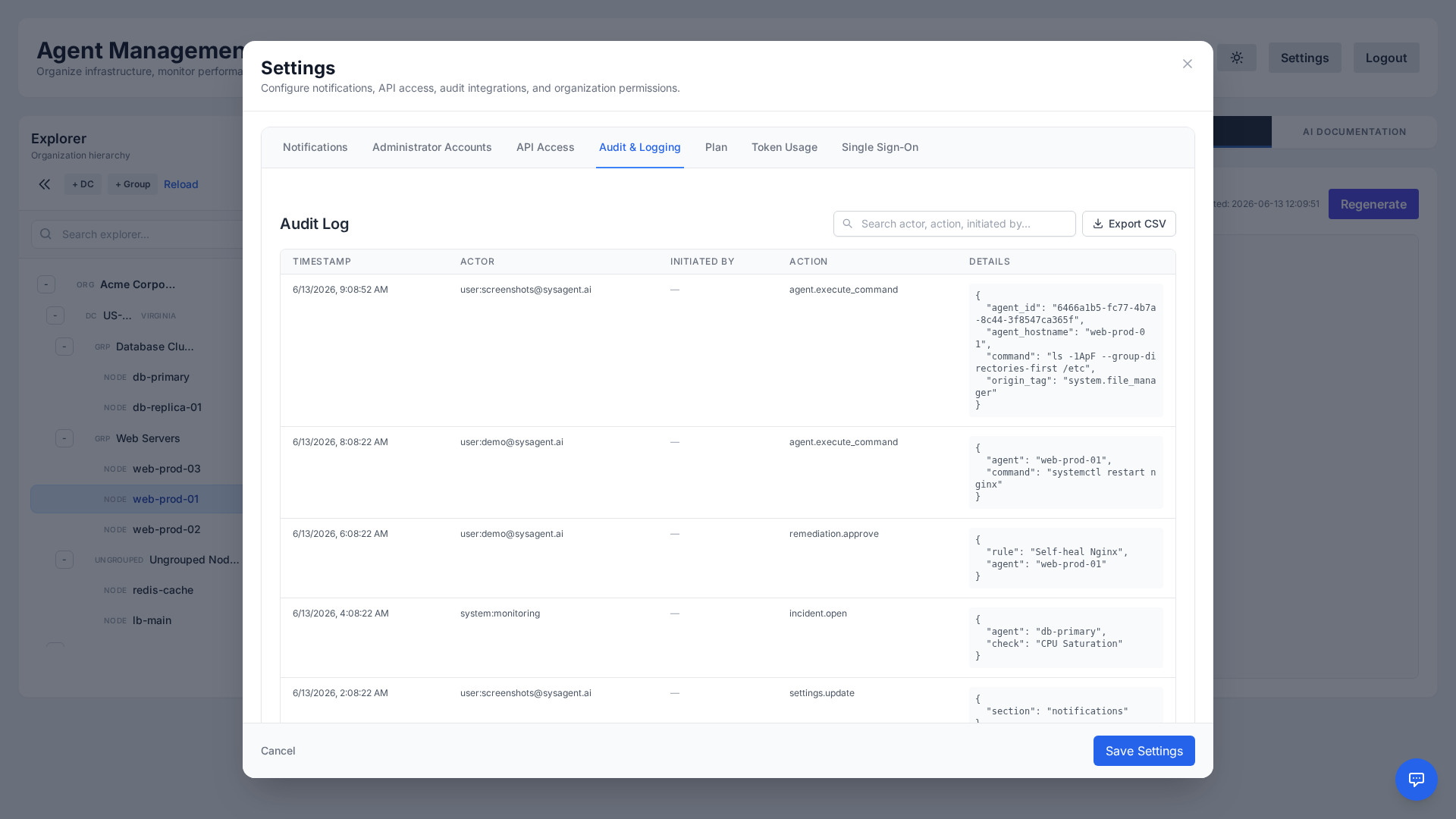
The log is paged (Prev / Next, with the total number of entries). Audit events can also be forwarded to an external SIEM from the same tab, helping you meet compliance requirements and investigate incidents with confidence:
- Remote Syslog: host, port and protocol (TCP or UDP).
- Splunk HEC: host, HEC port, HEC token and index.
Bring Your Own Key (BYOK)
For maximum privacy and scale, you can use your own OpenRouter API key — it is the only provider key accepted here. Open Settings → Plan → Bring Your Own Key (BYOK), paste the key (sk-or-…), optionally name a preferred OpenRouter model, and switch on Enable Custom Key.
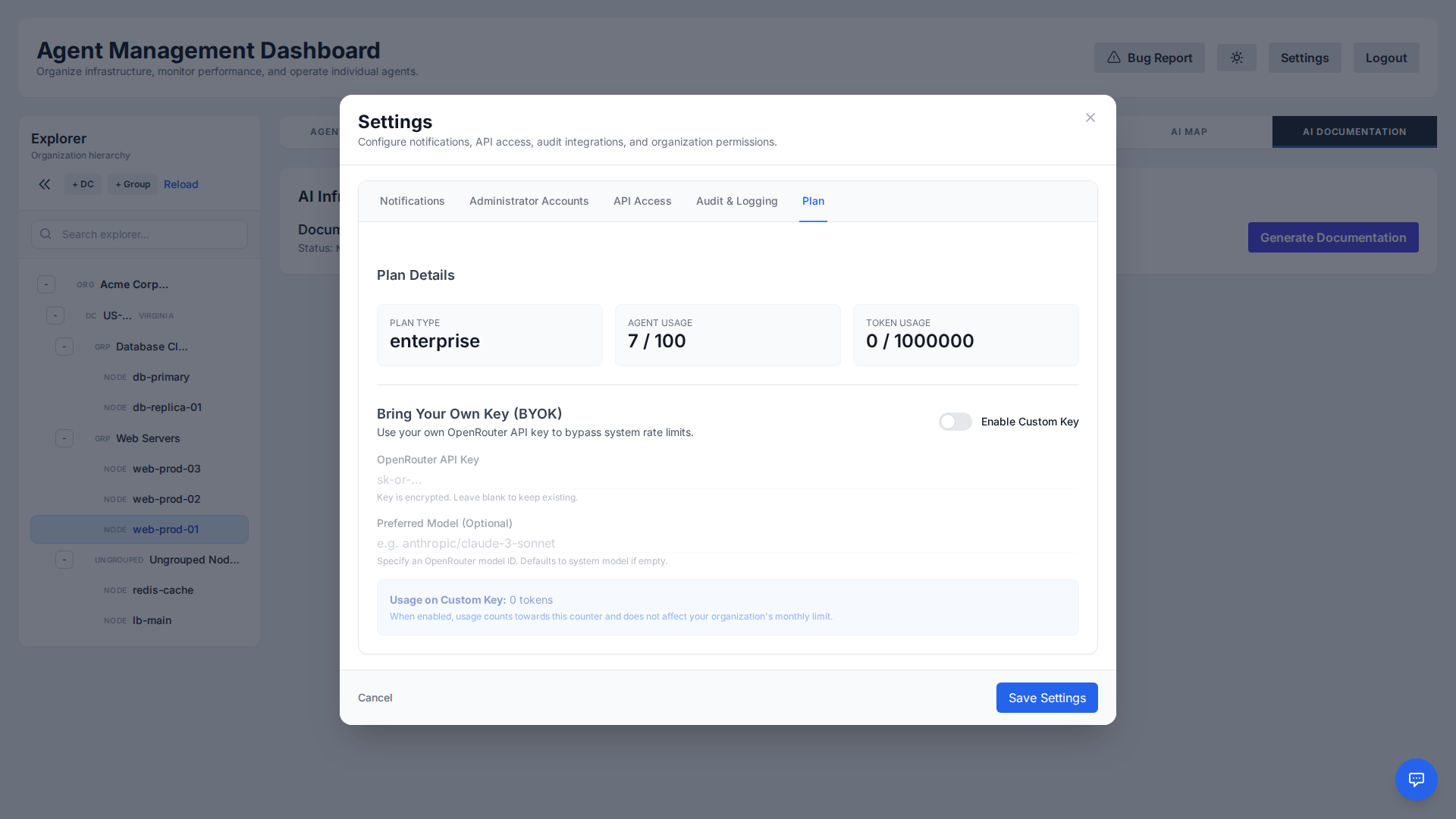
This ensures that:
- Usage is billed directly to your account.
- You get unlimited tokens on our platform (no longer bound by the Free Tier token limit).
- You can use custom models not provided in the default tier.
The key is encrypted at rest using AES encryption before being stored in the database.
Local LLM Backend
For maximum data privacy, you can run AI inference on your own OpenAI-compatible model (Ollama, LM Studio, vLLM, LocalAI, llama.cpp) instead of the cloud. With the Local LLM via agent backend, the manager never connects to — or even stores the address of — your model: it dispatches the request down the existing agent connection, and an LLM-capable agent sitting next to your model serves it. Prompts never leave your network.
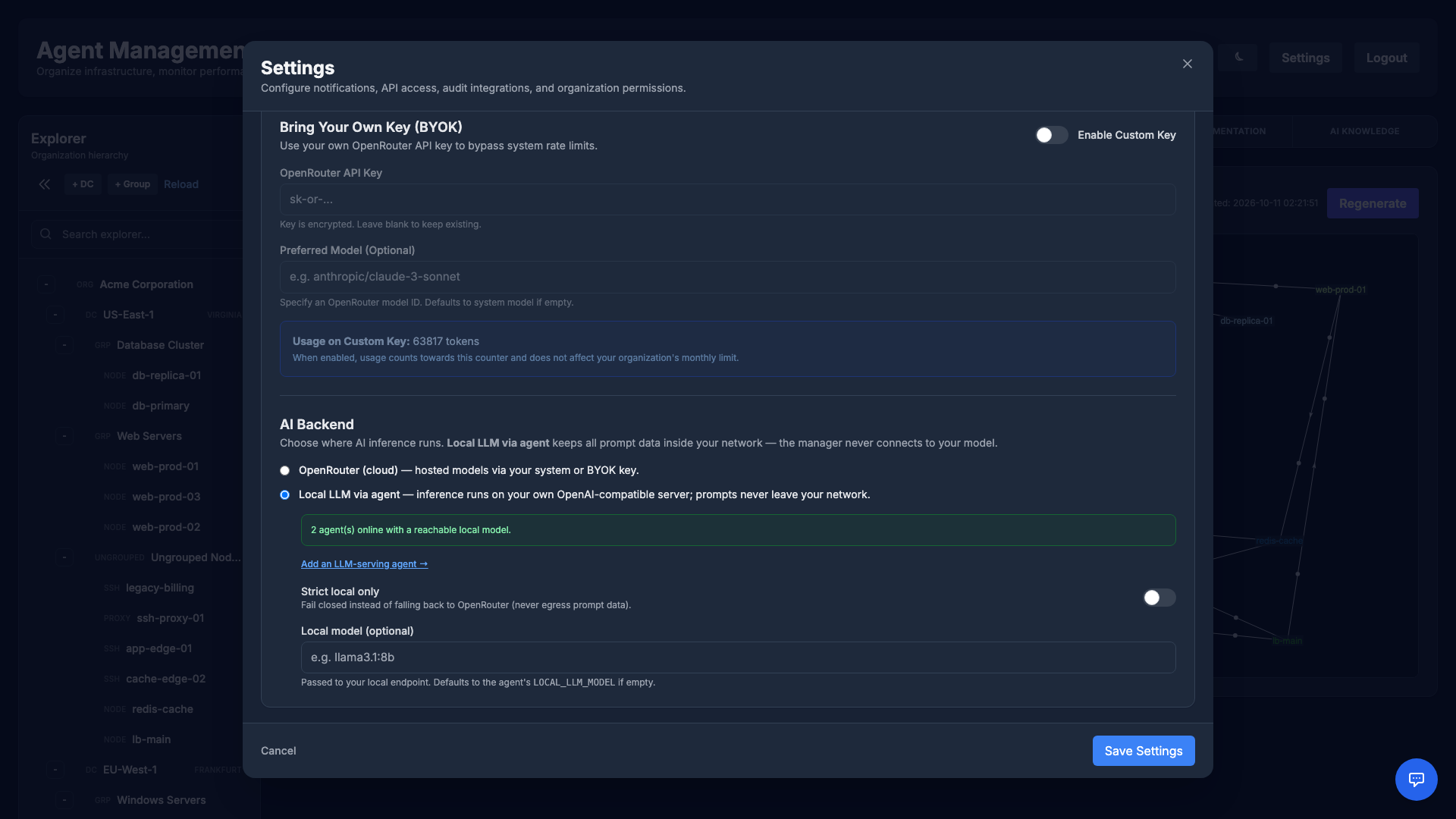
Stand up a serving agent
In Add Hosts → Install agent, choose the Local LLM backend installation type and point it at your model's endpoint (for example http://127.0.0.1:11434/v1 for Ollama). The installer bakes LOCAL_LLM_BASE_URL (and an optional model and API key) into the agent's service so it can serve inference locally.
Choose the backend
From Settings → Plan → AI Backend, switch your organization between OpenRouter (cloud) and Local LLM via agent. The panel shows how many agents are online with a reachable local model, and the AI chat streams tokens live as your local model produces them.
- SSRF-safe: The agent only ever calls its own preconfigured endpoint — never a URL taken from a message — so a rogue message can't turn it into a proxy.
- Strict local only: Enable this to fail closed — if the local model is unavailable, requests are refused rather than falling back to the cloud, so prompt data is never sent to a third party.
- Resilient: Requests spread across all of your eligible agents and prefer one with a reachable model; unless strict-local is on, a local outage transparently falls back to OpenRouter.
End-to-End Command Signing
Command Signing lets your agents cryptographically verify that every command truly came from your organization — so that even a fully compromised manager cannot forge, tamper with, or widen what your agents run. Your organization's private signing key (Ed25519) is generated and stored only in your browser and is never sent to the manager.
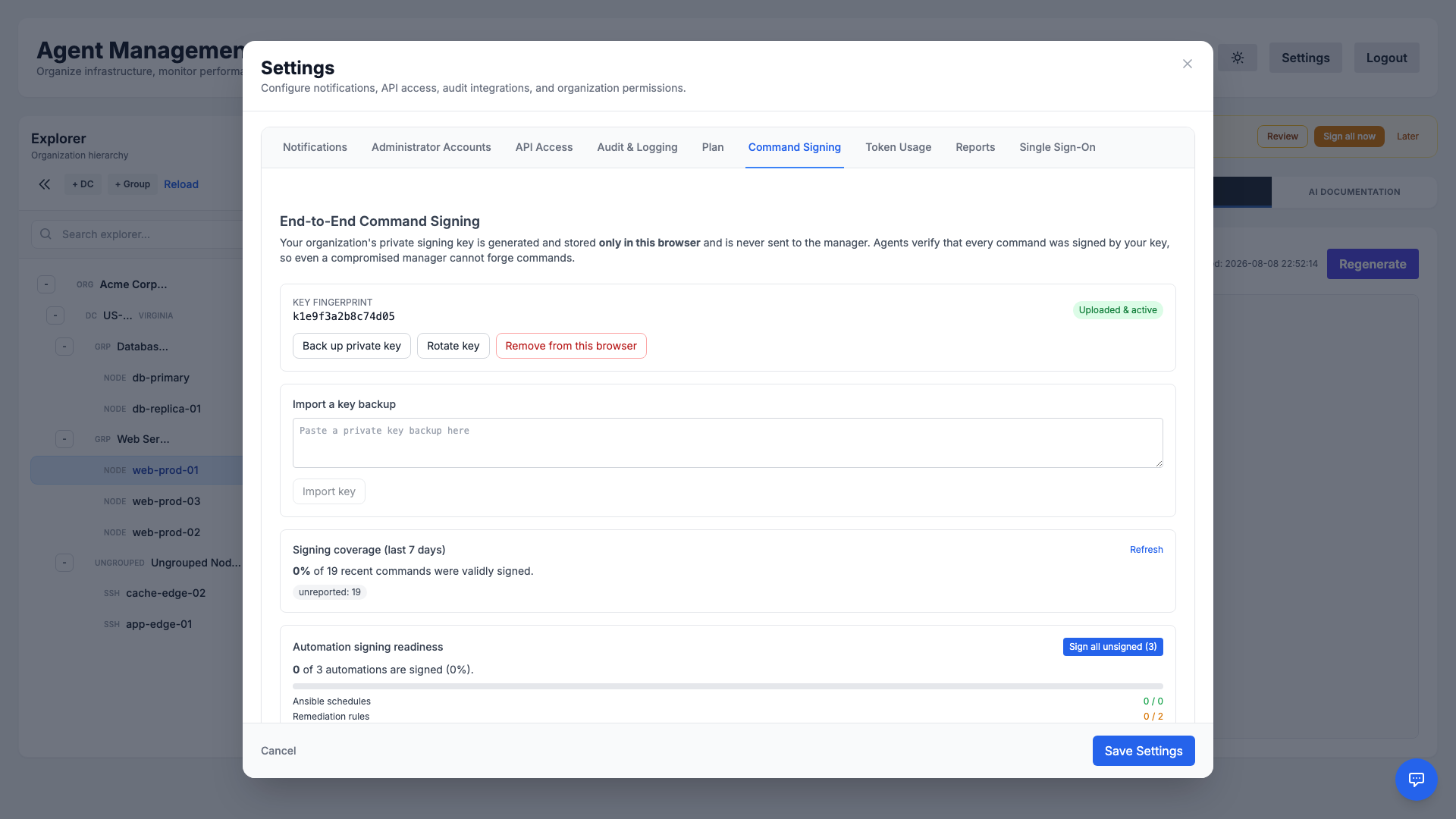
- Browser-held key: Generate the key on your device, then back it up — it cannot be recovered if lost. Import the backup on any other device you sign from.
- Verify, rotate, revoke: The manager stores only the public half. Rotate the key or remove it from a browser at any time.
- Signing coverage: See what share of recent commands were validly signed, and one-click sign your automations — Ansible schedules, remediation rules, and Terraform schedules — so they run signed too.
Per-admin keys, hardware protection & enforcement
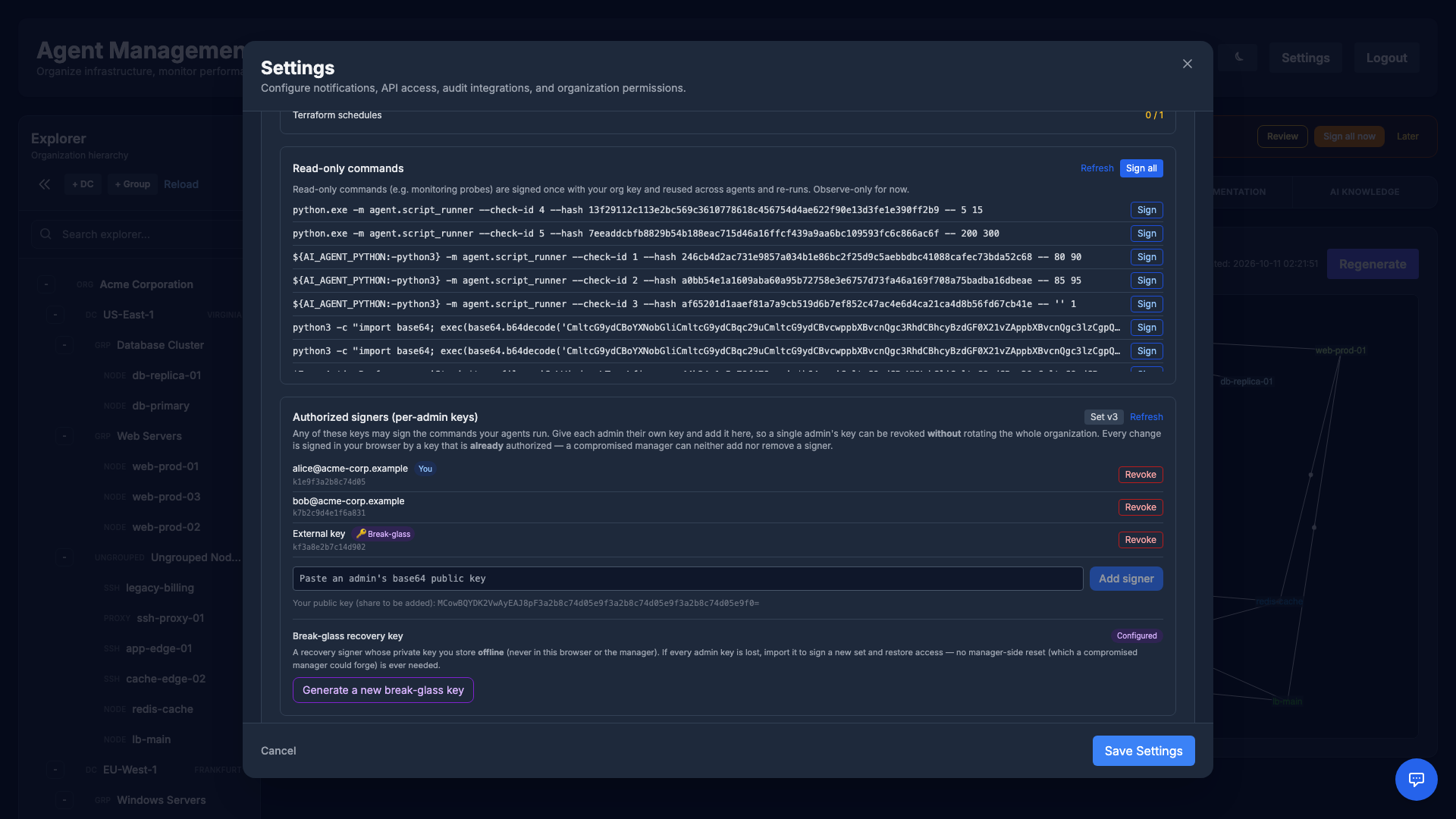
- Authorized signers (per-admin keys): Give each administrator their own signing key and add it to the organization's signer set, so any of them can sign the commands your agents run. A single admin's key can be revoked without rotating the whole organization, and every change is co-signed in the browser by a key that is already authorized — so a compromised manager can neither add nor remove a signer.
- Security-key (YubiKey) protection: Optionally encrypt this browser's copy of the key with a hardware security key or passkey (WebAuthn). The stored key stays unusable unless your security key is present — at-rest protection for that device, on top of your offline backup.
- Break-glass recovery: Generate a recovery key whose private half you store offline. If every admin key is lost, import it to sign a new set and restore access — there is never a manager-side reset a compromised manager could abuse.
- Enforcement modes: Move from Observe (report only) to Soft (report what would be rejected, still runs) to Hard (agents reject any command whose signature doesn't verify). Sign your backlog first, then enforce.
Token Usage
Understand and control your AI consumption. The Token Usage tab visualizes how many tokens your organization has used over time, broken down by activity.
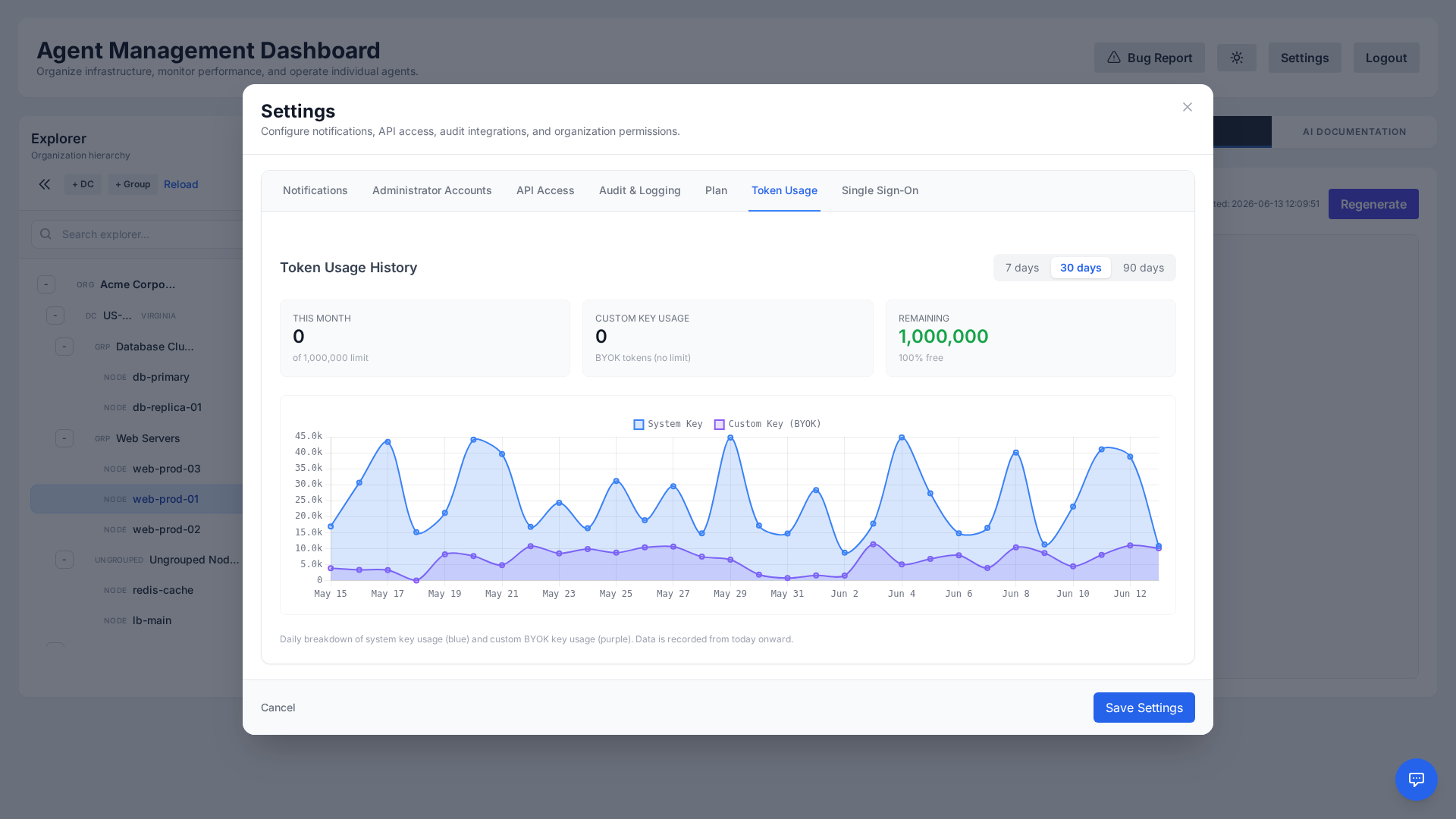
Use these insights to forecast costs, spot unusual spikes, and decide whether to bring your own AI key (see BYOK) for unlimited usage.
Operations Reports
Produce shareable operations reports covering fleet health and incident metrics for your organization. From Settings → Reports you can download an on-demand report or schedule recurring email delivery.
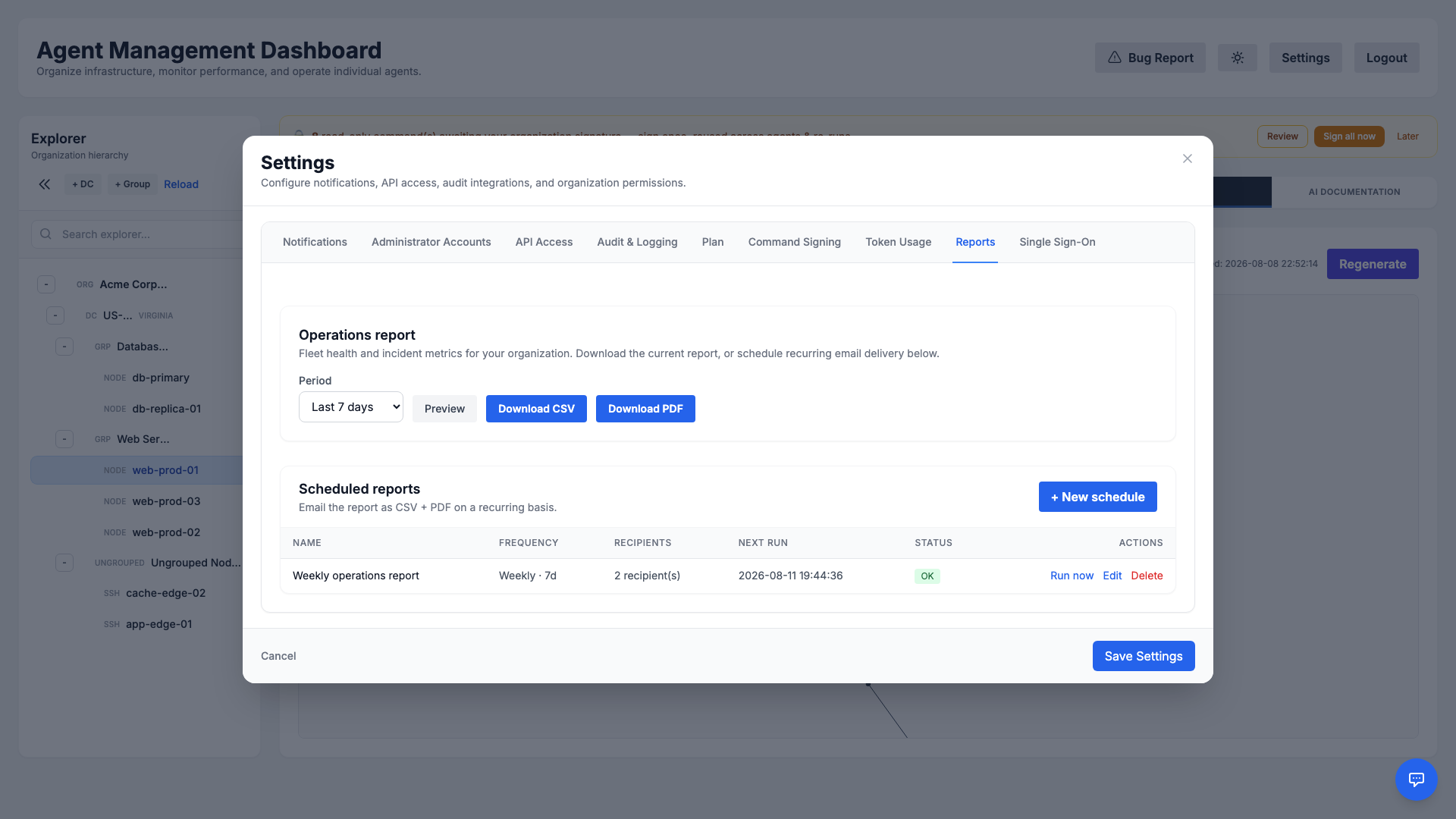
- On-demand: Pick a period (e.g., the last 7 days), preview it, then download as CSV or PDF.
- Scheduled delivery: Create recurring schedules that email the report (CSV + PDF) to one or more recipients on a daily, weekly, or monthly cadence.
- At-a-glance status: Review each schedule's frequency, recipients, next run time, and last run status, and run any schedule immediately.
Single Sign-On (SSO)
Streamline access and centralize identity with Single Sign-On. Administrators can connect the platform to an external identity provider from Settings → Single Sign-On so users authenticate with your organization's existing credentials.
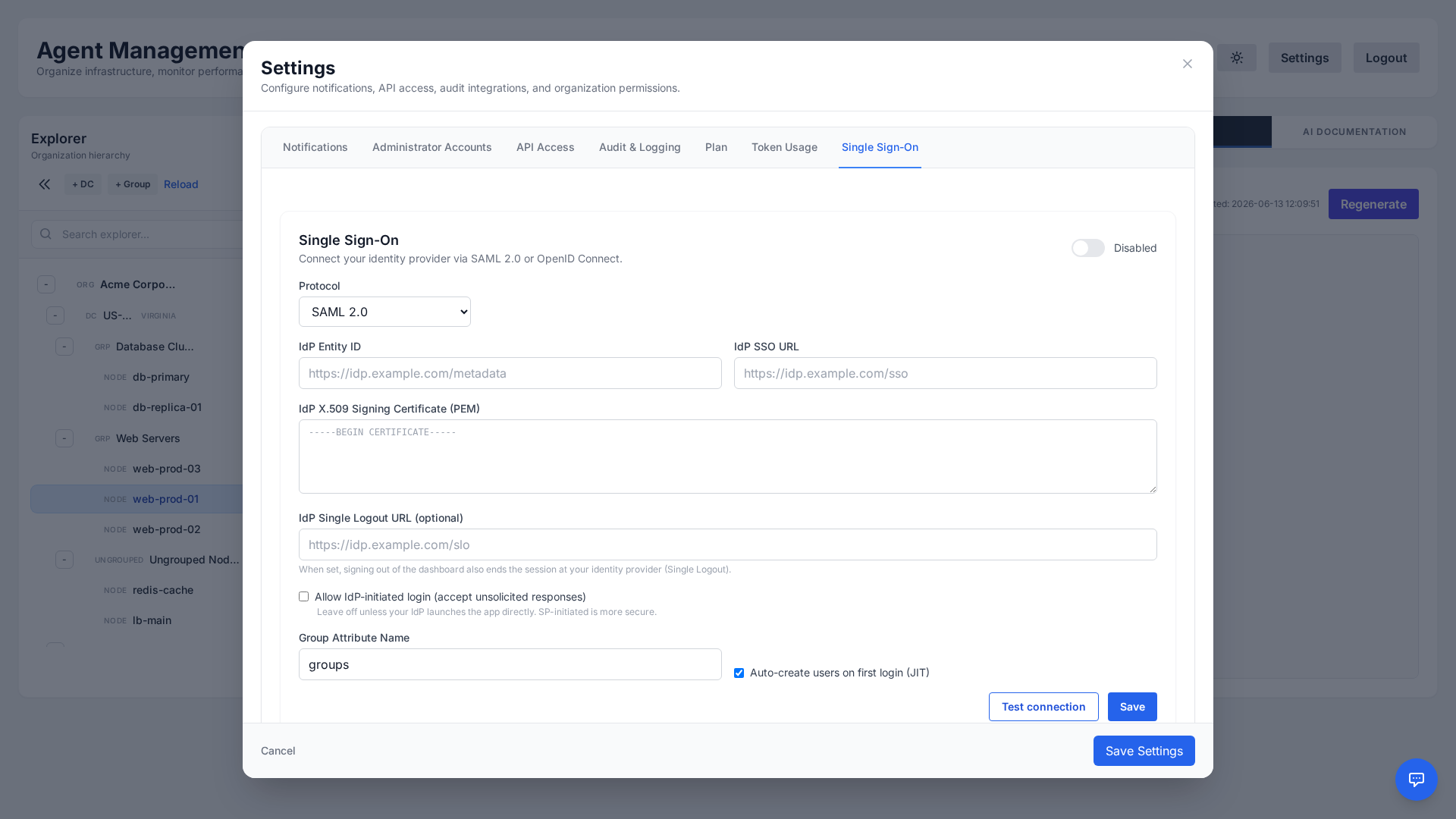
- Protocols: SAML 2.0 (IdP entity ID, SSO URL and X.509 signing certificate) or OpenID Connect (issuer URL, client ID and client secret).
- Service Provider details: the values to enter in your IdP — for SAML the entity ID / audience, ACS (reply) URL and SP metadata URL; for OIDC the redirect URI — plus the login URL to share with users.
- Group → Role mappings: map an IdP group (read from the group attribute or groups claim) to Administrator, Operator or Viewer. Users with no matching group are denied; when several groups match, the highest role wins.
- Just-in-time users: Auto-create users on first login (JIT) creates the account the first time someone signs in through the IdP.
- IdP-initiated login (SAML, off by default): accept unsolicited responses when your IdP launches the app directly; SP-initiated login is more secure.
- Single Logout (SAML, optional): with an IdP Single Logout URL, signing out of the dashboard also ends the session at your identity provider.
- Test connection: checks the configuration and lists each check as passed or failed before you rely on it.
SSO reduces password sprawl, enforces your organization's authentication policies, and simplifies onboarding and offboarding of team members.
Agent Auto-Update
The agent is designed to be self-maintaining. It automatically checks for updates every 5 minutes.
Update Process
- Check: The agent polls the central server for a new version.
- Download: If an update is found, it securely downloads the package over HTTPS.
- Install: The package is unpacked into a staging directory and then moved into the install directory, so a broken download never leaves a half-updated agent. Python dependencies are reinstalled only when
requirements.txtdiffers from what was last installed successfully, and pip is stopped after 15 minutes, so a version bump never depends on PyPI being reachable. - Restart: Once the new files are in place the agent always restarts into them (via systemd or Scheduled Tasks). A command that is still running delays the update by at most 30 minutes.
The agent reports its running version every time it connects. Registered agents marks any agent older than the published version as outdated; one that stays outdated for more than a few minutes usually needs its service restarted.
Note: The agent uses a jitter mechanism (random delay) on startup and reconnection to prevent "thundering herd" issues on the server.
Command Confinement
The agent executes administrator-supplied commands as root. Three optional, agent-local controls narrow what those commands can do. All are configured on the host itself — nothing is pushed from, or reported to, the manager.
- Run as another user (
AI_LINUX_SANDBOX_RUNAS): commands execute as the configured account. This is fail-closed — if the user does not exist the command is refused rather than quietly running as root. - Syscall filtering (
AI_LINUX_SANDBOX_SECCOMP, Linux x86-64): blocks kernel module loading,kexec,ptrace, cross-process memory writes and raw I/O port access — things a management agent never needs and an attacker who reaches command execution always wants. A blocked call fails with a clear error rather than the process vanishing. - Write confinement (
AI_LINUX_SANDBOX_WRITE_PATHS, a colon-separated list of absolute directories, Linux 5.13+ with Landlock): commands can still read and run anything, but can only create, change, move or delete files beneath the listed directories (plus/dev/null; truncating a file elsewhere is only blocked on Linux 6.2+). For example/var/log/myapp:/tmp— keep/tmpin the list, ormktemp,sortand most package managers fail. Writes elsewhere fail with Permission denied, including/proc/sysand package installs, so list every directory your runbooks change. A directory that another user could replace (for example one inside a shared, non-sticky directory) is refused and the command is blocked. Two limits: it confines writes by path, so a root command can still ask a privileged service to write for it (systemd-run,docker) and can stillchmod/chownanything — combine it with Run as another user; andsudoinside a confined command no longer elevates. Ubuntu and Debian enable Landlock; RHEL, Rocky, Alma and Oracle Linux needlsm=…,landlockon the kernel command line, and without it commands run unconfined with a warning in the agent log. - What it is not: This is defence in depth, not a jail.
mount,unshare,bpfandperfstay available on purpose, because a sysadmin agent legitimately needs them and a sandbox that breaks real remediation work gets switched off. Approval workflows remain the real control.
Manager Backups & Platform Alerts
For teams that run their own manager: the manager can back up its own database on a schedule, and tell the operator when something about the platform itself is wrong — separately from the alerts your organizations configure for their servers.
- Encrypted backups: every
BACKUP_INTERVAL_HOURS(default 24) the manager dumps its database, adds a manifest with a checksum and the schema revision, and encrypts the archive with AES-256-GCM in authenticated 1 MiB chunks. Archives are stored inBACKUP_LOCAL_DIRor in an S3-compatible bucket (AWS, MinIO, Ceph) and pruned by a daily / weekly / monthly retention (BACKUP_KEEP_*). - Your key, kept elsewhere: the backup key is generated once, differs from the manager's own encryption key and must be stored outside the server — without it no backup can be restored. Backups are off until
BACKUP_ENABLED=true. - Admin portal → Backups: shows the state (ok, failing, overdue), the last runs and a Run backup now button.
- Check before you need it:
python -m tools.backup_restore verifydecrypts an archive and checks its integrity (a SQLite integrity check, or apg_restoredry run for PostgreSQL); the restore steps are in the deployment guide. - Platform alerts: a failed or overdue backup, and its recovery, is sent by e-mail to
PLATFORM_ALERT_EMAILS(every active master administrator when empty) and, optionally, as JSON toPLATFORM_ALERT_WEBHOOK_URL. This channel is independent of every organization's notification settings, so a tenant cannot silence it and never sees it. - Large installations: on PostgreSQL the telemetry table can be converted to monthly partitions so retention drops whole months instead of running a huge delete; hourly and daily rollups keep long charts fast while raw samples are pruned after 30 days.
Bug Reporting
Encountered an issue? Click Bug Report in the dashboard header to describe it and attach screenshots, or report it through the API.
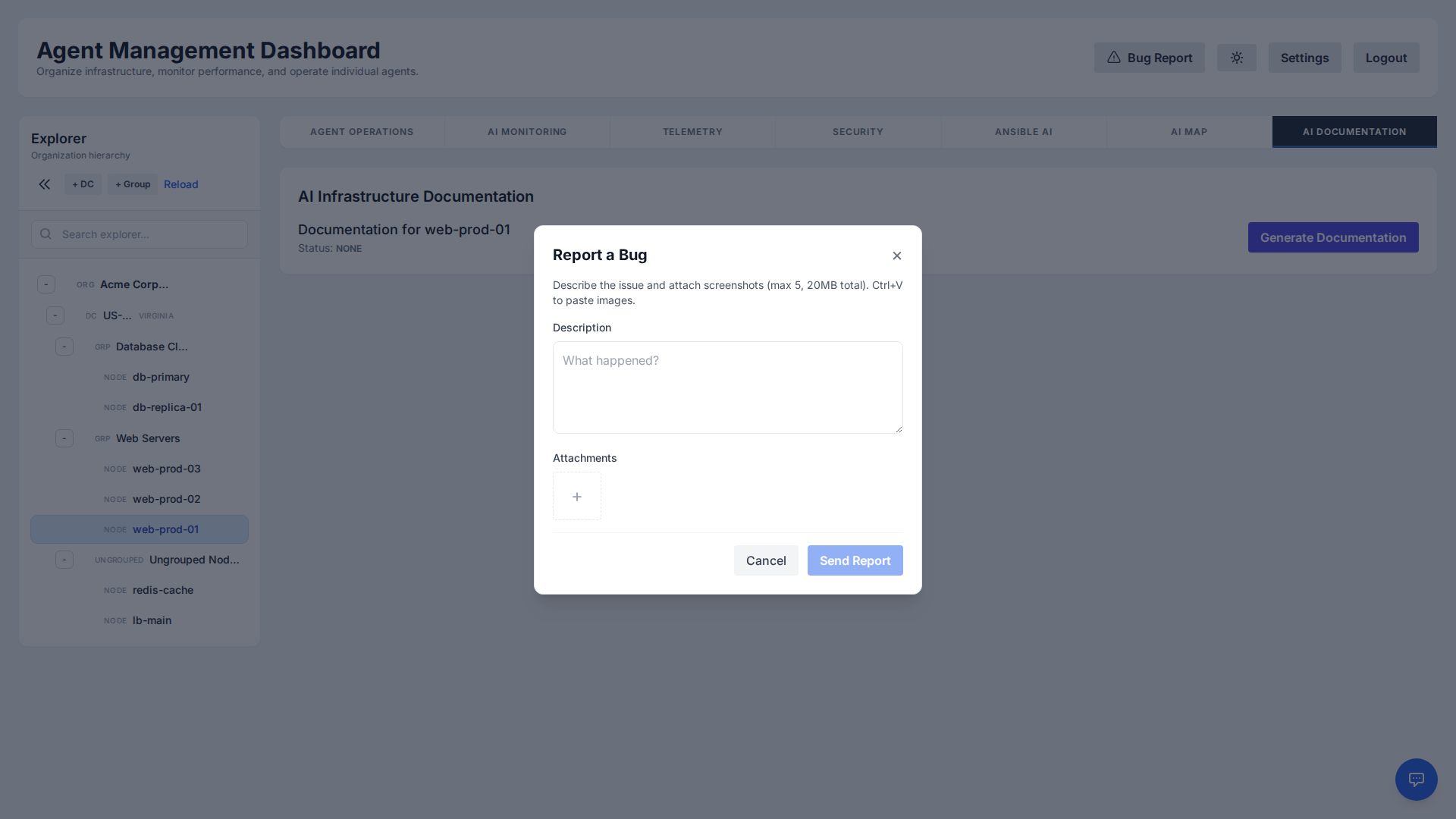
Requirements
- Format: Only image files (screenshots) are accepted.
- Limit: Maximum 5 files per report.
- Size: Total combined size must not exceed 20MB.
Reports are automatically sent to our support team with diagnostic context.
Troubleshooting
Linux Agent not connecting?
- Check if the service is running:
systemctl status ai-linux-agent - View logs:
journalctl -u ai-linux-agent -f - Ensure outbound traffic to port 443 is allowed.
Windows Agent not connecting?
- Check the Scheduled Task "AI System Agent".
- View logs located at
C:\ProgramData\AI System Agent\Logs\agent.log - Ensure outbound traffic to port 443 is allowed and PowerShell scripts are not blocked by strict Execution Policies.